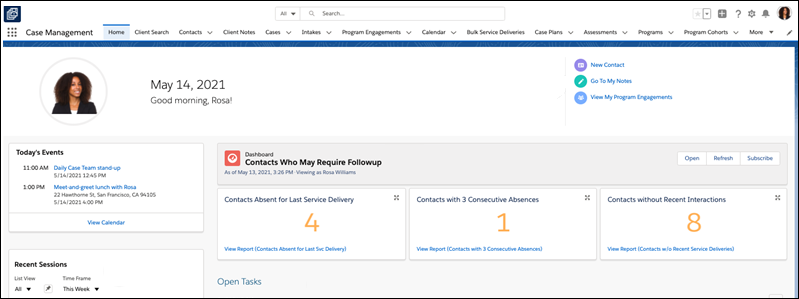
Customize your Case Management home tab.
- Customize the Recent Sessions Component
The Recent Sessions section on the Home tab shows users all completed and pending Service Sessions from the current and previous week. - Configure the Contacts Who May Require Followup Dashboard
If you started using Case Management prior to the Summer '21 release (July 13, 2021), perform these setup steps to ensure the that Contacts Who May Require Followup dashboard renders properly.
Customize the Recent Sessions Component
The Recent Sessions section on the Home tab shows users all completed and pending Service Sessions from the current and previous week.
By default, the Service Sessions shown are those from the All list view on the Service Session tab, but users can select other list views.
You can change the Service Session fields that are shown on the Recent Sessions section of the Home tab.
- Click
 , then click Setup.
 -
Click Object Manager.
-
Click Service Session.
-
Click Field Sets.
-
Click RecentSessionsView.
-
Drag fields to or from the palette and the In the Field Set box.
-
Click Save.
You can also configure additional list views that users can select from the Recent Sessions list.
-
From the App Launcher, find and select Service Sessions.
-
From
 , select New.
 -
Give the list view a name. Salesforce populates the List API Name automatically.
- Select All users can see this list view or Share list view with groups of users.
-
Click Save.
-
Edit the list view filters and save your changes.
Configure the Contacts Who May Require Followup Dashboard
If you started using Case Management prior to the Summer '21 release (July 13, 2021), perform these setup steps to ensure the that Contacts Who May Require Followup dashboard renders properly.
-
Update the running user for the dashboard.
-
In Case Management, click the Dashboards tab.
-
In the row for the Contacts Who May Require Followup dashboard, click
 , then click Edit.
 -
Click
 to edit dashboard properties.
 -
In the View Dashboard As section, choose The Dashboard Viewer.
-
Click Save.
-
-
Add the report components for the three reports.
-
Back on the dashboard, click +Component.
-
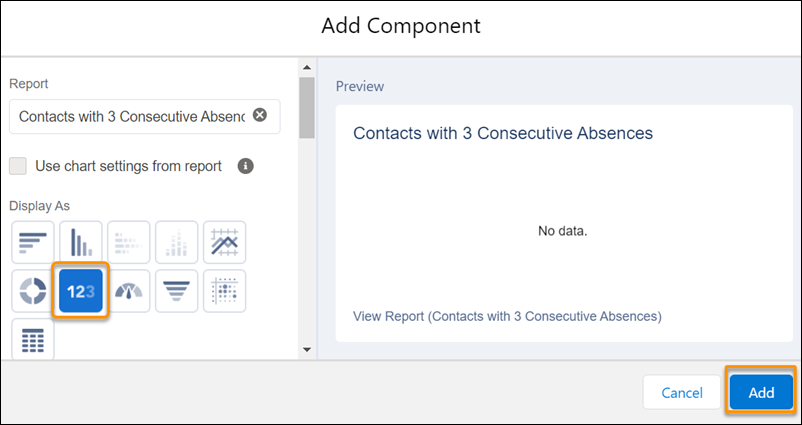
Choose the Contacts with 3 Consecutive Absences report, then click Select.
-
Change Display As to a Metric Chart.
-
Click Add.
-
Repeat these steps for the other two reports:
-
Contacts Absent for Last Svc Delivery
-
Contacts w/o Recent Service Deliveries
-
-
-
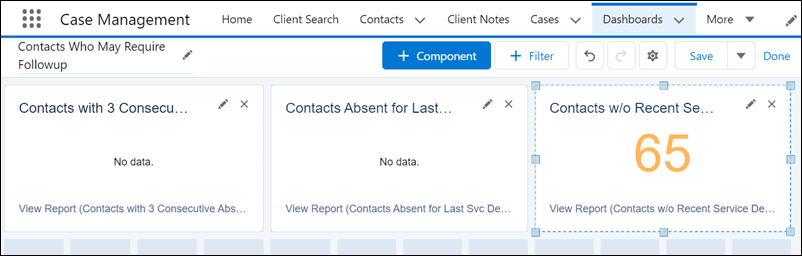
Drag the components to arrange them in one horizontal row and resize them to fit the width of the dashboard.
-
Click Save, then click Done.
Return to the Case Management Home page to see the dashboard in action!