
Customize the Goal and Action Item fields on a Case Plan.
The fields available on a Goal created from a Goal Template or an Action Item created from an Action Item Template are determined by Field Sets. By default, new Goals and Action Items use the Case Plan Viewer field set. You can add fields to that field set, but keep in mind that those fields will show for all Goals and Action Items using the Case Plan Viewer field set. Alternatively, you can create your own field sets and apply them to specific Goal or Action Item Templates, so that records created from those templates show only the relevant fields.
- Customize Goals on Case Plans
Create custom fields to display on Goals on a Case Plan. - Configure Action Items on Case Plans
Create custom fields to display on Action Items on a Case Plan. - Create and Add Field Sets for Specific Goals or Action Items
You can add field sets that apply to specific Goals or Action Items. Click Setup gear icon, then click Setup.
Customize Goals on Case Plans
Create custom fields to display on Goals on a Case Plan.
-
In Setup, create your custom field on the Goal object.
-
Make sure the field is Visible to these Profiles: Case Manager: Salesforce, Case Manager: Salesforce Platform, and System Administrator.
-
Add the field to the Goal Layout.
-
-
Add the custom field on the Goal page layout.
-
Click Page Layouts.
-
Click Goal Layout.
-
Drag your custom field into the page layout.
-
Click Save.
-
-
Add the field to the Case Plan Viewer field set.
-
Click Field Sets.
-
Click Case Plan Viewer.
-
Drag your custom field into the field set.
-
Click Save.
-
Configure Action Items on Case Plans
Create custom fields to display on Action Items on a Case Plan.
-
In Setup, create your custom field on the Action Item object.
-
Make sure your field is Visible to these Profiles: Case Manager: Salesforce, Case Manager: Salesforce Platform, and System Administrator.
-
Add the field to the Action Item Layout.
-
-
Add the custom field to the Action Item page layout:
-
Click Page Layouts.
-
Click Action Item Layout.
-
Find the custom field(s) you added.
-
Drag your custom field(s) onto the page layout.
-
Click Save.
-
-
Add a field to the Case Plan Viewer field set:
-
Click Field Sets.
-
Click Case Plan Viewer.
-
Drag your custom field into the field set.
-
Click Save.
-
When you view the Case Plan Viewer, you will see your custom Goal and Action Item fields.

Create and Add Field Sets for Specific Goals or Action Items
You can add field sets that apply to specific Goals or Action Items. Click Setup gear icon, then click Setup.
-
Click
 , then click Setup.
 -
Click Object Manager.
-
In the list of objects, select either Goal or Action Item, then click Field Sets.
-
Click New.
-
Enter a label and name for your field set. For example, Financial Goals and Financial_Goals.
-
For “Where is this used?”, enter where you plan to use the field set. For example, Use this field set on goal templates to determine which fields a Case Manager must enter when creating a goal for the Financial Literacy Program.
-
Click Save.
-
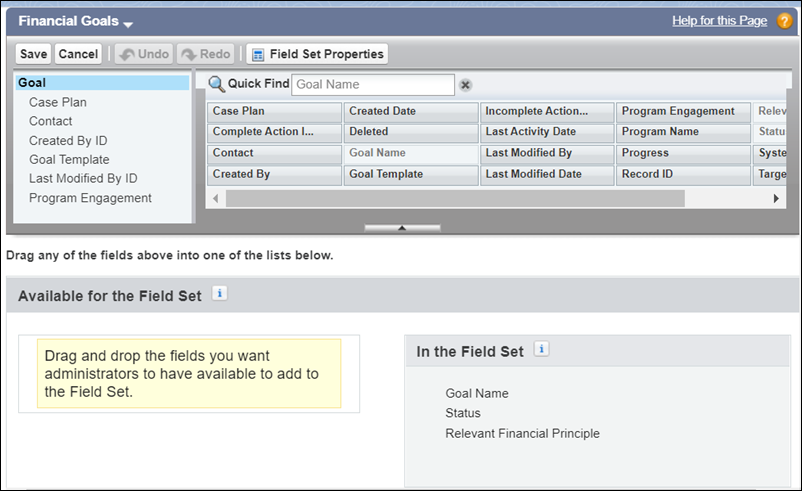
Select the fields that you want to display in the field set. For example, for a Financial Goals field set, you might have created a field called Target Credit Score or Relevant Financial Principle that you want to include in your field set.
-
Click Save.
Next, add the field set as a value in the Field Set picklist on a Goal or Action Item template. See Select the Field Set on the Goal or Action Item Template
- Select the Field Set on the Goal or Action Item Template
To show specific fields on the Goal or Action Item templates, indicate the field set.
Select the Field Set on the Goal or Action Item Template
To show specific fields on the Goal or Action Item templates, indicate the field set.
-
Click Object Manager, and click Goal Template or Action Item Template.
-
Click Fields & Relationships, then select the field called Field Set.
-
Scroll down to Values and click New.
-
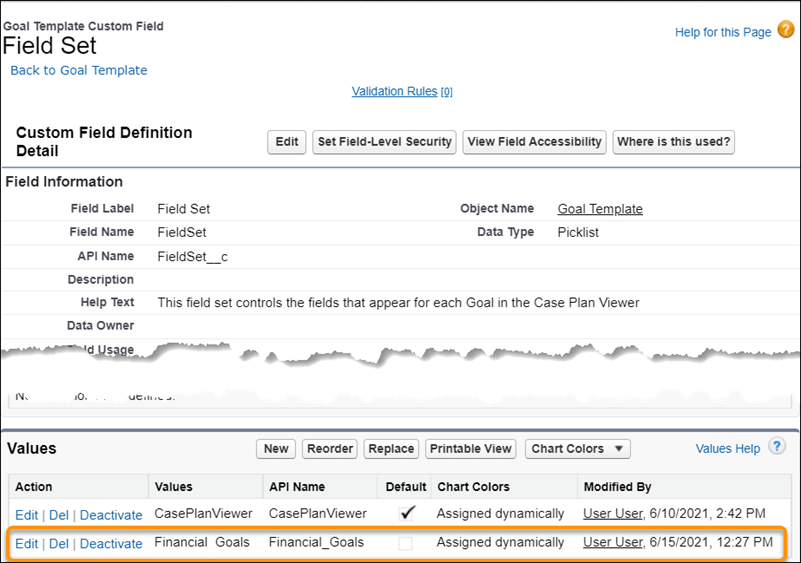
Enter an API name that exactly matches the field set name you created in Customize Case Plan Goals and Action Items. For example, Financial_Goals.
-
Click Save.
-
Click Edit next to the Value you just added.
-
Remove any underscores from the Label field. For example, your Label field would say Financial Goals.
-
Click Save.
-
Navigate to the Goal Template record or Action Item Template record that uses the field set you created. Click to edit the Field Set field, then select the name of the field set you created.
-
Click Save.