
Specify when to run the Accounting Subledger job to generate transaction journal records.
| Available in: Lightning Experience |
| Available in: Enterprise, Performance, Unlimited, and Developer Editions with Accounting Subledger |
| User Permissions Needed | |
|---|---|
| To run Accounting Subledger jobs: |
Manage Accounting Subledger OR Run Accounting Subledger Job |
| To create flows: | Manage Flow |
Before setting up the Accounting Subledger job schedule, make sure that you completed these prerequisites.
- You turned on transaction journal creation.
- You're a Salesforce Admin, or you meet all of these requirements:
- You have the Manage Accounting Subledger or Run Accounting Subledger Job permission set assigned to you.
- You have the Manage Flow permission set assigned.
- You're the default workflow user.
- At least one accounting set is active.
We recommend that you run the Accounting Subledger job manually at least once to verify your configuration and confirm the results before scheduling the job.
- From Setup, in the Quick Find box, enter Flows, and then select Flows.
- Click New Flow, Schedule-Triggered Flow, and then Create.
- Click Set Schedule.
- Enter a start date, start time, and frequency that serves the needs of your accounting team. A daily frequency exceeds the monthly allotment included in your license, so we recommend that you start with a cadence of one to two times a week, or less. For optimal performance, we recommend that you select a time outside business hours, and that you consult your accounting and finance teams to determine the best schedule.
- Click Done.
- Hover over
 and click
  , and then Subflow.
 - Search for and then select Subledger Job.
- Enter a label and, if needed, a description and then click Done.
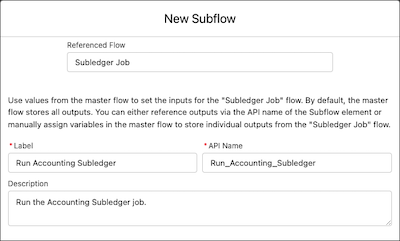
- Save your changes.
- Enter a flow label and, if needed, a description and then save your changes.
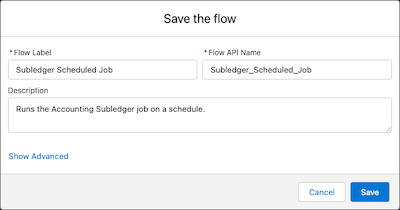
- Save your changes.
- Activate your flow.
See Also:

Note Jobs can take up to two hours or more to be completed.