
For educational institutions, a key part of their mission is serving learners during their application journey and matriculation into a particular school. From on-campus to online learning—and especially within higher education—these institutions interact with prospective and enrolled students across the recruiting and admissions cycle.
| Available in: Lightning Experience |
| Available in: Enterprise, Performance, Unlimited, and Developer Editions with Accounting Subledger |
| User Permissions Needed | |
|---|---|
| To set up accounting sets: | Manage Accounting Subledger |
Dimitri is the Director of Admissions at Astro University. As learners interact with his office, he uses Salesforce to process fees for applying to and enrolling in the university. Accounting Subledger helps him accurately track the flow of money, so that Astro's Finance department has all the information needed for financial reconciliation each school year. Follow Dimitri as he configures an accounting set to generate financial records that track incoming student fees.
- Requirement
-
- Custom object for application fees such as enrollment fee. In this setup, Dimitri created the Application Fee custom object.
- Plan your accounting set field mapping by filling out this table.
 Note Dimitri mapped the fields based on his custom object for Application Fee, but you can map any custom object that you use to track fees.
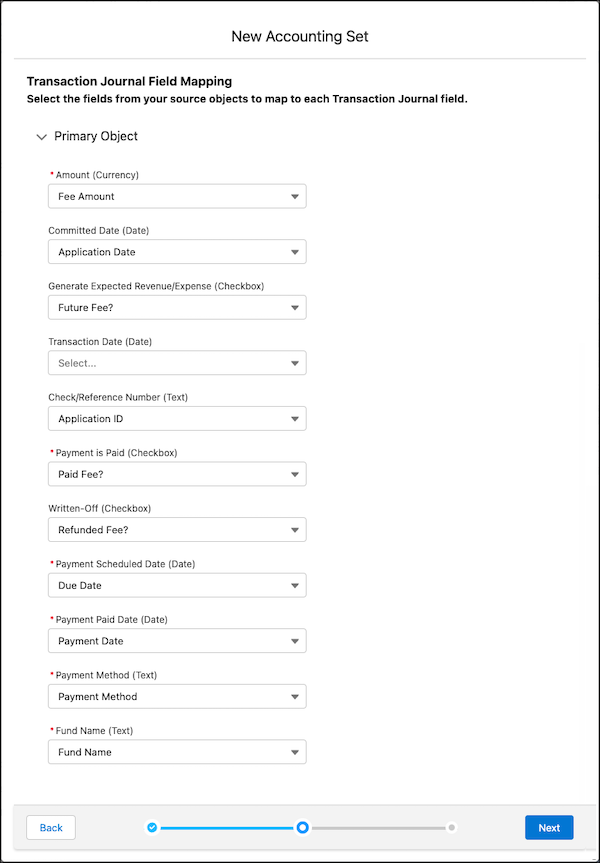
Transaction Journal Field Type Dimitri's Application Fee Field Your Application Fee Field Additional Considerations Amount Currency Fee Amount — Committed Date Date Application Date — Generate Expected Revenue/Expense Checkbox Future Fee? — Transaction Date (optional) Date — — Check/Reference Number (optional) Text Application ID — Payment is Paid Checkbox Paid Fee? — Written-Off Checkbox Refunded Fee? — Payment Scheduled Date Date Due Date Must have a value on your object if Payment is Paid is deselected. Payment Paid Date Date Payment Date Must have a value on your object if either:
- Payment is Paid is selected.
- Written-Off is selected.
Payment Method Text Payment Method — Fund Name Text Fund Name Must have a value on your object. - From the management settings for the object with the fields to map to transaction journal records, go to Fields & Relationships.
- For each field in the previous table, confirm that your custom object has a field of a type that matches the corresponding transaction journal field. For example, the field to map to Committed Date must be of date type.
- If your custom object is missing a required field or has a field of a different type, create a custom field. See Manage Custom Objects.
- From Setup, in the Quick Find box, enter Accounting Sets, and then select Accounting Sets.
- Click New.
- Fill out these fields, and then click Next.
Field Value Name Enter the name of your accounting set. In this setup, Dimitri calls it Application Fees. Number of Objects Select 1 Object Model. Primary Object Select a fee object. In this setup, Dimitri uses the Application Fee custom object. - Using the table you filled out in step 1, select values on the New Accounting Set page, and then click Next. Here's what Dimitri's mapping looks like.
- Fill out these fields, and then save your changes.
Field Value Accounting Set Type Select Revenue. Accounting Record Start Date Select the earliest date from which you want Accounting Subledger to process records. Default Accrued Account Code Enter the name of the fund to use for future fees. Default Write Off Account Code Enter the name of the fund to use for refunded fees. Expected Cash Flow Grouping To view expected future fees, select Group By Fund Account and Due Date. - On the Accounting Sets page, next to the accounting set that you created, click
 , and then select Activate.