
For organizations raising funds through gifts that are designated for different purposes, it's important to track incoming gifts and their designations to make sure they accurately reconcile with finance systems. For gifts that are expected to arrive in the future that have legal contracts, revenue is also expected to be booked in advance. There's a requirement for accurate creation, adjustment, and exporting of ledger entries.
| Available in: Lightning Experience |
| Available in: Enterprise, Performance, Unlimited, and Developer Editions with Accounting Subledger |
| User Permissions Needed | |
|---|---|
| To set up accounting sets: | Manage Accounting Subledger |
Mary is a Gift Manager at Hunger No More International. She receives one-time gift payments, as well as gift commitments such as recurring donations, pledges, or grants. She needs a solution to accomplish these goals:
-
Designate revenue from one-time gift transactions according to donor preferences.
-
Accurately designate revenue from incoming transactions that fulfill gift commitments according to agreements with the donors.
-
Adjust designations if a formal or legal gift commitment is overpaid or underpaid, and manage write-offs if the gift commitment is underpaid.
-
Accurately reflect all transaction designation data in ledger entries and export them to the Finance and Accounting systems.
Mary uses Accounting Subledger (ASL) to unify her fundraising and finance systems and ensure consistent revenue data in both systems. Follow Mary as she configures an accounting set to generate financial records that reflect gift transaction designations. These gift transaction designations allow gift transactions to be allocated to one or more gift designations, which are financial allocations in Fundraising.
- Requirement
-
- Ensure that the Gift Transaction, Gift Transaction Designation, and Gift Designation objects are present in the system and accessible to the user, with Fundraising enabled in the org.
-
Plan your accounting set field mapping by filling out this table.
 Note Mary mapped the fields based on the objects in the Fundraising Add-on. However, you can map any standard or custom object that you use to track revenue-generating records.
Transaction Journal Field Type Gift Transaction Field (Primary Object) Gift Transaction Designation Field (Secondary Object) Gift Designation Field (Fund Object) Amount Currency Current Amount Amount - Committed Date Date - - - Generate Expected Revenue/Expense Checkbox IF(ISPICKVAL(GiftCommitment.FormalCommitmentType, "Written"), TRUE, FALSE) - - Transaction Date Date Transaction Completion Date - - Check/Reference Number Text Payment Identifier - - Payment is Paid Checkbox Paid - - Written-Off Checkbox Written-Off - - Payment Scheduled Date Date Transaction Due Date - - Payment Paid Date Date Transaction Completion Date - - Payment Method Text Payment Method - - Fund Name Text - - Name 
-
From the management settings for the objects with the fields to map to transaction journal records, go to Fields & Relationships.
-
For each field in the table, confirm that your custom object has a field of a type that matches the corresponding transaction journal field. For example, the field to map to Committed Date must be a date type.
-
If a custom object is missing a required field, or has a field of a different type, create a custom field. See Manage Custom Objects.
-
If the platform objects are being used, to track accrued or booked revenue, add a custom field to the primary object to map to Generate Expected Revenue/Expense (see Gift Transaction field for this in the table above). the formula
-
-
From Setup, in the Quick Find box, enter Accounting Sets, and then select Accounting Sets.
-
Click New.
-
Fill these fields.
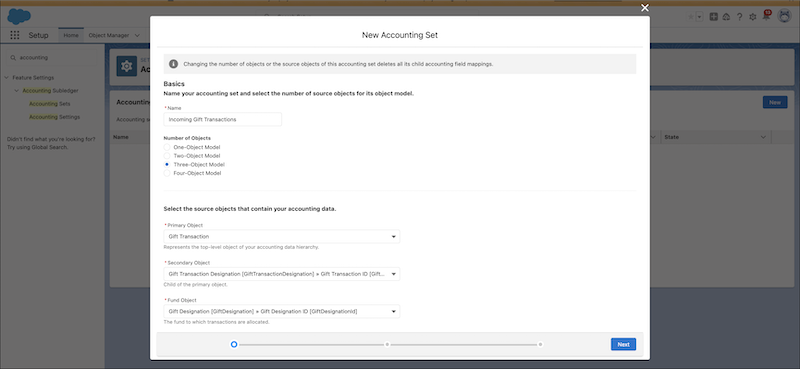
Field Value Name Enter the name of your accounting set. In this setup, Mary calls it Incoming Gift Transactions. Number of Objects Select 3 Object Model. Primary Object Select a transaction object. In this setup, Mary uses the Gift Transaction object. Secondary Object Select the child object of the primary object. In this setup, Mary uses the Gift Transaction Designation object. Fund Object Select the object for the fund that stores transactions. In this setup, Mary uses the Gift Designation object. -
Click Next.
-
Using the table that you filled out in step 1, select values on the New Accounting Set page, and then click Next. Here's what Mary's mappings look like for each object.
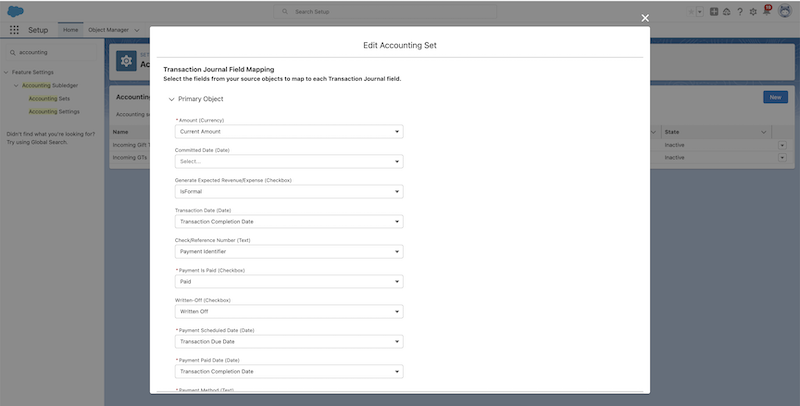
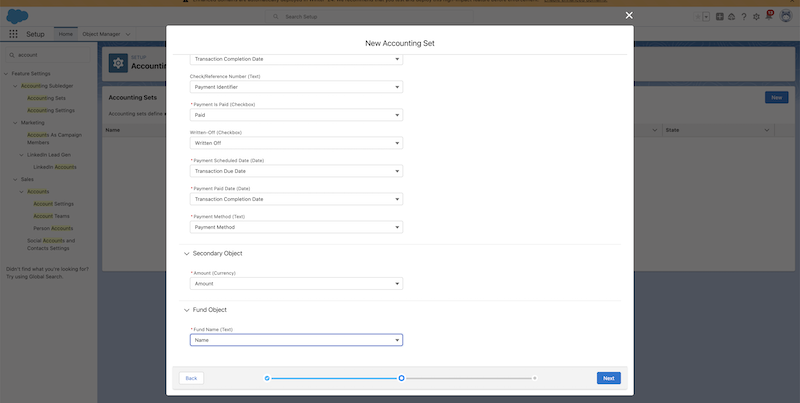
-
Fill these fields, and then save your changes.
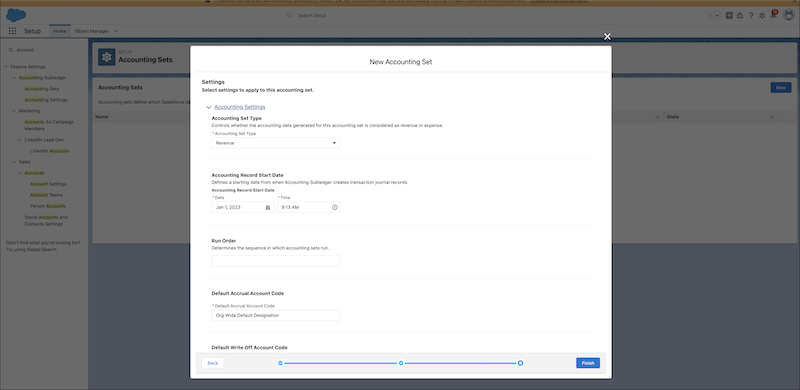
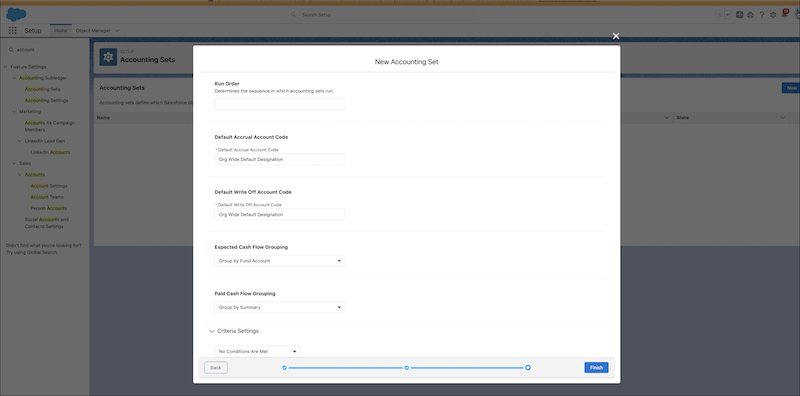
Field Value Accounting Set Type Select Revenue. Accounting Record Start Date Select the earliest date that you want Accounting Subledger to process the records from. Default Accrued Account Code Enter the name of the Gift Designation to use for future payments. Default Write Off Account Code Enter the name of the Gift Designation to use for refunds. -
On the Accounting Sets page, next to the accounting set that you created, click
 , and then select Activate.
SEE ALSO:
