
Learn how to identify prospects and recruiting staff assigned to territories, trends in recruitment, and more.
Reports related to territories can be powerful tools for your institution. Reports can answer basic questions, such as which recruiters are assigned to which territories, and who are the prospects in each territory. Reports can also help inform your institution about trends in recruitment, such as which engagement and outreach programs are successful for a specific territory. Data like this can help ensure that your team is investing in the right recruiting choices.
Remember that you can only report on the data you have. To report on KPIs and other overarching initiatives, you have to gather and maintain the data for a prospect’s entire journey with your institution. You also need to be able to clearly differentiate between suspects, prospects, applicants, and enrolled students.
EDA’s Affiliation object lets you track details about how a Contact is related to an Account. You can use the Role field on the Affiliation object to capture the progress of a prospect through the recruiting process. Your institution can also use the Opportunity object to track details related to a prospect’s likelihood of enrolling at your institution. These objects, combined with Account, Contact, and territory data, provide a 360-degree view into a prospect’s journey.
For more information about how the Account, Contact, Affiliation, and Opportunity records work together, see Model Suspects and Prospects in the EDA documentation.
- Create Basic Custom Report Types for Recruiting Reports
To create reports about your recruiting territories, first set up custom report types in Salesforce. Custom report types allow data from different objects to be viewed in a single report. - Create Basic Reports for Recruiting Territories
After creating the basic custom report types for territories, you can create these reports. - Tips for Creating Additional Recruiting Reports
If you’re looking to create reports that go beyond the basics, having a clear plan for a report can help with your implementation. Ask yourself these questions.
Create Basic Custom Report Types for Recruiting Reports
To create reports about your recruiting territories, first set up custom report types in Salesforce. Custom report types allow data from different objects to be viewed in a single report.
We recommend creating all of the custom reports types listed in Create Custom Report Types for Enterprise Territory Management Reports in Salesforce Help.
If you’re not sure how to create a custom report type, see Create a Custom Report Type in Salesforce Help.
Create Basic Reports for Recruiting Territories
After creating the basic custom report types for territories, you can create these reports.
- Report on Accounts Assigned to Territories
- See which Accounts are assigned to which territories.
- Report on Territories Without Assigned Accounts
- See which territories don't have assigned Accounts.
- Report on Users Not Assigned to Territories
- See which Users aren't assigned to territories.
- Report on Territories with Assigned Users
- See which Users are assigned to which territories.
- Report on Summarizable Account Fields by Territory
- Assess territory size by reporting on summarizable Account data.
Tips for Creating Additional Recruiting Reports
If you’re looking to create reports that go beyond the basics, having a clear plan for a report can help with your implementation. Ask yourself these questions.
-
What’s the goal of viewing the report?
Example: See which prospects are in which territory and who is the assigned recruiter.
-
Who's going to view the report?
Example: Recruiters and leadership.
-
What data—more specifically, which objects—will the report include?
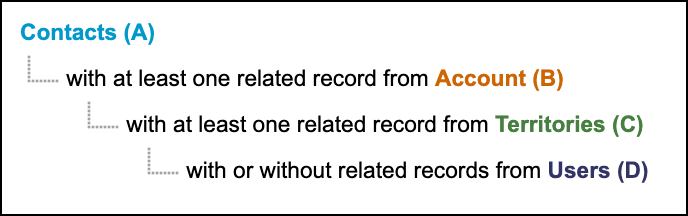
Example: Contacts, Accounts, Territories, and Users.
-
What fields do I want to see?
Example: The prospect's name, the territory name, the recruiter's name.
-
Do I need to summarize or group any data?
Example: Group the data by territory.
If we continue with our example, we now know to create a new custom report type that relates Contacts, Accounts, Territories, and Users together. Then we can use this report type to create the report.
If you’re using Opportunities and set up the Opportunity assignment filter, create a report that shows data from the Opportunity and its Territory field.