
You can assign requirements directly from an application. Say an applicant makes a mistake or changes their mind about what degree program to apply for. That might mean additional requirements are needed. Or maybe your institution handles a small amount of applications and you assign requirements individually.
In Admissions Connect, requirements are Action Plans, which are created from Action Plan Templates that include the details of the requirements. Your admissions team defines the Action Plan Templates for your institution. To assign requirements, you’ll add an Action Plan to an application.

-
From the app, open an Application record.
-
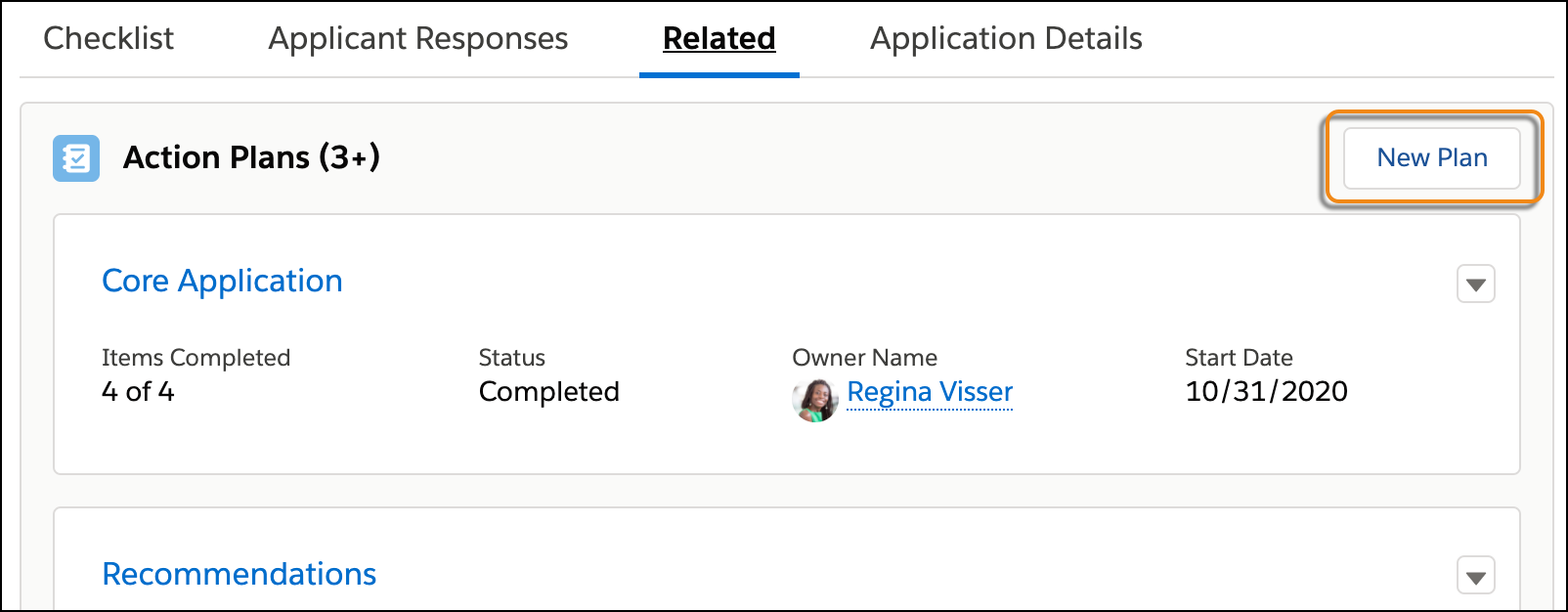
Click the Related tab.
-
In the list of Action Plans, click New Plan.
-
Fill out the details for the plan.
- Name
- Give the plan a name. We recommend naming the plan the same name as the Action Plan Template.
- Start Date
- Enter a start date for this plan, which might be today's date.
- Action Plan Template
- Enter the name of a template.
- Target Record:
- Leave as-is. The application record is automatically linked for you.
- Skip Nonwork Days for Tasks
- Leave as-is, unless your admissions team decides otherwise.
- Status
- Select a status for the plan.
-
Click Next.
-
Review the Tasks and Document Checklist Items associated with the plan, then save your changes.
Refresh the application page to see the new requirements listed in the Application Checklist. The Action Plan also shows up in the Action Plans related list (where you clicked the New Plan button) and in the navigation tree on the Application Review page.
See Also: