
Add one-off documents and tasks to an assigned Action Plan to show the items in the Application Checklist and on the Application Review page.
Sometimes you might need to manually associate PDFs or other documents to applications. Same goes for tasks. Maybe an applicant emails your institution with a last-minute letter of recommendation. Or maybe you need to log a task related to the admissions process. Add those items to assigned Action Plans instead of directly to the Application record.

-
From the app, open an application record.
-
Click the Related tab.
-
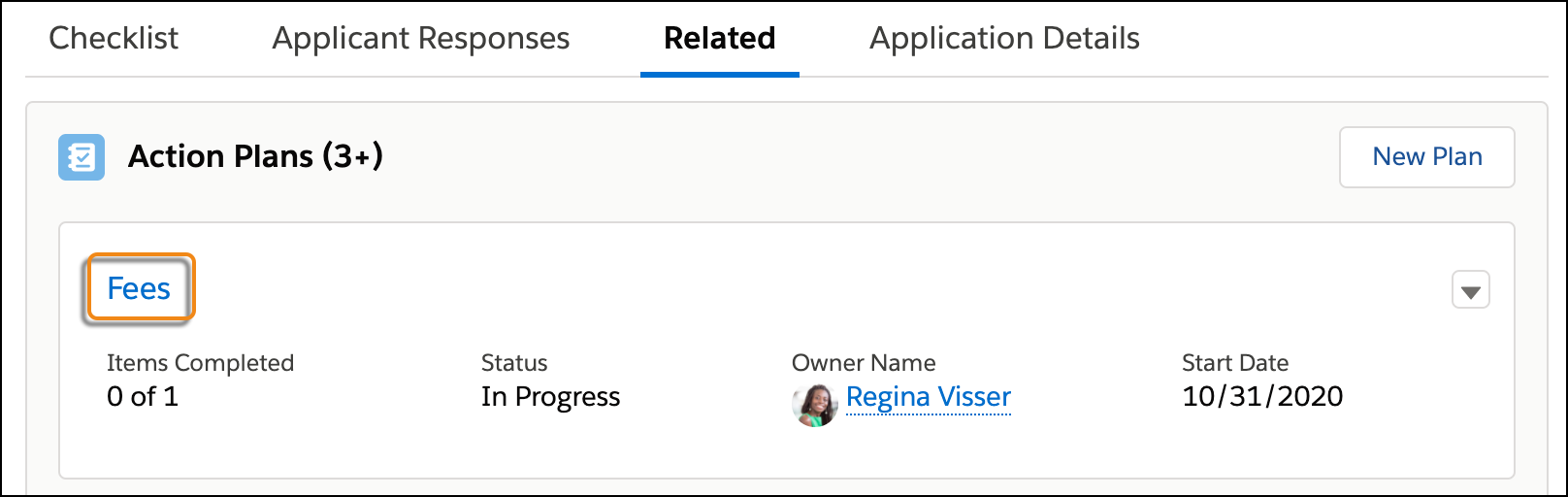
In the list of Action Plans, click the Action Plan name that you want to add the document or task to. For example, Fees. If you don't see the plan you're looking for, click View All.
-
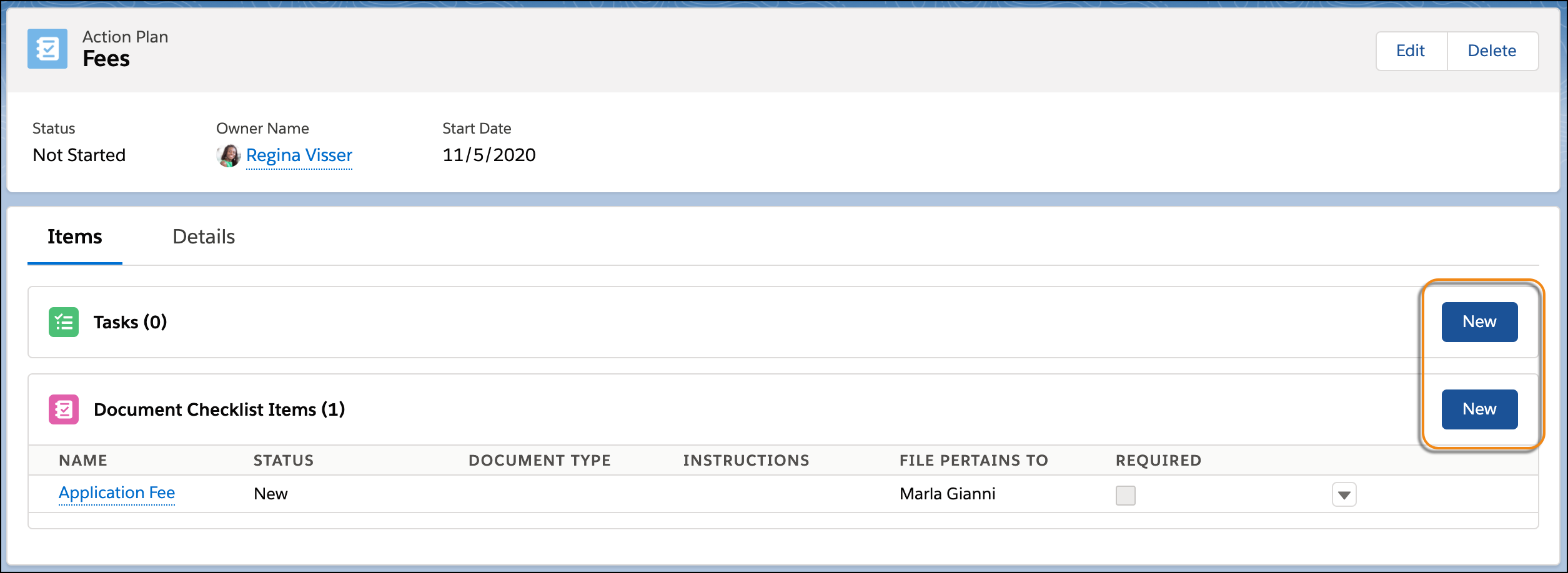
In the Action Plan record, click New on the Task or Document Checklist Item list.
Remember that Tasks collect and display data from an application, while Document Checklist Items are an application's supporting documents.
-
For new Tasks, fill out these fields, then save your changes.
- Subject
- Enter a name for the task. This name appears in the Application Checklist and on the Application Review page, so check with your admissions team to see if there's a naming convention to follow.
- Days
- When the task is assigned, the task is overdue after this many days have passed.
- Comments
- Enter a brief description for users about this task.
- Priority
- Select a priority.
- Required
- Select this checkbox if this task is required to complete the application.
- Name
- Leave blank. This field is populated with the applicant's name when the record is saved.
- Assigned To
-
If the Task is for someone on the admissions team, leave this field assigned to the Action Plan Creator or specify a specific User.
If the Task shows field-level data that you want applicants to see or edit in a portal, assign it to the applicant.
Note Automation can also be used to set this field, so check with your admissions team before updating it.
-
For new Document Checklist Items, fill out these fields, then save your changes.
- Name
- Enter a name for the document. This name appears in the Application Checklist and on the Application Review page, so check with your admissions team to see if there's a naming convention to follow.
- Instructions
- Provide any information about the document or instructions for the applicant.
- Required
- Select this checkbox if the document is required for the application.
- Document Type
- Select a type of document.
Your admissions team may not use this field; ask your Admissions Connect administrator.
- File Pertains To
- Enter the name of the applicant.
- To upload a document:
-
Click the name of the Document Checklist Item you just created.
-
Click Upload Files. You can upload any file type, except Asset Files. Just keep in mind that unsupported file types don't show in the preview. For details about the supported file types, see Considerations for Document Management.
-
-
If you also approved the document or want to mark the task as done, update these fields.
-
For Tasks, click Mark Complete or update the Status field to Completed.
-
For Document Checklist Items, click Accept or update the Status field to Accepted.
-
-
Save your changes.
On the Application record page, refresh the Application Checklist to see the items you just added. They also display in the Application Review page.