
You can quickly add a reviewer directly from the Application or Application Review record pages. Or you can use the Application list view to select multiple Applications and assign multiple reviewers.
- Manage Reviews for a Single Application
Add a reviewer from the Application or Application Review record page. - Assign Reviewers to Multiple Applications
Assigning reviewers to multiple applications is similar to adding reviewers to a single application. However, you can’t manage existing assignments; you can only add reviewers. If Admissions Connect finds duplicate user reviews (because you’re trying to add a reviewer to an application that they’re already assigned to), it lets you know of the duplicate and ignores the duplicate when you save. That way, the assignments for new reviewers are saved successfully.
Manage Reviews for a Single Application
Add a reviewer from the Application or Application Review record page.
-
From the app, open an Application or Application Review record.
-
In the Application Reviews tab, click Add Reviewers or Manage.
-
In the Manage Application Reviews window, search for Users or Queues to add as reviewers.
 Tip To see search results, type at least three characters.
Keep these things in mind.
-
If an assigned Application Review hasn't started yet, it can be removed.
-
If you remove assignments, you must save your changes to delete those Application Review records.
-
If you accidentally remove an assignment for a User, click Cancel instead of re-adding them.
-
Queues can be assigned to review the same Application multiple times, but you can't assign Queues more times than there are members. In addition, Queues must have at least one member, otherwise you see an error when assigning an Application Review.
-
Users can only be assigned to review an Application once.
-
To search a queue, it must support Application Reviews. If you want to assign a specific queue but don't see it listed, reach out to your Admissions Connect administrator.
-
Search results include only up to five reviewers. Similar names prevent the system from displaying some users.
-
-
Optionally, select or deselect Notify new reviewers to send Users you just assigned a Salesforce notification. Notifications aren't sent to Queues.
-
Save your changes.
Assign Reviewers to Multiple Applications
Assigning reviewers to multiple applications is similar to adding reviewers to a single application. However, you can’t manage existing assignments; you can only add reviewers. If Admissions Connect finds duplicate user reviews (because you’re trying to add a reviewer to an application that they’re already assigned to), it lets you know of the duplicate and ignores the duplicate when you save. That way, the assignments for new reviewers are saved successfully.
-
From the app, in the navigation menu, select Applications.
-
Select any list view, such as All.
-
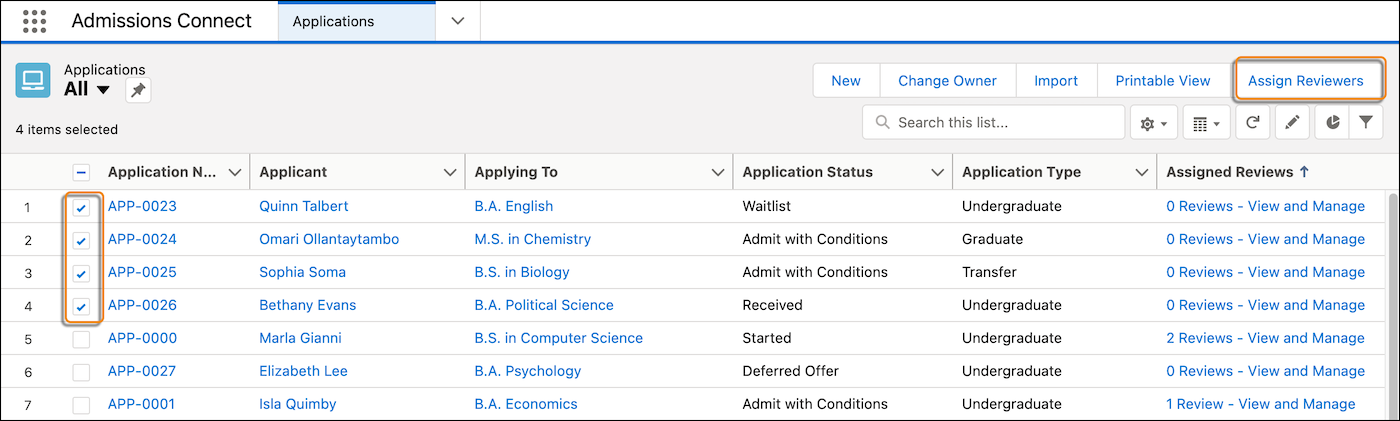
Select the checkboxes next to the Applications you want to assign reviewers to.
Tip Use Cmd+Shift (on MacOS) or Ctrl+Shift (on Windows) to select multiple records at a time. -
Click Assign Reviewers.
-
In the Assign Application Reviewers window, search for users or queues to add as reviewers. When you're done with your assignments, click Next.
-
Review your assignment details and totals, then save your changes. Admissions Connect checks for and provides a list of errors, duplicates, and queues without enough members.
 Note The error information is informational only. You can still assign the reviews that don't have issues.
 -
Click Go Back to List to exit.
Any issues, including those previously found, are listed on the page again.