
Configure the questions that you want your reviewers to consider when they assess applicants.
- Learn About Custom Review Questions
To help your institution find best-fit applicants, ask your application reviewers the right questions. That way, reviewers can align and focus on what matters most. - Create Custom Fields for Review Questions
From Setup, in Object Manager, create a custom field for each question that you want to ask on the Application Review object. - Create a Field Set for Your Review Questions
From Setup, in Object Manager, create a field set on the Application Review object for the custom fields you created. Follow the same steps you used to create field sets for Action Plan Items that are Tasks. - Associate Your Field Set with the Review Component
Edit the default Application Review Lightning record page to configure the Reviewer Feedback component. - Configure Visibility Settings to Show Reviewers Specific Questions
To show specific questions to certain reviewers, customize the visibility settings of the Reviewer Feedback component in Lightning App Builder. For example, create different questions for undergraduate and graduate applications. Or maybe you want to show subject-specific questions to reviewers in the Computer Science department. Keep your filter logic for visibility settings simple.
Learn About Custom Review Questions
To help your institution find best-fit applicants, ask your application reviewers the right questions. That way, reviewers can align and focus on what matters most.
To set up custom review feedback questions, create custom fields for your questions, add them to a field set, and then configure the Reviewer Feedback component to show the field set. You can even configure the component's visibility settings so that only specific questions show for certain reviewers or when the application meets specific criteria.
For example, create a multi-picklist field called Core Skills and a picklist field called Writing Ability.
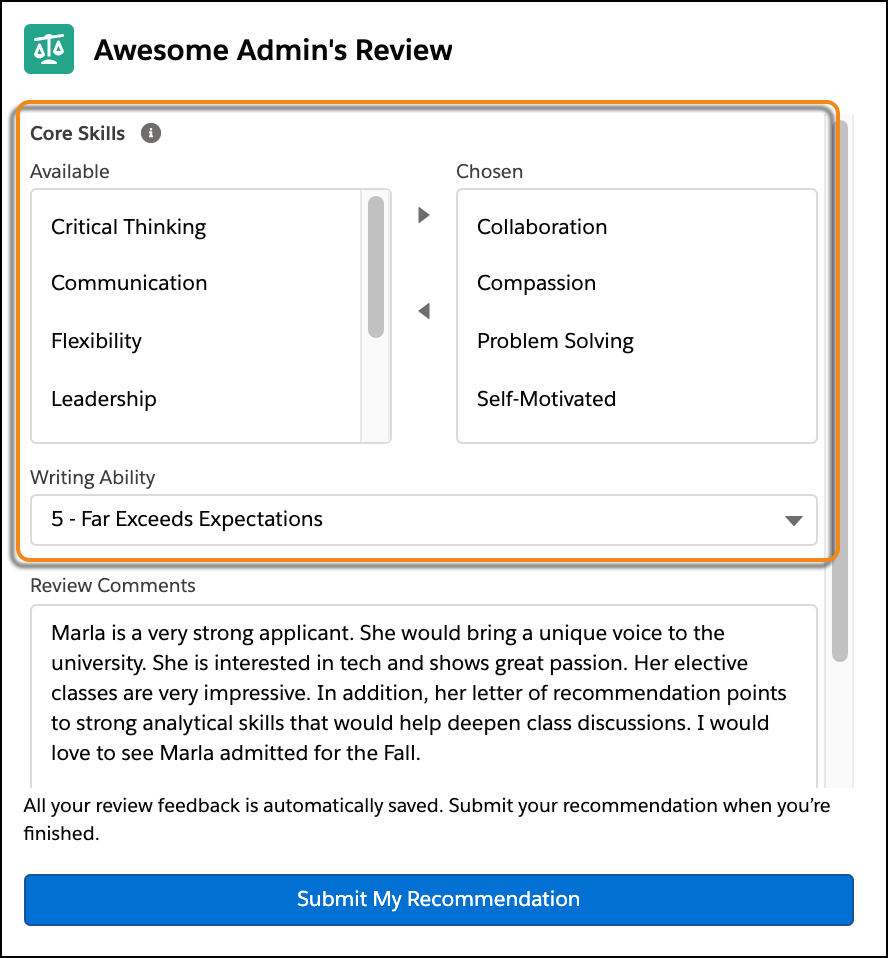
Create Custom Fields for Review Questions
From Setup, in Object Manager, create a custom field for each question that you want to ask on the Application Review object.
For more information, see Create Custom Fields.
Considerations for Creating Custom Fields
-
To make sure reviewers enter a value for a field before they submit their recommendation, select Required when you define the field. See Require Field Input to Ensure Data Quality.
-
Specify help text to provide reviewers with additional guidance for the question. For example, use help text to include details about how to use a rubric.
-
Formula, Time, and dependent lookup fields aren't supported in the component.
-
The component doesn't support individual record types.
-
Rich-text fields provide plain text entry in the component.
Create a Field Set for Your Review Questions
From Setup, in Object Manager, create a field set on the Application Review object for the custom fields you created. Follow the same steps you used to create field sets for Action Plan Items that are Tasks.
See Set Up Application Requirements and Action Plans.
Considerations for Creating Field Sets
-
The Comments and Admissions Recommendation fields always show in the component, even if you don't include them in the field set. If you do include these fields, the order you specify for them in the field set is what shows in the component. If you don't include them, the fields show in the component after the field set.
-
Don't add these Application Review fields in the field set as they show as read-only in the component:
-
Applicant
-
Application Review Name
-
Owner
-
Reviewer
-
Submitted
 Note We also recommend you don't add Review End Date. Updating this field automatically submits and closes the review without the user clicking Submit My Recommendation.
-
-
You can specify a field in your field set as required, even if the field isn't universally required.
-
Fields from related objects, like Application, aren't supported. For example, if you add the Application Term field to the field set, the component shows an error.
-
Make sure to give your reviewers permissions to edit all the fields in the field set. Otherwise, the Reviewer Feedback component shows an error.
Associate Your Field Set with the Review Component
Edit the default Application Review Lightning record page to configure the Reviewer Feedback component.
-
From the Lightning App Builder page, click the Reviewer Feedback component.
-
In the properties pane, enter the API name of your field set into the Feedback Field Set property.
-
Save your changes.
When you're done, open an Application Review record to see your questions in action.
See Also:
Configure Visibility Settings to Show Reviewers Specific Questions
To show specific questions to certain reviewers, customize the visibility settings of the Reviewer Feedback component in Lightning App Builder. For example, create different questions for undergraduate and graduate applications. Or maybe you want to show subject-specific questions to reviewers in the Computer Science department. Keep your filter logic for visibility settings simple.
For quick setup, we recommend that you edit the default Application Review Lightning record page and add multiple instances of the Reviewer Feedback component to the page. Then configure visibility settings for each instance of the component.
Alternatively, you can create multiple versions of the Application Review Lightning record page and assign each page based on user profiles. You can then also configure visibility settings for the component on each version of the page. If you use this approach, clone the default Application Review page to get started.
To configure the visibility of each instance of the component on the page:
-
In the properties pane for the Reviewer Feedback component, under Set Component Visibility click Add Filter.
-
Under Filter Type, click Advanced.
You can also set up filters based on the Application Review record fields and the device type. The advanced filters give you the most flexibility.
-
Under Field, click Select.
-
Select a field type, then a field.
 Tip Select User to filter by Department, Profile, Role, and License Type. Select Permissions to filter by standard and custom permissions. Select Record to filter by Application fields.
 -
Click Done.
-
Select an Operator and enter a Value.
-
Click Done.
-
Save your changes.
After you’re done, test thoroughly to ensure that the component displays only once on the page for each group of reviewers.