
Review the application review setup and configure it to suit your staff’s tasks.
- Review the Experience
As part of Admissions Connect set up, we recommend that you review what the application review experience is like for your admissions staff. Create a sample Application record and assign it Action Plans for one of your programs. Create an Application Review for a user who has the Admissions Connect - Review Applications for Internal Users permission set and another for a user with the Admissions Connect - Verify Applications permission set. Log in as those users and review their experience. Use these questions to help guide your assessment. - Customize the Page
Update the page layouts, compact layouts, and Lightning record page as needed. If appropriate, make adjustments to your Application Material Mapping records. - Configure the GPA Conversion Scale
To help application processors, the Admissions Connect GPA Converter converts applicants' incoming school GPA to a standard GPA scale.The default GPA scale is 4.0, but you can change the scale. - Configure Advanced Features
Set up additional features to help your admissions staff stay focused and efficient.
Review the Experience
As part of Admissions Connect set up, we recommend that you review what the application review experience is like for your admissions staff. Create a sample Application record and assign it Action Plans for one of your programs. Create an Application Review for a user who has the Admissions Connect - Review Applications for Internal Users permission set and another for a user with the Admissions Connect - Verify Applications permission set. Log in as those users and review their experience. Use these questions to help guide your assessment.
-
Do the highlights panels on both the Application and Application Review pages show the fields you want?
-
What buttons are displayed in the highlights panels? Do you want your admissions staff to take these actions? Are there actions missing?
-
Are the requirements ordered as you expected in the navigation?
-
Do you want admissions staff to see a list of other reviewers in the Reviewers tab?
-
What happens if a reviewer comes back to an Application or Application Review record after they’ve submitted their Admissions Recommendation? What fields are shown when they click Edit? Should they be allowed to edit their own Review Comments after they’ve submitted a recommendation?
Customize the Page
Update the page layouts, compact layouts, and Lightning record page as needed. If appropriate, make adjustments to your Application Material Mapping records.
See Customize Record Pages for Admissions Connect and Set Up Application Requirements and Action Plans.
Configure the GPA Conversion Scale
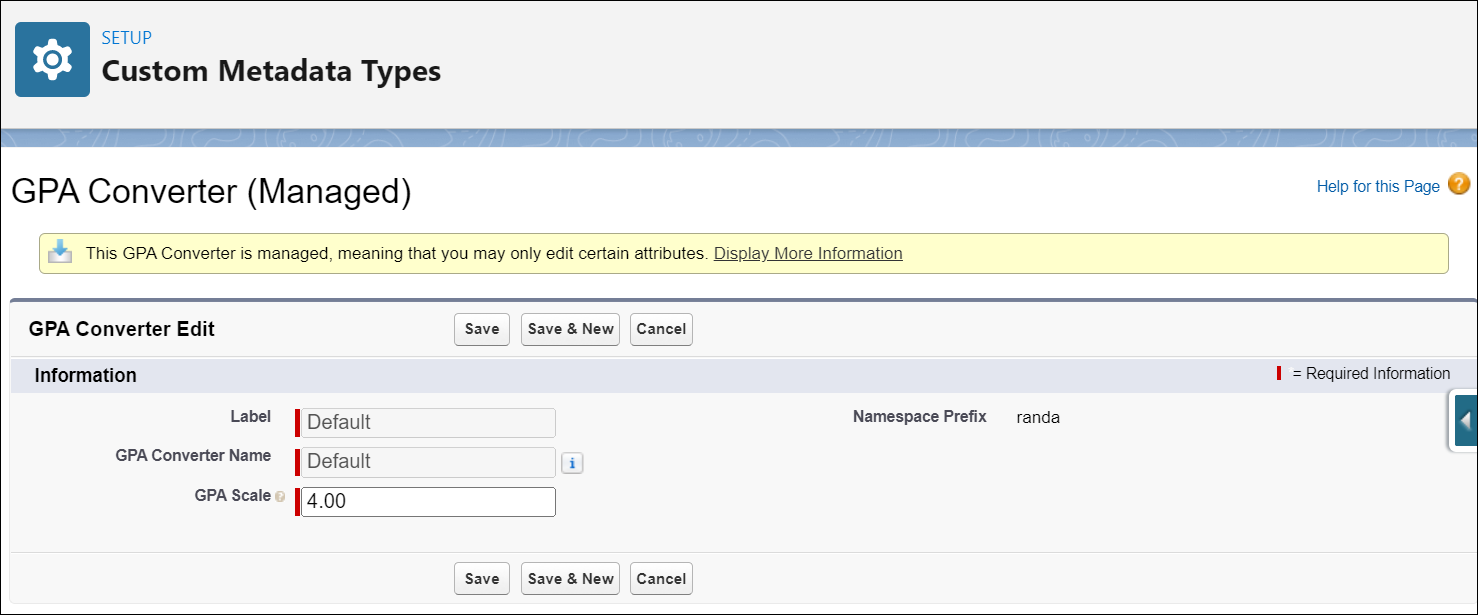
To help application processors, the Admissions Connect GPA Converter converts applicants' incoming school GPA to a standard GPA scale.The default GPA scale is 4.0, but you can change the scale.
The GPA Converter custom metadata type is included with the Admissions Connect and includes the following attributes:
-
Converted GPA field
-
GPA Scale field
-
Education History Layout - Admissions Staff page layout
 Note The Converted GPA field is included on the Education History Layout - Admissions Staff page layout, but you can add the field to any Education History page layout. Be sure to assign the layout to the necessary user profiles.
To change the scale used to convert GPAs:
-
From Setup, in the Quick Find box, enter Custom Metadata Types, and then select Custom Metadata Types.
-
Next to GPA Converter, click Manage Records.
-
Click Edit next to the default GPA Converter.
-
Update the GPA scale and save your changes. The Converted GPA field is recalculated for all Education History records.
Configure Advanced Features
Set up additional features to help your admissions staff stay focused and efficient.
- Customize Review Questions
-
Show custom review feedback questions in the Reviewer Feedback component on Application Review records. You can even use visibility settings to show specific questions to different users or when Applications meet certain criteria. For detailed configuration steps, see Set Up Reviewer Feedback Questions.
- Add Document Verification Buttons
-
Give your admissions staff Accept and Reject buttons to verify documents directly from the Admissions Connect components. For detailed configuration steps, see Set Up Quick Document Verification.