
Assign Action Plans to Applications so that admissions staff and applicants learn about requirements and next steps.
- Understand the Basics
After you've set up your application requirements and Action Plan Templates, you're ready to assign Action Plans to Applications. When an Action Plan is assigned to an Application it lets admissions staff and applicants know what requirements must be completed and submitted. Typically, each Application is assigned multiple Action Plans. For example, an Application might be assigned the following Action Plans: Core Application, Transcripts, Test Scores, and Recommendations. Based on your institution’s needs, Action Plans can be assigned automatically, manually, or both. - Automate Action Plan Assignment
Most institutions use automation to assign Action Plans. Maybe you have a batch job that creates Contact and Application records based on data coming in from Common App. When those Application records are created, automation can be triggered to create and associate Action Plans based on certain Application criteria. Your Application criteria can be simple or very specific. Remember that a single Action Plan can be a requirement for multiple degree programs. Your institution might use Flows, Process Builder, Apex, or other tools—the choice is up to you. - Automate Application Admission
Automation helps streamline the application review and admission process. - Set Up Staff to Assign Action Plans and Ad Hoc Action Plan Items
Maybe your institution only receives a small number of applications and wants to process them manually. Or maybe your admissions process needs to track last-minute requirements. Admissions Connect gives you the flexibility to cover any admissions process. You can set up your admissions staff to assign Action Plans manually or add ad hoc documents and Tasks. For example, if an applicant changes their mind about what degree program they’re applying for, there might be additional requirements. Or maybe you want to let your verifiers add PDF copies of fee receipts.
Understand the Basics
After you've set up your application requirements and Action Plan Templates, you're ready to assign Action Plans to Applications. When an Action Plan is assigned to an Application it lets admissions staff and applicants know what requirements must be completed and submitted. Typically, each Application is assigned multiple Action Plans. For example, an Application might be assigned the following Action Plans: Core Application, Transcripts, Test Scores, and Recommendations. Based on your institution’s needs, Action Plans can be assigned automatically, manually, or both.
Automate Action Plan Assignment
Most institutions use automation to assign Action Plans. Maybe you have a batch job that creates Contact and Application records based on data coming in from Common App. When those Application records are created, automation can be triggered to create and associate Action Plans based on certain Application criteria. Your Application criteria can be simple or very specific. Remember that a single Action Plan can be a requirement for multiple degree programs. Your institution might use Flows, Process Builder, Apex, or other tools—the choice is up to you.

Each Application record that’s assigned Action Plans, counts as a SOQL query. In addition, each Document Checklist Item and each Task associated with an Action Plan, count as separate DML statements. Keep the platform limits for SOQL queries (max 100) and DML statements (max 150) in mind when developing your automation, otherwise you risk hitting the limits for Action Plans.
Also make sure that automation assigns Action Plans for a single Application per transaction. In other words, don’t assign Action Plans for batches of Applications in a single transaction. Ideally, the automation that assigns Action Plans directly follows the automation that creates an applicant’s Contact, Account, and Application record. For more information, see Import Your Data into Admissions Connect.
To get you started with automation, we provide a sample flow template that assigns Action Plans to a single Application at a time. This flow template associates our quick start sample Action Plan Templates with Application records. Here’s what the flow does.
-
The flow runs on insert or update, only if the Application Type field is filled in and was previously blank and the Term field is set in the future.
-
All Application records get the Sample: Core Application and Sample: Transcripts Action Plan assigned to them.
-
If the Application Type is Graduate, the Sample: Recommendations Action Plan is also assigned.
-
If the Application Type is Undergraduate or Transfer, the Sample: Test Scores Action Plan is also assigned.

To access the sample flow:
-
From Setup, in the Quick Find box, enter Flows, and then select Flows.
-
Look for Sample: Assign Application Requirements. If you don't see the sample flow, you can install it.
This sample flow demonstrates one approach to implementing automation for Action Plans. We recommend that you don’t edit the sample flows directly and that you leave them inactive. Instead, create a new flow and look in the Template tab for the sample flow you want to start from. You can also open it and click Save As to create a new flow. Use our flow as a reference as you start to define your own processes. For more information, see Flows in Salesforce Help.
Now that Action Plans are assigned to applicants, consider automating the attachment of documents to Document Checklist Items.
Automate Application Admission
Automation helps streamline the application review and admission process.
To get you started, we provide a sample flow template that admits applicants when their application meets specific criteria. The sample flow includes the following admission criteria.
-
The Application is in a Received state.
-
The Applicant is a US citizen.
-
All Education History is verified.
-
All Education History has a converted GPA of 3.2 or higher.
To access the sample flow:
-
From Setup, in the Quick Find box, enter Flows, and then select Flows.
-
Look for Sample: Application Auto Admit. If you don't see the sample flow, you can install it.
We recommend that you don’t edit the sample flow directly and that you leave them inactive. Instead, create a new flow and look in the Template tab for the sample flow you want to start from. You can also open it and click Save As to create a new flow. Use our flow as a reference as you start to define your own processes. For more information, see Flows in Salesforce Help.
Set Up Staff to Assign Action Plans and Ad Hoc Action Plan Items
Maybe your institution only receives a small number of applications and wants to process them manually. Or maybe your admissions process needs to track last-minute requirements. Admissions Connect gives you the flexibility to cover any admissions process. You can set up your admissions staff to assign Action Plans manually or add ad hoc documents and Tasks. For example, if an applicant changes their mind about what degree program they’re applying for, there might be additional requirements. Or maybe you want to let your verifiers add PDF copies of fee receipts.
Keep in mind that assigning an entire Action Plan is different than adding ad hoc documents and Tasks. That’s because Action Plans and Action Plan Items are different things.
-
Action Plans—Represent application requirements, such as transcripts. For example, the Action Plan Template for Transcripts includes two child Document Checklist Items, one for unofficial transcripts and one for official transcripts.
-
Action Plan Items—Represent documents and data, such as the PDF of an unofficial transcript or the actual responses the applicant entered on their application, like their birth date or details about education history. In an Action Plan for Transcripts, the individual PDFs for the unofficial and official transcripts are the Action Plan Items.
To allow your admissions staff to add Action Plans or Action Plan Items, assign them Create permission on the Action Plan object. We recommend creating a new permission set or modifying one of the default ones.
Action Plans
By default, the Related tab on the Application page includes the Action Plans related list. This is where admissions staff add Action Plans to an Application. A user must be assigned Create permission for the Action Plan object to see the New Plan button in this list.
Check out Assign Requirements for detailed steps.
If you don’t intend to let your admissions staff add Action Plans to Applications, you can remove the Action Plans List - Financial Services Cloud component from the page to avoid confusion.
Action Plan Items
To allow your admissions staff to add ad hoc documents and Tasks, configure your Action Plan Template with the Let users add items to action plans checkbox. Remember that once a template is published, you can’t edit it, so select this checkbox when you create the template. For detailed steps, see Set Up Application Requirements and Action Plans.
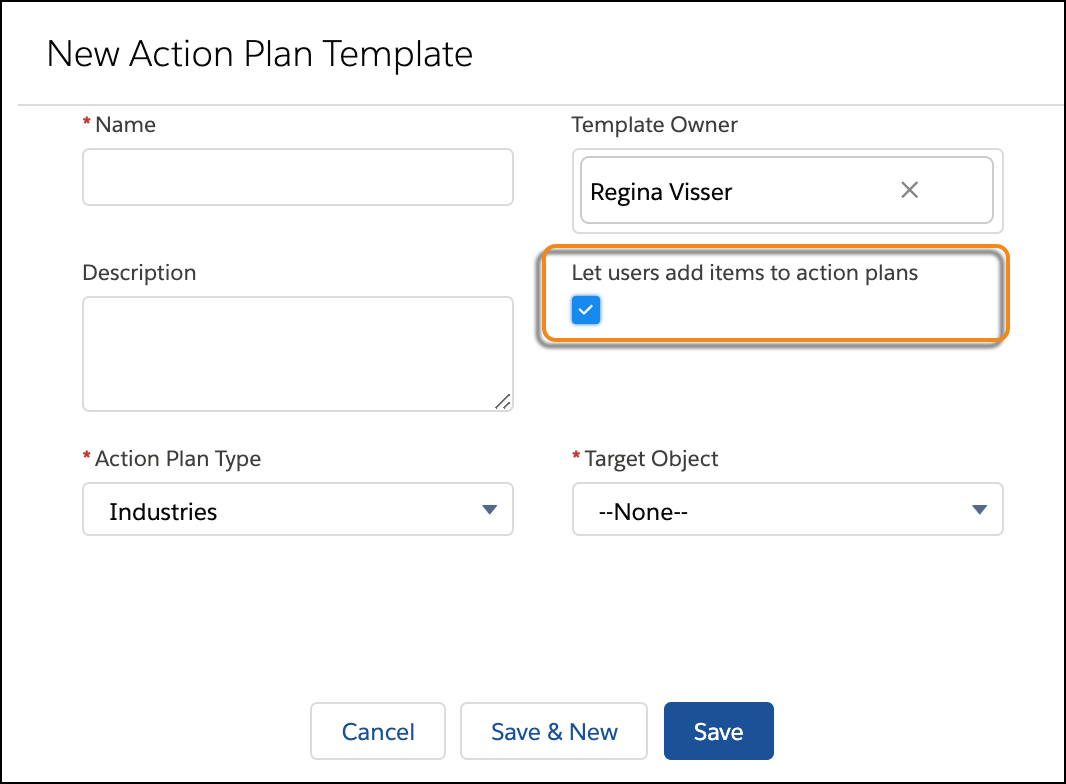
 and select Edit Object. Then click Page Layouts and edit the Action Plan Template Layout.
 When your admissions staff click on an Action Plan from the Related tab, they see a New button on the related lists for Tasks or Document Checklist Items.
Check out Add Ad Hoc Documents or Tasks to an Application for detailed steps.
-
The Basic Task Details field set on the Task object determines what fields show for ad hoc Tasks in the Admissions Connect components. Customize this field set for your admissions process. You can add other standard Task fields or custom fields.
To create a custom field on the Task object, create it on the Activity object. Make sure to add your custom field to the Task page layout. Then update the Basic Task Details field set with the custom field.
-
Ad hoc Tasks and Document Checklist Items don’t have corresponding Application Material Mapping records. In the Admissions Connect components, these items display below their peer Action Plan Items sorted alphabetically. For example, if a Transcript Fee document is added to the Action Plan for Transcripts, it displays after the existing Action Plan Items for Unofficial Transcript and Official Transcript.
-
If you're thinking about using ad hoc Tasks in an applicant portal, see Plan Your Applicant Experience.