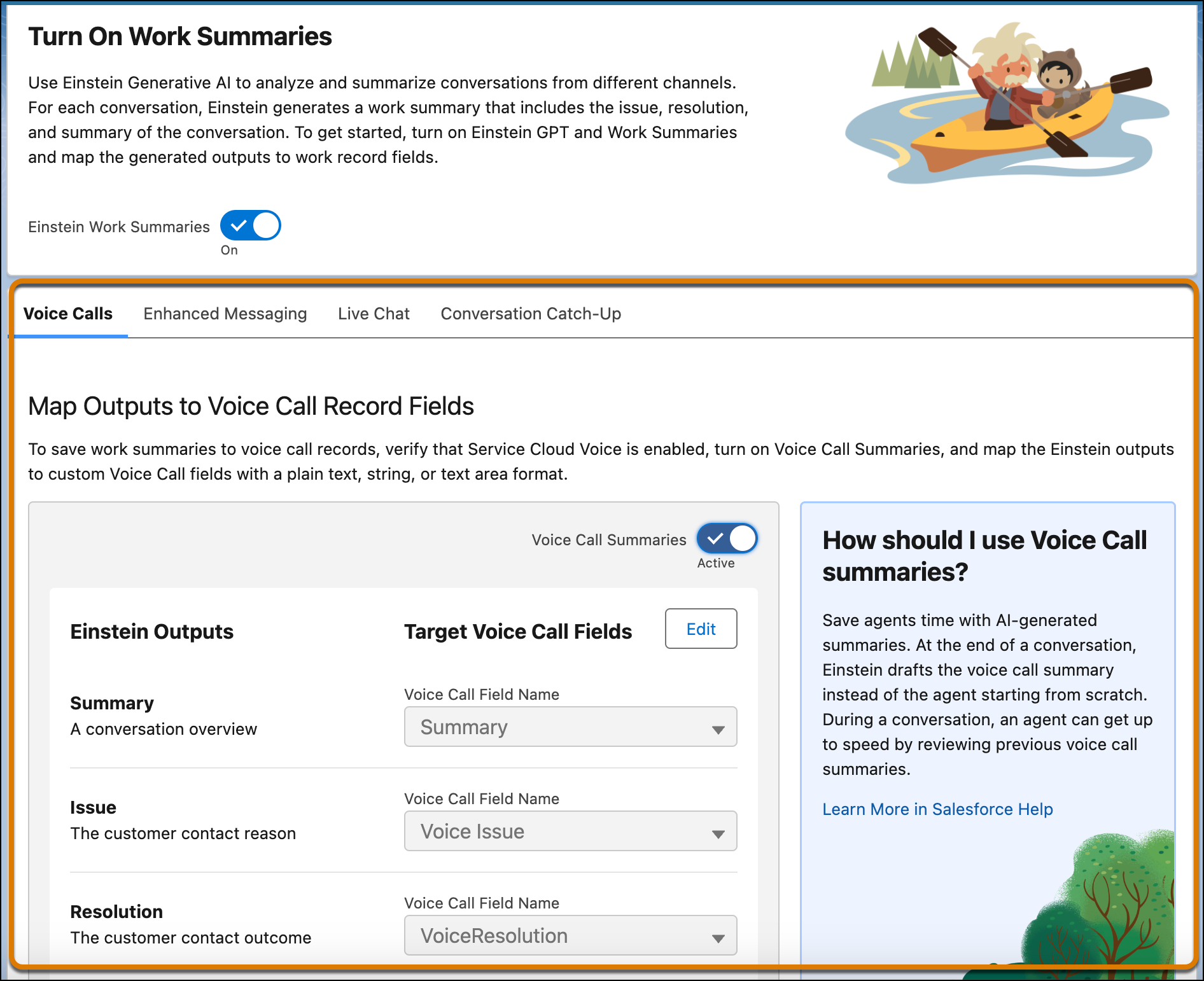
To store the generated Summary, Issue, and Resolution outputs, map these outputs to
fields of the VoiceCall object or one of its related objects. You must map these fields before you
can activate work summaries for the service channel.
Required Editions
| User Permissions
Needed |
| To store voice call summaries in the VoiceCall fields: |
Edit on VoiceCall OR Modify All Data |
-
From Setup, in the Quick Find box, enter Einstein Work Summaries,
then select Einstein Work Summaries.
-
Click the Voice Calls tab.
-
In the Map Outputs to Voice Call Fields section, click Edit.
-
For the Summary, Issue, and Resolution outputs, select the Salesforce object field where
you want to map each output.
Only fields with the Text Area and Text Area (Long) data types appear in the
picklist.
-
Click Save.
We don't recommend changing the field mappings after you set them up. If a field mapping
is updated, new summaries are stored in the new field you specify, while the content from the
previous field isn't shown on the summaries page.
To restore mapping for a custom field that you deleted and then undeleted, map the field
to the output again.

 Tip To map a field, you must have field-level security access on the field. If you don’t have access and try to map the field, an error appears.