---
schema_version: "1"
id: 89c216c9e8291f4c9a8addab3a2144c2d1fd34652c1260bbdd9fc8453b490d89
title: Map Outputs to Voice Call Summary Fields
collection: admin
version: current
locale: en-us
portal_url: https://docs.salesforce.com/admin/current/en-us/service/264-0-0/work_summaries_voice_map_output.md
canonical_url: https://help.salesforce.com/s/articleView?id=service.work_summaries_voice_map_output.htm&release=264.0.0&type=5
source_site: help.salesforce.com
content_type: documentation
content_hash: 0b1989e7fb2fa0cc2eff3c7d8f98693d77ab447150bbfb9b5219da7c38779355
description: To store the generated Summary, Issue, and Resolution outputs, map these outputs to fields of the VoiceCall object or one of its related objects. You must map these fields before you can activate work summaries for the service channel.
products:
- Service Cloud
- Service Intelligence
release: "264"
---
# Map Outputs to Voice Call Summary Fields
To store the generated Summary, Issue, and Resolution outputs, map these outputs to fields of the VoiceCall object or one of its related objects. You must map these fields before you can activate work summaries for the service channel.
### Required Editions
To store voice call summaries in the VoiceCall fields:
Edit on VoiceCall OR Modify All Data
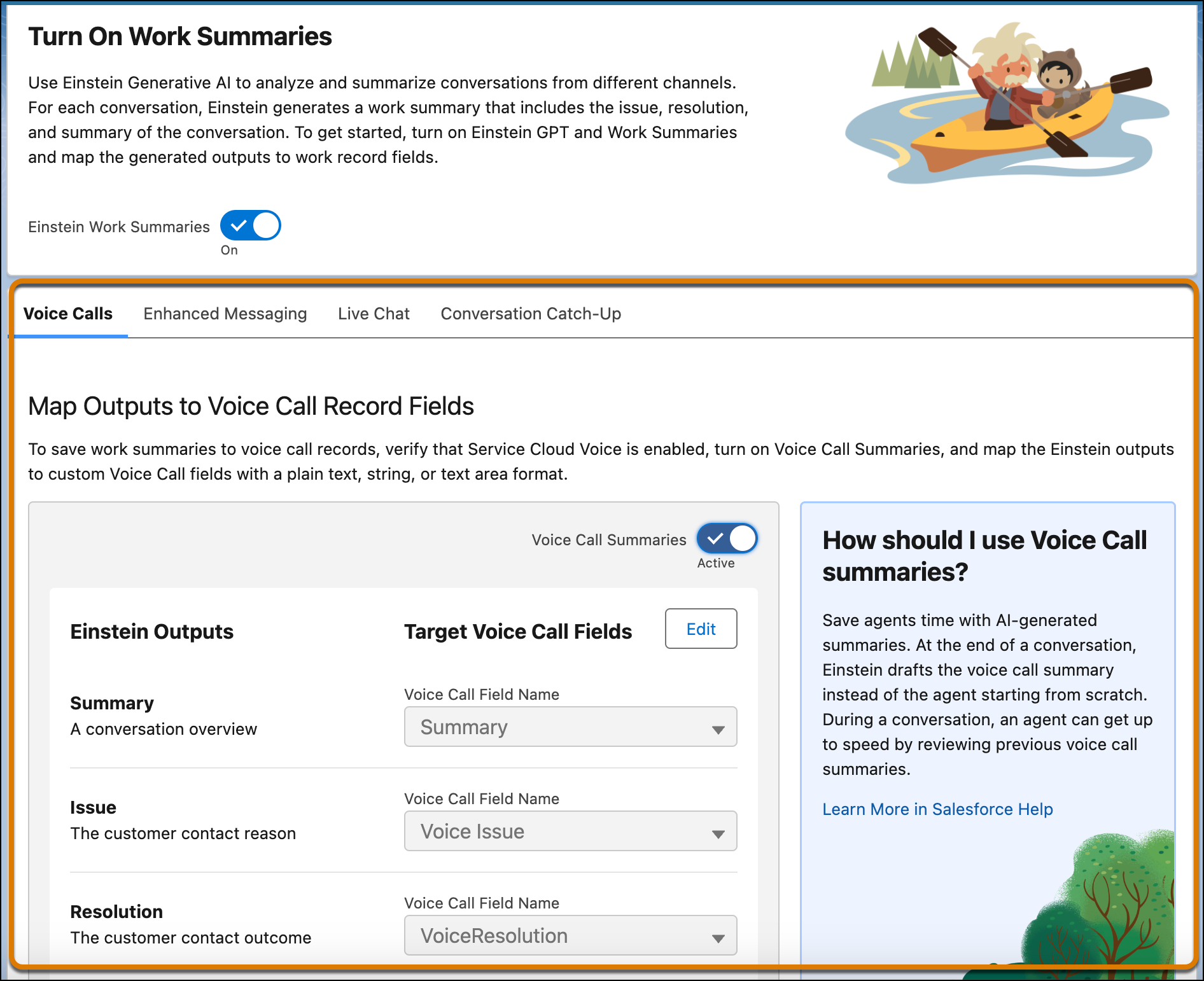
1. From Setup, in the Quick Find box, enter Einstein Work Summaries, then select **Einstein Work Summaries**.
2. Click the Voice Calls tab.
3. In the Map Outputs to Voice Call Fields section, click **Edit**.
4. For the Summary, Issue, and Resolution outputs, select the Salesforce object field where you want to map each output.
Only fields with the Text Area and Text Area (Long) data types appear in the picklist.

Tip To map a field, you must have field-level security access on the field. If you don’t have access and try to map the field, an error appears.
5. Click **Save**.
We don't recommend changing the field mappings after you set them up. If a field mapping is updated, new summaries are stored in the new field you specify, while the content from the previous field isn't shown on the summaries page.
To restore mapping for a custom field that you deleted and then undeleted, map the field to the output again.
#### See Also
- [Field-Level Security](https://help.salesforce.com/s/articleView?id=platform.users_profiles_field_perms.htm&type=5&language=en_US)