
Work Summaries for Email works out of the box, but you can customize its prompt based on your business needs.
Required Editions
| View supported editions. |
| User Permissions Needed | |
|---|---|
| To use and access Work Summaries: |
Work Summaries User AND Execute Prompt Templates |
| To create or edit an Email Summaries prompt template: |
Prompt Template Manager permission set
|
To use this feature, you need Email-to-Case, Einstein Generative AI and Work Summaries enabled.
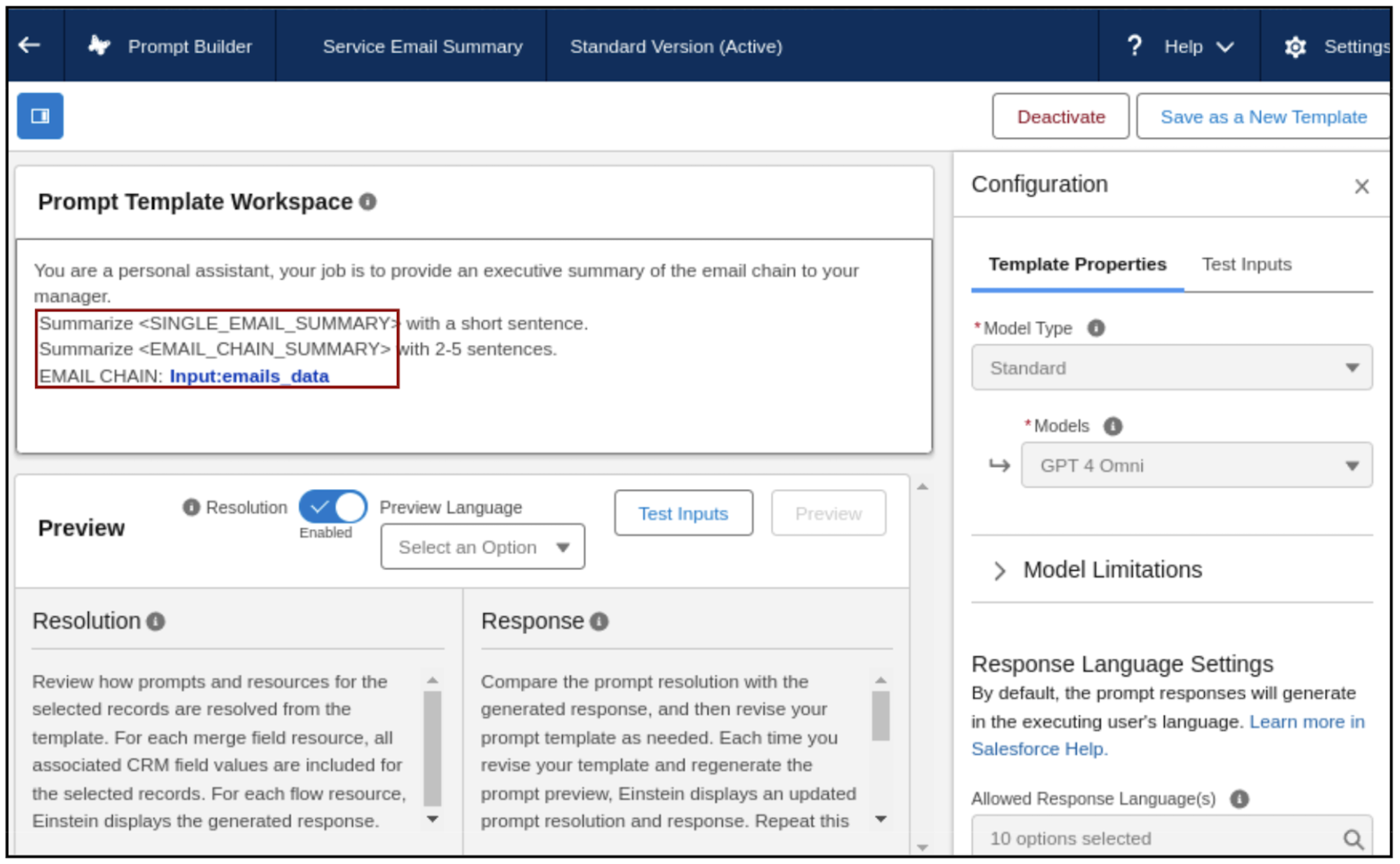
- In Setup, use the Quick Find box to open the Prompt Templates page. Open the Service Email Summary template.
- In Prompt Builder, click Save as a New Template.
-
In the Prompt Template Workspace, rewrite the first sentence to suit your
preferences. You can also specify the number and length of sentences you want
for single emails and for email chains. For example, you can specify that you
want 5 concise sentences.
Do not alter the portions of the text in the red box below: Summarize <SINGLE_EMAIL_SUMMARY>, Summarize <EMAIL_CHAIN_SUMMARY>, or EMAIL_CHAIN: Input_emails_data.
If you have multiple active Service Email Summary templates, Einstein uses the one that was modified most recently. To use the original prompt, deactivate or delete the other templates.