
You can set up desk phones or headphones in your telephony system so that your reps can use them to answer and make calls.
Required Editions
This article applies to:
- Salesforce Voice with Amazon Connect
- Salesforce Voice with Partner Telephony
- Salesforce Voice with Partner Telephony from Amazon Connect
| View supported editions. |
The process for setting up desk phones or headphones varies based on your telephony provider. Work with your telephony provider to get the procedure. The following procedure applies to the Amazon Connect telephony provider only.
- Log in to the AWS Management Console, click Services, and then click Amazon Connect.
- Click the Amazon Connect instance that matches the name of your Salesforce Voice contact center.
- Click Users and then User management.
- Select the users you want to grant desk phone access. Click Edit.
-
Select Desk phone as the Phone Type and enter the phone
number.
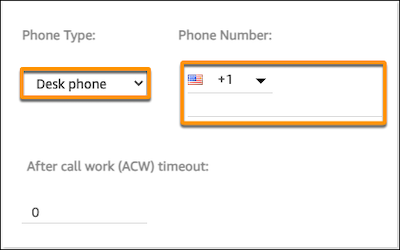
- Save your changes.
After you set up desk phone functionality, reps can select desk phone from the Omni-Channel utility.
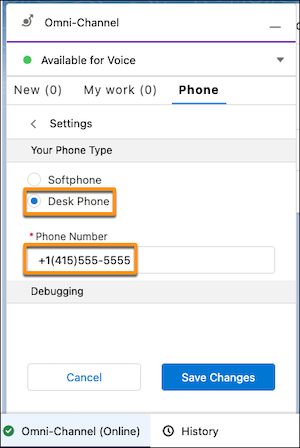
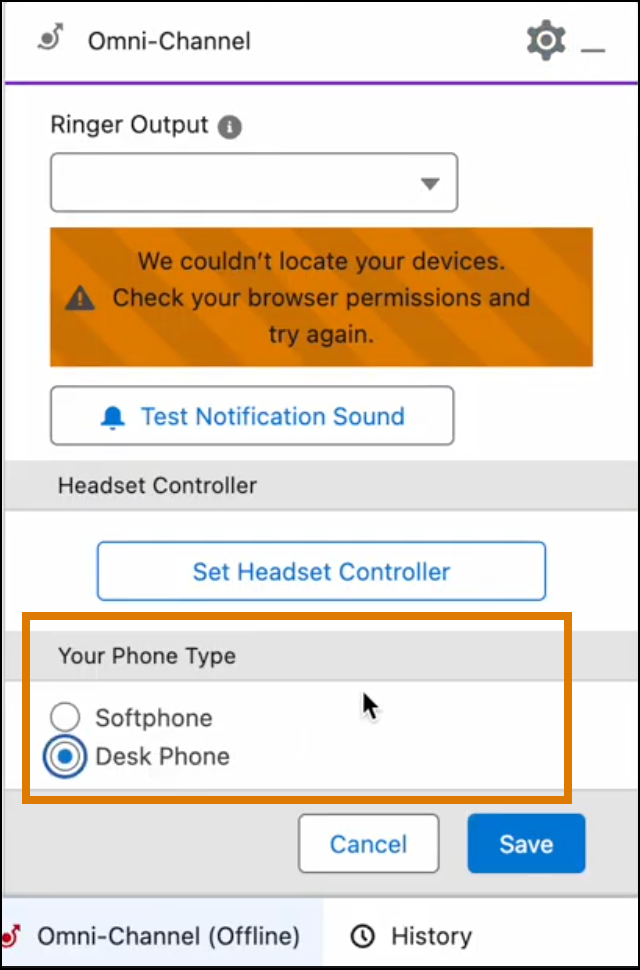
When you enable a desk phone for Salesforce Voice with Amazon Connect or Service Cloud Voice with Partner Telephony from Amazon Connect, the mute, accept, and decline functionality is disabled in the Omni-Channel utility. Reps must perform these actions from the desk phone.
When you enable a desk phone for Salesforce Voice with Partner Telephony, Omni-Channel utility functionality depends on the partner telephony provider’s integration. To confirm expected behavior, check with your partner telephony provider.