A contact center can have only one username format at a time, and you can choose a
customized username format for your contact center users.
This article applies to:
- Salesforce Voice with Amazon Connect
- Salesforce Voice with Partner Telephony from Amazon Connect
When you use a customized username, the same username is also used for SSO login with
Salesforce. When you create contact center users, the default username format used is
SFUserAlias@SFUserid@SFOrgId for a non government org, and SFUserid@SFOrgId for a government
org. When you create a contact center user, a corresponding user with the same username is
created in the Amazon Connect instance. When you delete a contact center user, the
corresponding user identified by the username is deleted in the Amazon Connect instance.
Create a Contact Center with Custom Username Format
To add users with a custom username format to a new contact center, edit the
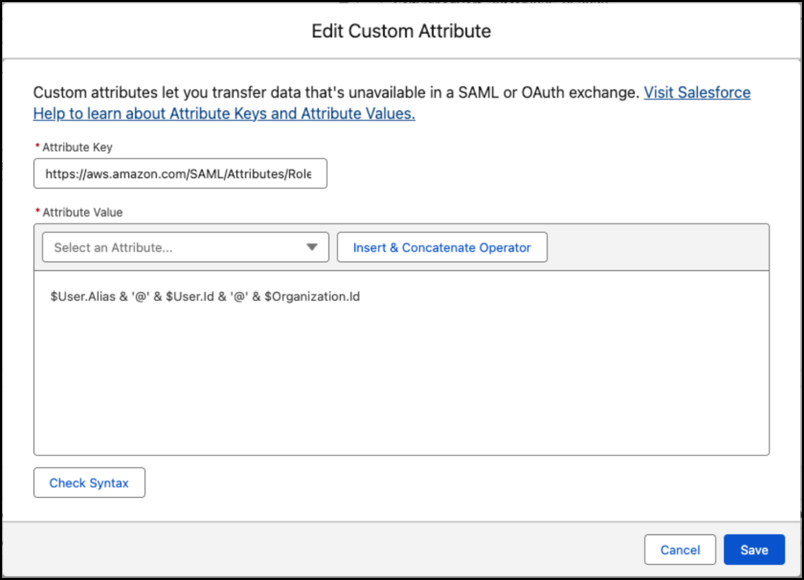
RoleSessionName attribute of the external client app associated with the contact center. The
RoleSessionName attribute controls the username format of the contact center users. The default
value of the RoleSessionName attribute is SFUserAlias@SFUserid@SFOrgId for a non government org,
and SFUserid@SFOrgId for a government org.
Required Editions
| Available in: Enterprise and Unlimited Editions |
-
Create an Amazon Connect contact center, and don’t add users to the contact center. See
Create Your Amazon Connect Contact
Center, and Create a Partner Amazon Contact Center.
-
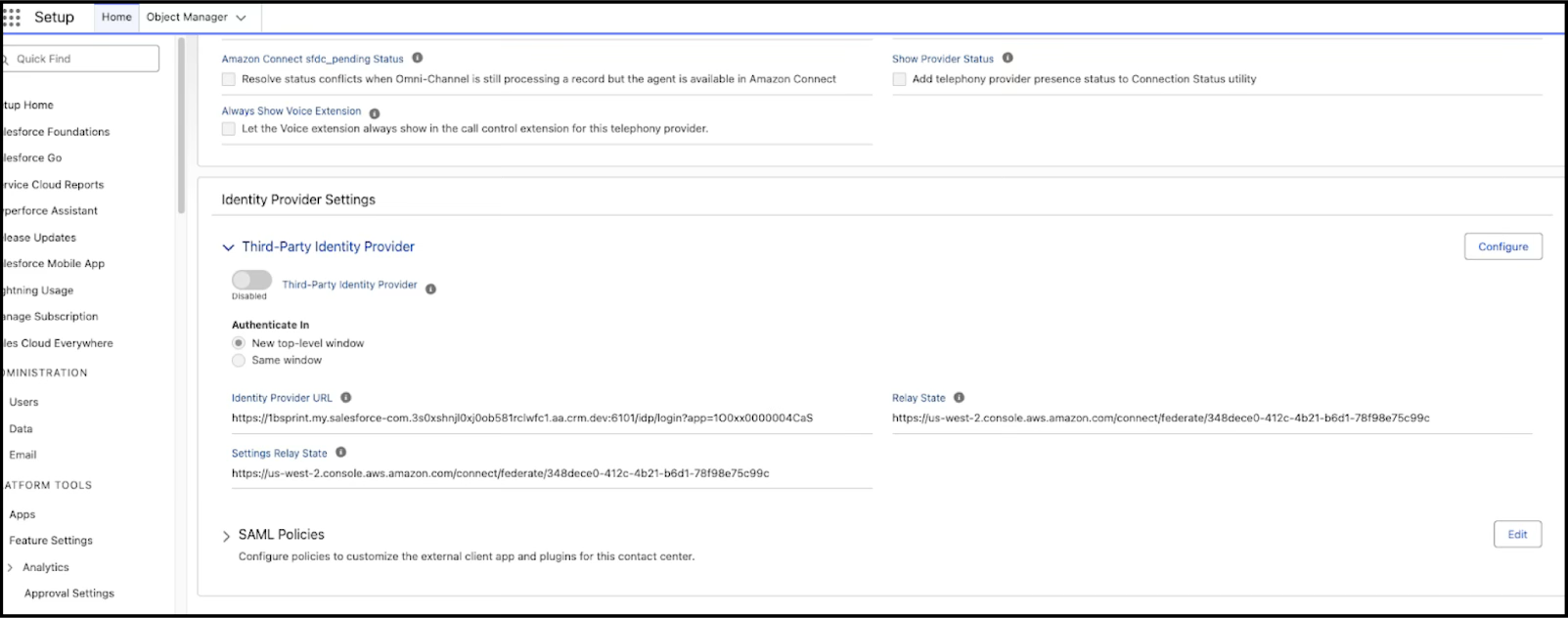
In Setup, find Voice Settings, select your contact center to open
the Contact Center Details page and edit the
RoleSessionName attribute value
in the SAML policies section.
For contact centers created before Summer ‘26 release, in Setup, find Manage
Connected Apps, and select {contact_center_name} Connected
App and edit the RoleSessionName attribute value.
The RoleSessionName attribute value can be a predefined or a custom
user-defined field, or a combination of predefined fields, custom fields or hardcoded values
connected by operators. Use the Insert Field option to add predefined or custom fields. Use
the Insert Operator option to add operators to connect the field values or hardcoded values to
get the required username format.
If custom username formats can’t be created by using predefined fields, you can use custom
fields to create the required username format, for example, to use third-party identity
provider usernames for contact centers.
Create custom fields for the standard entity and set the custom field as unique. Add values
for the custom fields and use the custom field in the RoleSessionName
attribute value. For example, create a FederatedLoginID text field for the
User standard object. Set the FederatedLoginID text field as unique, and add
FederatedLoginID values for the users. Then, use the
$User.FederatedLoginID__c custom field in the
RoleSessionName attribute value to get the required username format.
-
Add users to the contact center, and a corresponding user with the same username gets
created in the Amazon Connect instance. The contact center and Amazon Connect usernames are in
the customized username format you specify in the
RoleSessionName attribute
value. For a connected app, edit the attribute value from Manage Connected
Apps. 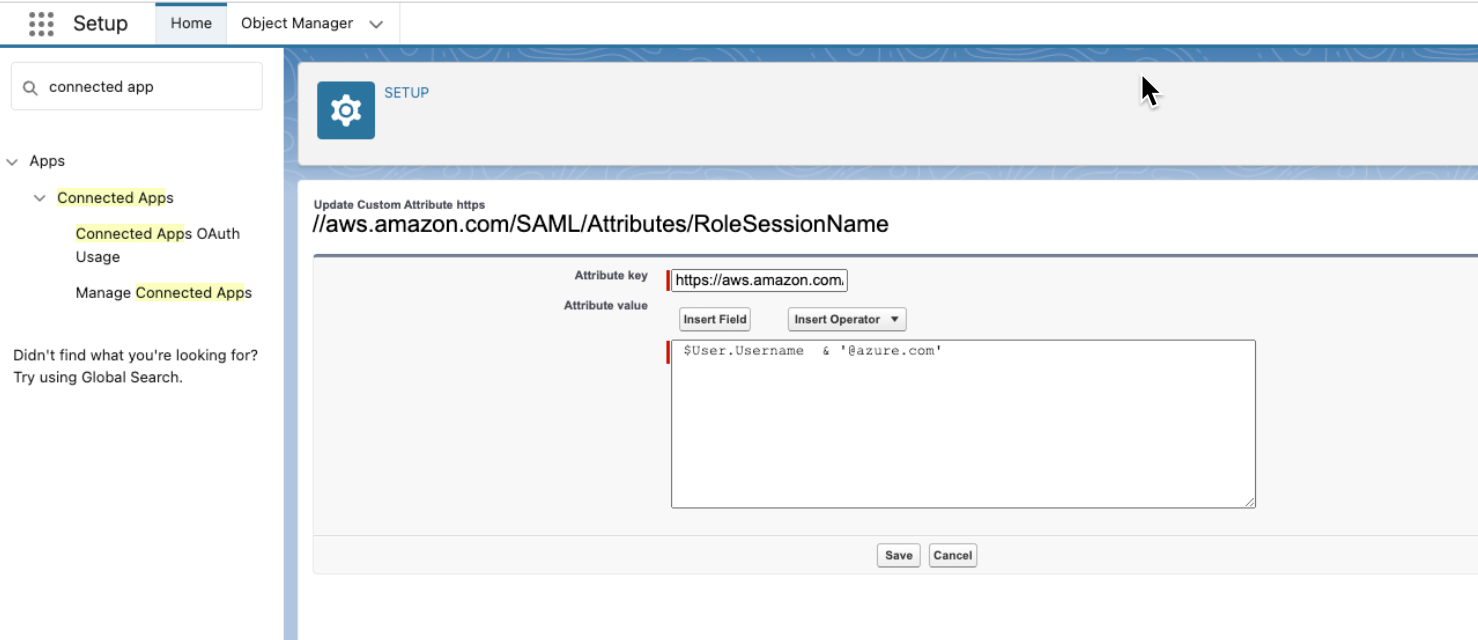
For an external client app, edit the attribute value from the contact center details
page.
Update Username Format of Contact Centers
Amazon Connect doesn’t allow updating the usernames, so for preexisting contact centers,
you must delete the users in the contact center and add them again to use a new customized
username format.
Required Editions
| Available in: Enterprise and Unlimited Editions |
-
In Setup, find Voice Settings, select your contact center to open
the Contact Center Details page, and edit the
RoleSessionName attribute value
in the SAML policies section. For contact centers created before Summer ‘26 release, in Setup,
find Manage Connected Apps, and select {contact_center_name} Connected App and
edit the RoleSessionName attribute value.
The RoleSessionName attribute value can be a custom user-defined field, or
a combination of predefined fields, custom fields or hardcoded values connected by
operators.
Create custom fields for the standard entity and set the custom field as unique. Add values
for the custom fields and use the custom field in the RoleSessionName
attribute value. For example, create a FederatedLoginID text field for the
User standard object. Set the FederatedLoginID text field as unique, and add
FederatedLoginID values for the users. Then, use the
$User.FederatedLoginID__c custom field in the
RoleSessionName attribute value to get the required username format.
-
Remove the users from the Salesforce contact center. The previously mapped corresponding
Amazon Connect users aren’t removed but are no longer linked to any Salesforce users. You can
still use these Amazon Connect users for maintaining history or for analytics and auditing
purposes.
-
Add users to the contact center, and a corresponding user with the same username gets
created in the Amazon Connect instance. The Salesforce contact center and Amazon Connect
usernames are in the customized username format you specify in the
RoleSessionName attribute value.
Map Amazon Connect Usernames to Contact Center Users
You can map preexisting Amazon Connect users to the new Salesforce contact center users.
Required Editions
| Available in: Enterprise and Unlimited Editions |
-
Use the username format for the
RoleSessionName attribute value that
corresponds to the Amazon Connect user’s name format.
-
If the Amazon Connect users are mapped to any routing profiles other than the basic
routing Profile, make sure you sync the routing profiles and queues in the Salesforce contact
center before adding the users to the contact center.
-
Add users to the contact center as described in Create a Contact Center with Custom Username Format, and
the Salesforce users are automatically mapped to the corresponding Amazon Connect users.