---
schema_version: "1"
id: 15c0fd8c142b47ceb12a84ecde8565f9adbfe9ed1533d7cde98cdbce4aa9f956
title: Use Customized Usernames for Contact Centers
collection: admin
version: current
locale: en-us
portal_url: https://docs.salesforce.com/admin/current/en-us/service/264-0-0/voice_custm_usnm.md
canonical_url: https://help.salesforce.com/s/articleView?id=service.voice_custm_usnm.htm&release=264.0.0&type=5
source_site: help.salesforce.com
content_type: documentation
content_hash: 5e6065374f7c91825522e8b96febfdf83032ffd2731ff8a68493864ff89c56aa
description: A contact center can have only one username format at a time, and you can choose a customized username format for your contact center users.
products:
- Service Cloud
- Digital Engagement
release: "264"
---
# Use Customized Usernames for Contact Centers
A contact center can have only one username format at a time, and you can choose a customized username format for your contact center users.
This article applies to:
- Salesforce Voice with Amazon Connect
- Salesforce Voice with Partner Telephony from Amazon Connect
When you use a customized username, the same username is also used for SSO login with Salesforce. When you create contact center users, the default username format used is SFUserAlias@SFUserid@SFOrgId for a non government org, and SFUserid@SFOrgId for a government org. When you create a contact center user, a corresponding user with the same username is created in the Amazon Connect instance. When you delete a contact center user, the corresponding user identified by the username is deleted in the Amazon Connect instance.
## Create a Contact Center with Custom Username Format
To add users with a custom username format to a new contact center, edit the RoleSessionName attribute of the external client app associated with the contact center. The RoleSessionName attribute controls the username format of the contact center users. The default value of the RoleSessionName attribute is SFUserAlias@SFUserid@SFOrgId for a non government org, and SFUserid@SFOrgId for a government org.
### Required Editions
Available in: Enterprise and Unlimited Editions

Note Starting in the Summer '26 release, connected apps can no longer be created. New contact centers use external client apps (ECA) for single sign-on (SSO). Contact centers created before the Summer '26 release will continue to use their connected apps for SSO.
1. Create an Amazon Connect contact center, and don’t add users to the contact center. See [Create Your Amazon Connect Contact Center](https://help.salesforce.com/s/articleView?id=service.voice_setup_cc_create.htm&type=5&language=en_US), and [Create a Partner Amazon Contact Center](https://help.salesforce.com/s/articleView?id=service.voice_pt_amazon_connect.htm&type=5&language=en_US).
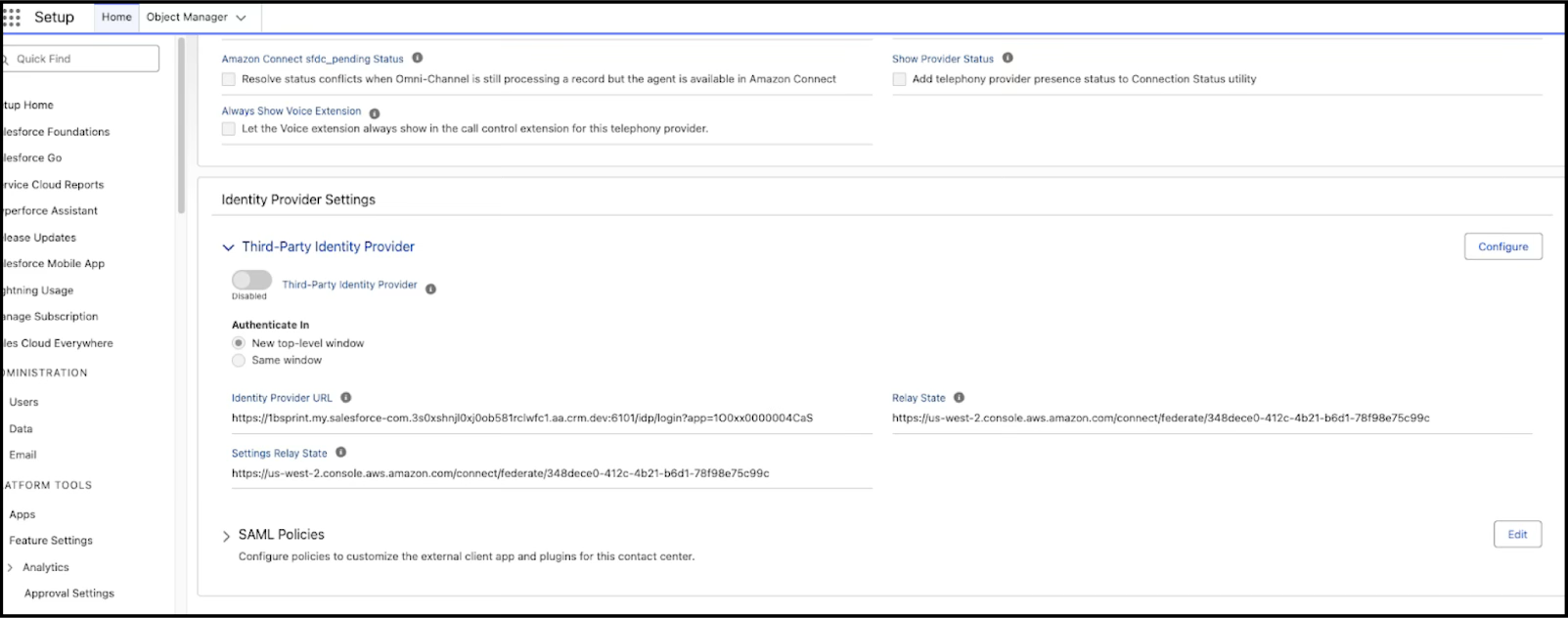
2. In Setup, find **Voice Settings**, select your contact center to open the Contact Center Details page and edit the `RoleSessionName` attribute value in the SAML policies section.
For contact centers created before Summer ‘26 release, in Setup, find **Manage Connected Apps**, and select **{contact\_center\_name} Connected App** and edit the `RoleSessionName` attribute value.
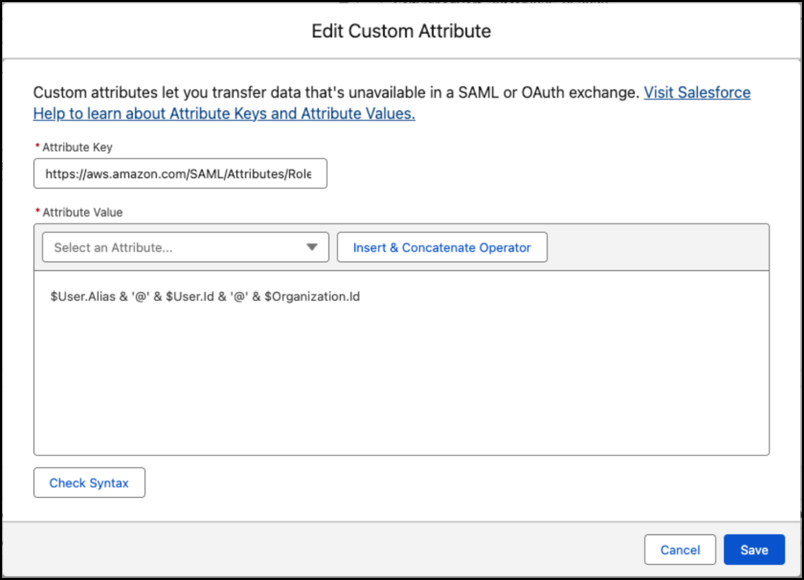
The `RoleSessionName` attribute value can be a predefined or a custom user-defined field, or a combination of predefined fields, custom fields or hardcoded values connected by operators. Use the Insert Field option to add predefined or custom fields. Use the Insert Operator option to add operators to connect the field values or hardcoded values to get the required username format.
If custom username formats can’t be created by using predefined fields, you can use custom fields to create the required username format, for example, to use third-party identity provider usernames for contact centers.
Create custom fields for the standard entity and set the custom field as unique. Add values for the custom fields and use the custom field in the `RoleSessionName` attribute value. For example, create a `FederatedLoginID` text field for the User standard object. Set the `FederatedLoginID` text field as unique, and add `FederatedLoginID` values for the users. Then, use the `$User.FederatedLoginID__c` custom field in the `RoleSessionName` attribute value to get the required username format.
3. Add users to the contact center, and a corresponding user with the same username gets created in the Amazon Connect instance. The contact center and Amazon Connect usernames are in the customized username format you specify in the `RoleSessionName` attribute value. For a connected app, edit the attribute value from **Manage Connected Apps**. 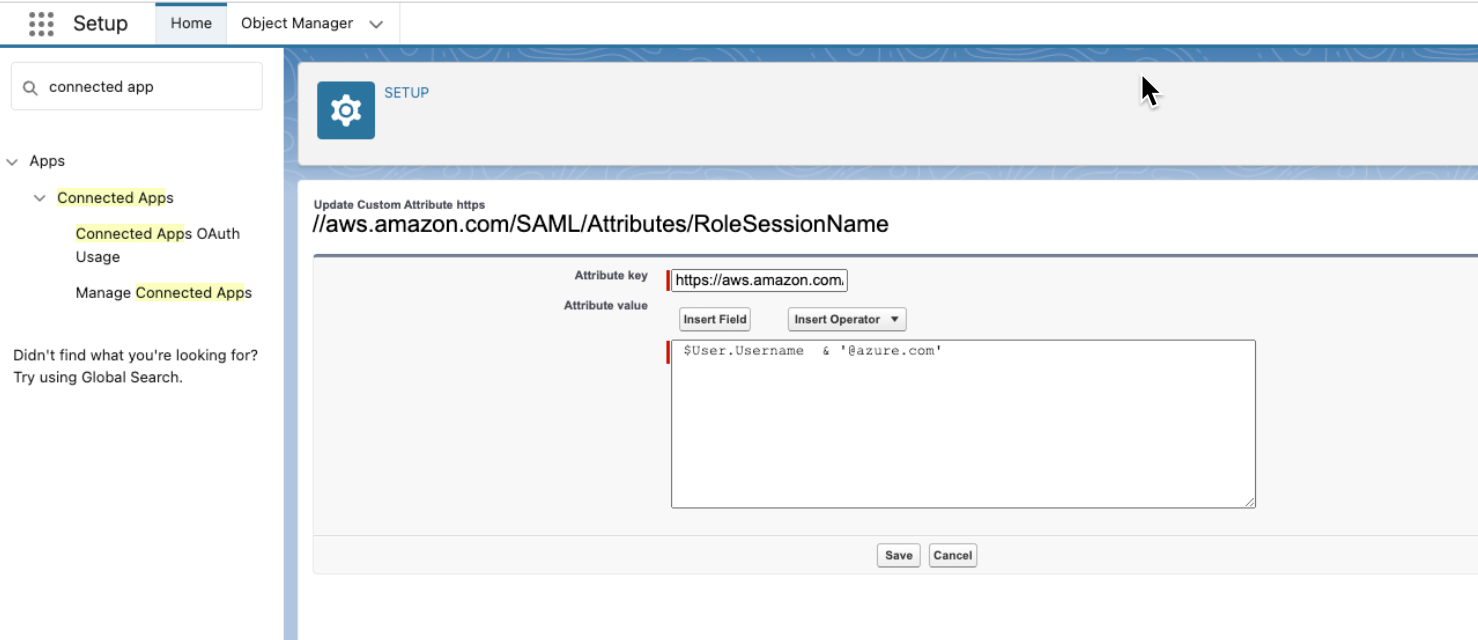
For an external client app, edit the attribute value from the contact center details page.
## Update Username Format of Contact Centers
Amazon Connect doesn’t allow updating the usernames, so for preexisting contact centers, you must delete the users in the contact center and add them again to use a new customized username format.
### Required Editions
Available in: Enterprise and Unlimited Editions
1. In Setup, find **Voice Settings**, select your contact center to open the Contact Center Details page, and edit the `RoleSessionName` attribute value in the SAML policies section. For contact centers created before Summer ‘26 release, in Setup, find **Manage Connected Apps**, and select **{contact\_center\_name} Connected App** and edit the `RoleSessionName` attribute value.
The `RoleSessionName` attribute value can be a custom user-defined field, or a combination of predefined fields, custom fields or hardcoded values connected by operators.
Create custom fields for the standard entity and set the custom field as unique. Add values for the custom fields and use the custom field in the `RoleSessionName` attribute value. For example, create a `FederatedLoginID` text field for the User standard object. Set the `FederatedLoginID` text field as unique, and add `FederatedLoginID` values for the users. Then, use the `$User.FederatedLoginID__c` custom field in the `RoleSessionName` attribute value to get the required username format.
2. Remove the users from the Salesforce contact center. The previously mapped corresponding Amazon Connect users aren’t removed but are no longer linked to any Salesforce users. You can still use these Amazon Connect users for maintaining history or for analytics and auditing purposes.
3. Add users to the contact center, and a corresponding user with the same username gets created in the Amazon Connect instance. The Salesforce contact center and Amazon Connect usernames are in the customized username format you specify in the `RoleSessionName` attribute value.

Warning If you delete the Salesforce contact center users before updating the RoleSessionName attribute value, deleting the Salesforce users deletes the Amazon Connect users, and you lose the related user history.
## Map Amazon Connect Usernames to Contact Center Users
You can map preexisting Amazon Connect users to the new Salesforce contact center users.
### Required Editions
Available in: Enterprise and Unlimited Editions
1. Use the username format for the `RoleSessionName` attribute value that corresponds to the Amazon Connect user’s name format.
2. If the Amazon Connect users are mapped to any routing profiles other than the basic routing Profile, make sure you sync the routing profiles and queues in the Salesforce contact center before adding the users to the contact center.
3. Add users to the contact center as described in [Create a Contact Center with Custom Username Format](https://help.salesforce.com/s/articleView?id=service.voice_custm_usnm_create.htm&language=en_US), and the Salesforce users are automatically mapped to the corresponding Amazon Connect users.