
After you set up a partner contact center with Messaging channel support for Bring Your Own Channel for CCaaS, you can add a Salesforce Voice channel to the contact center.
Required Editions
This article applies to:
- Salesforce Voice with Partner Telephony
| View supported editions. |
| User Permissions Needed | |
|---|---|
| To view the Partner Telephony Setup page: | Customize Application |
| To create and manage a contact center: | Salesforce Voice Contact Center Admin (Partner Telephony) |
To enable Voice in a partner contact center that already has Messaging support, you must have a Service Cloud User license, a Salesforce Voice Partner Telephony add-on license, and a Digital Engagement add-on license.
Before you begin, install a managed package from a CCaaS provider to support Bring Your Own Channel for CCaaS and Service Cloud Voice.

- From Setup, enter Partner Telephony Contact Centers in the Quick Find box, and then select Partner Telephony Contact Centers.
- Click New.
- Select your CCaaS provider and select Next.
-
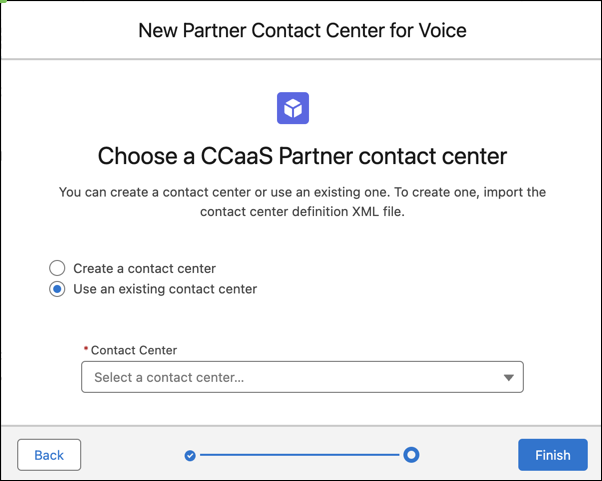
Select Use an existing Contact Center.
-
Select the messaging-only partner contact center to which you want to add Service Cloud
Voice.
The contact center now supports partner telephony as well as Bring Your Own Channel for CCaaS Messaging channels.
You can now create a phone channel in this contact center. To support multiple phone numbers in the same contact center, create additional voice channels.