
Resource detail pages include a customizable calendar that shows the resource’s scheduled appointments and absences. The calendar gives dispatchers a snapshot of the resource’s availability, and helps resources stay on top of their schedule.
Required Editions
| Available in: both Salesforce Classic (not available in all orgs) and Lightning Experience |
| The Agentforce Field Service and Operations core features, managed package, and mobile app are available in Enterprise, Unlimited, and Developer Editions. |
| User Permissions Needed | |
|---|---|
| To edit field sets: | Customize Application |
| To edit page layouts: | Customize Application |
| To view resource absences: | Read on service resources |
| To view service appointments: | Read on service appointments |
 This is a Field Service managed package feature.
To view a service resource’s calendar, navigate to their detail page from the Service Resources tab and scroll to the Calendar tab. Click a field on a calendar entry to open the corresponding record in a new tab.

Note If you don’t see the calendar on resource pages, add the VF079_ResourceCalendar Visualforce
component to the service resource page layout.
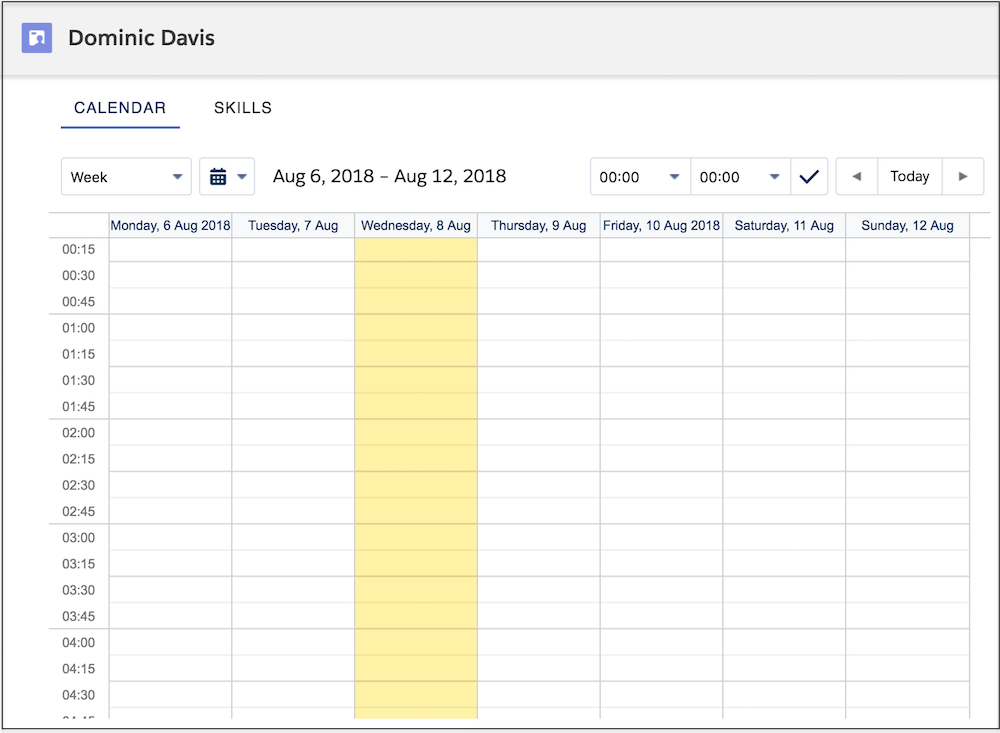
Here’s how to control which information appears in the calendar.
-
To control which fields appear in calendar entries for service appointments and resource
absences, customize field sets.
- The Service Appointment Resource Calendar Display field set controls what information appears on the calendar entry.
- The Service Appointment Resource Calendar Tooltip field set controls what information appears in a tooltip when you hover over the calendar entry.
- The Resource Absence Resource Calendar field set controls what information appears on a resource absence calendar entry.
- The Absence Resource Calendar Tooltip field set controls what information appears in a tool tip when you hover over the calendar entry.
For more details, see Customize the Classic Dispatch Console with Field Sets. -
To color-code resource absences on the calendar, update the Gantt Color field on resource
absences with a 6-digit hex code.
This field lets you represent different types of absences with different colors—for example, lunch breaks in red and internal meetings in green.Note Use Flow Builder to automate the color-coding of resource absences.