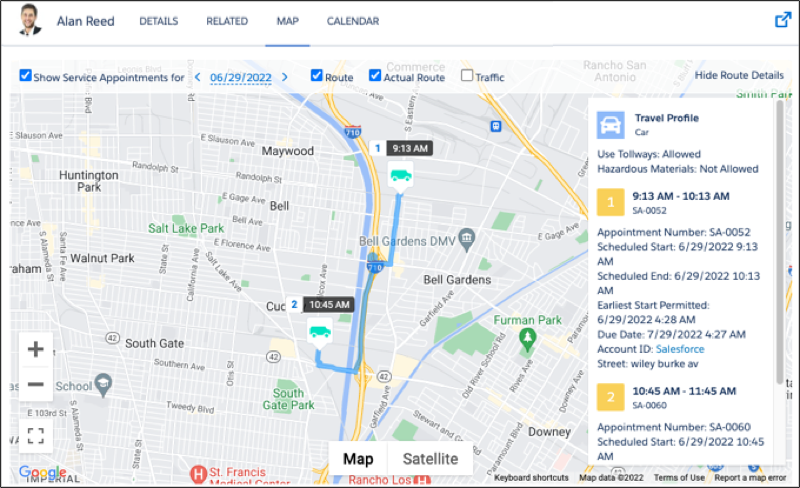
The scheduling optimizer uses street-level routing to schedule your mobile worker’s day appropriately. On the day of service, the Field Service mobile app’s geocoding feature tracks the actual route taken. You can see both the planned and actual routes together on the resource map view.
Required Editions
| Available in: both Salesforce Classic (not available in all orgs) and Lightning Experience |
| The Agentforce Field Service and Operations core features, managed package, and mobile app are available in Enterprise, Unlimited, and Developer Editions. |
 This is a Field Service managed package feature.

To navigate to a service resource’s map, start from the Classic Dispatch Console resource list. Click Details in a resource’s action menu, and then click the Map tab. You can also view a service resource’s scheduled appointments on the main Classic Dispatch Console map by selecting the service resource in the Map Layers settings.
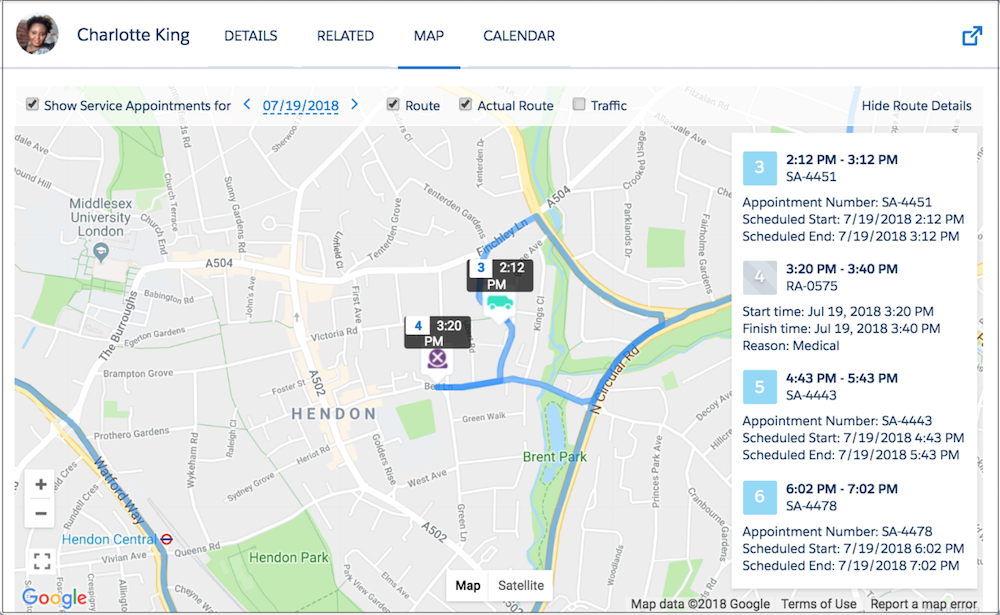
At the top of the map, select which date to show, and choose one or more types of data to display: Route (shown in blue), Actual Route (shown in pink), and Traffic. The actual route can be shown only if history tracking is set on the service resource’s Last Known Location field and geolocation tracking is turned on for them. See Field History Tracking.
A truck icon signifies an appointment. An X icon signifies a resource absence with a valid address, meaning its latitude and longitude can be calculated.
On the right-hand side of the map, you can show or hide the route details pane. The pane shows the travel profile with details such as the vehicle type and the route according to the selected travel mode. For example, quickly see whether the route includes the use of toll roads or whether hazmat considerations exist. The travel profile is shown when you’re using Enhanced Scheduling and Optimization and a travel mode is assigned to that territory or territory member. To zoom in on an appointment, hover over the appointment number in the pane and click Center on Map.