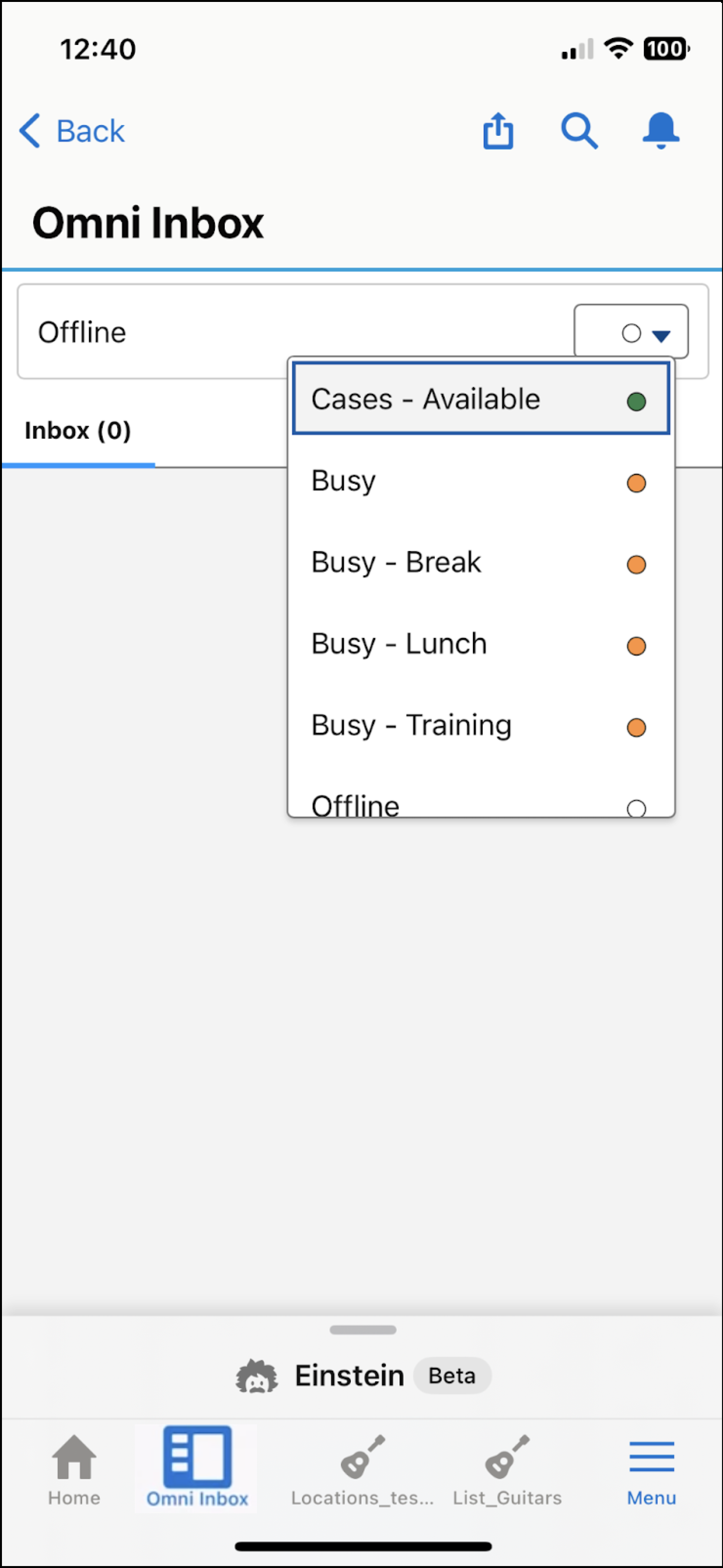
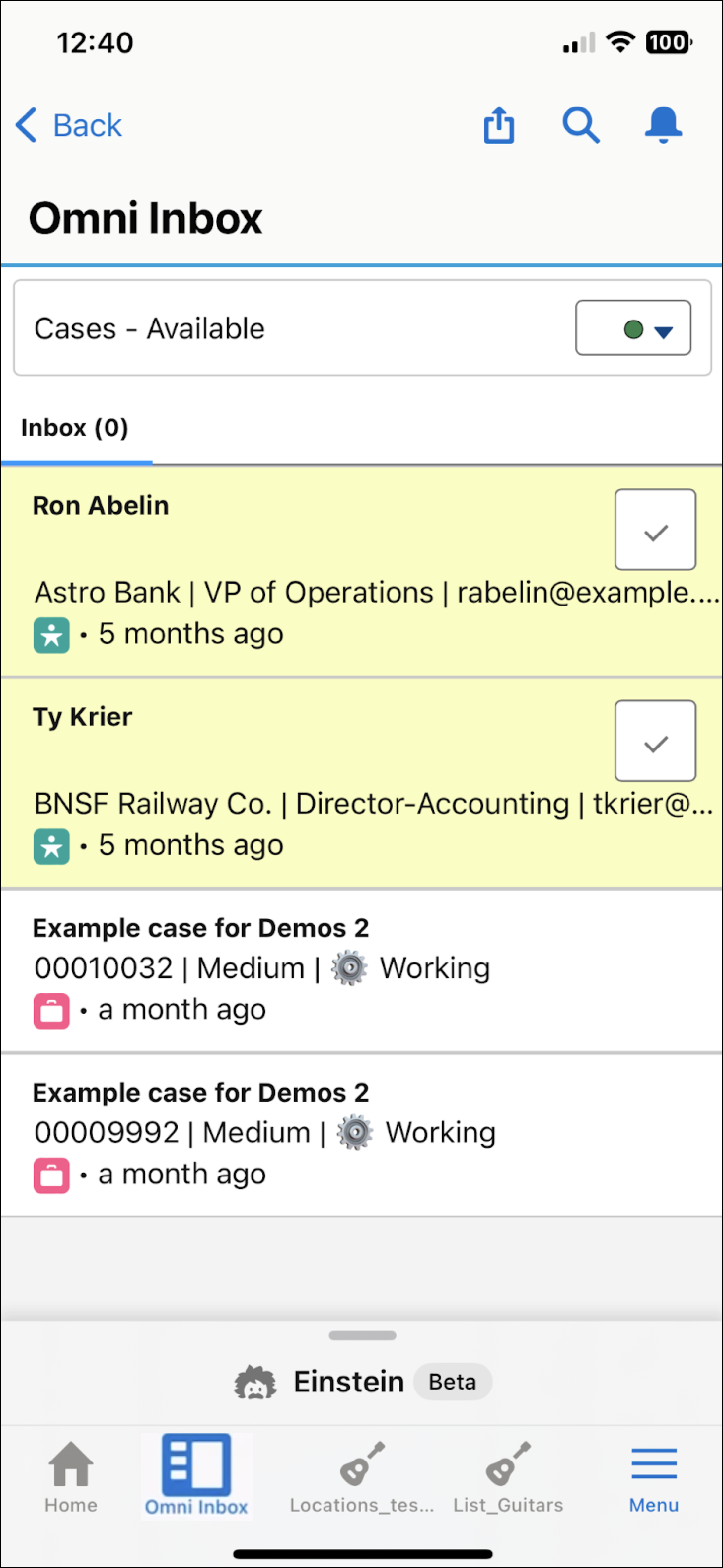
To accept new work and resume in-progress work, open Omni Inbox in the Salesforce
Mobile app.
Required Editions
| User Permissions
Needed |
| To access Omni Inbox in the Salesforce Mobile app: |
Messaging Agent |
-
Log in to the Salesforce Mobile app with your Salesforce credentials.
-
To view Omni Inbox, click . If the admin added Omni Inbox as a top item in the app’s navigation, you
can also click Omni Inbox at the bottom of this page.
-
To view work items, change your presence status to indicate that you’re
available.
-
To resume in-progress or paused work, tap the work item in your inbox.
-
To accept new work, tap the checkmark (
 ) next to the work item.
-
To decline work, tap the X next to the work item.
The X appears only if support reps are allowed to decline a work item, which the admin
sets in the presence configuration settings.

 Note Only presence statuses where all associated channels are configured for status-based capacity appear in the dropdown.