---
schema_version: "1"
id: 20c340601e85917d2a86ad2bf0ec0a2483c4647c3378e9d9e51d29c016048523
title: Manage Work with Omni Inbox
collection: admin
version: current
locale: en-us
portal_url: https://docs.salesforce.com/admin/current/en-us/service/264-0-0/omnichannel_omni_inbox_manage_work.md
canonical_url: https://help.salesforce.com/s/articleView?id=service.omnichannel_omni_inbox_manage_work.htm&release=264.0.0&type=5
source_site: help.salesforce.com
content_type: documentation
content_hash: a63860dc149fb8c4de905af72ddc079c6cbb68c42f814431025397435b674afc
description: To accept new work and resume in-progress work, open Omni Inbox in the Salesforce Mobile app.
products:
- Service Cloud
release: "264"
---
# Manage Work with Omni Inbox
To accept new work and resume in-progress work, open Omni Inbox in the Salesforce Mobile app.
### Required Editions
To access Omni Inbox in the Salesforce Mobile app:
Messaging Agent
1. Log in to the Salesforce Mobile app with your Salesforce credentials.
2. To view Omni Inbox, click **Menu** | **All Items** | **Omni Inbox**. If the admin added Omni Inbox as a top item in the app’s navigation, you can also click **Omni Inbox** at the bottom of this page.
3. To view work items, change your presence status to indicate that you’re available.

Note Only presence statuses where all associated channels are configured for status-based capacity appear in the dropdown.
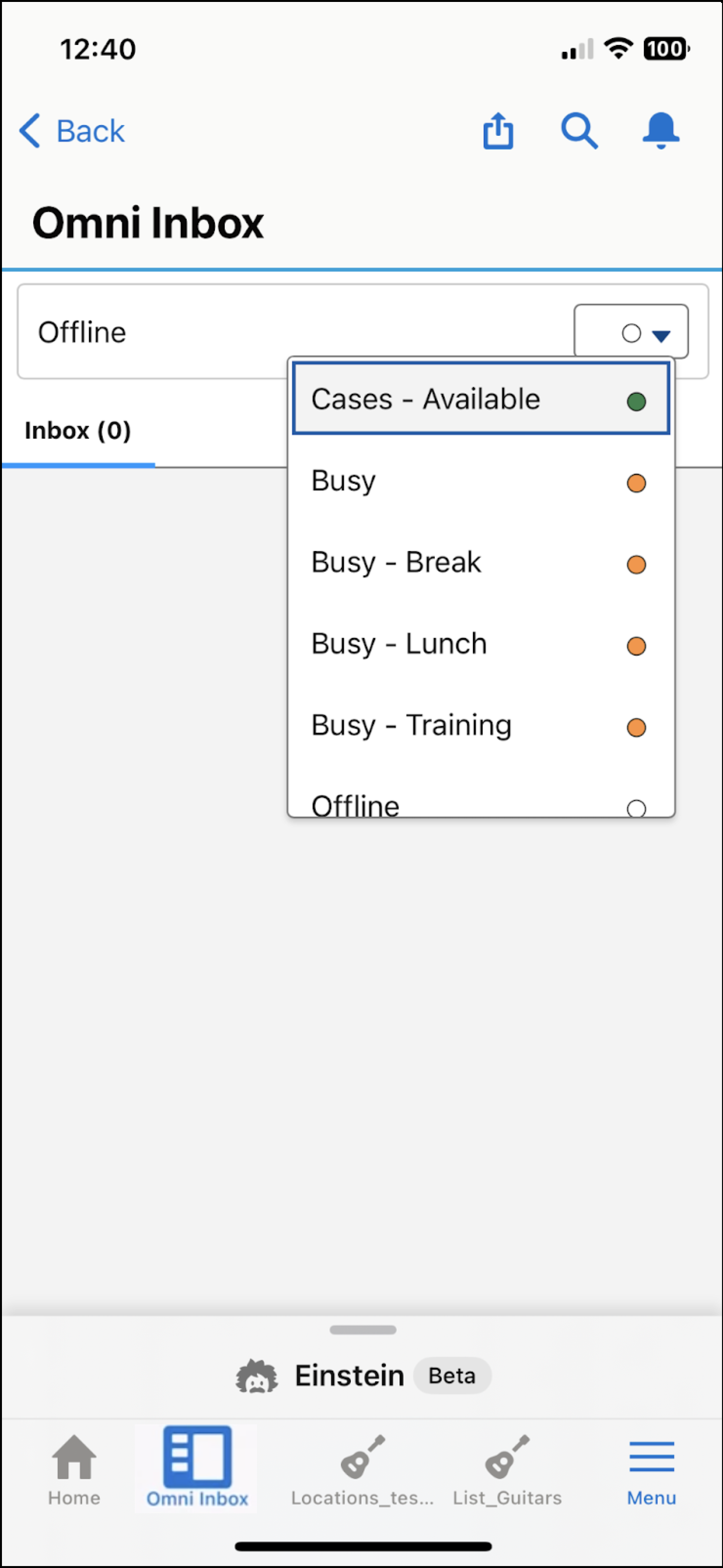
4. To resume in-progress or paused work, tap the work item in your inbox.
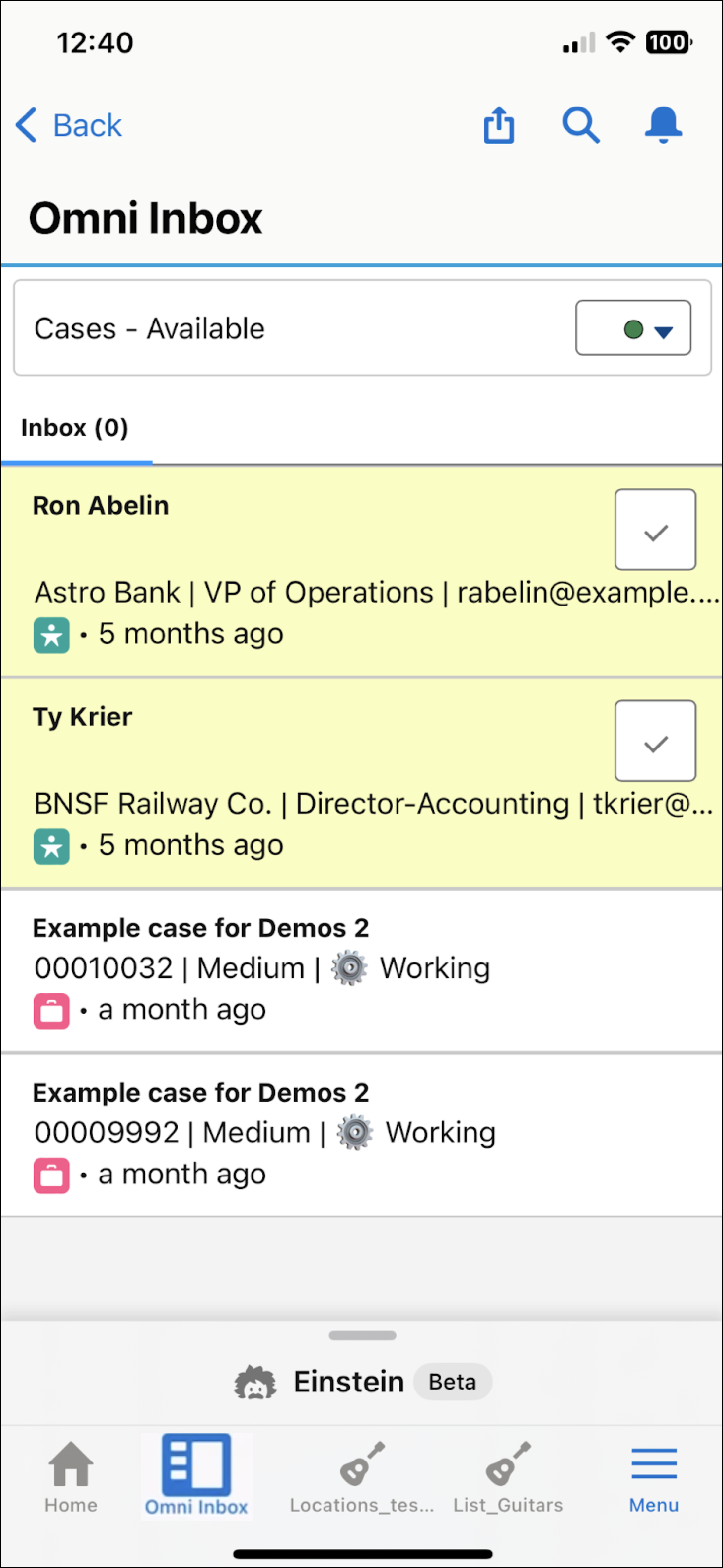
5. To accept new work, tap the checkmark () next to the work item.
6. To decline work, tap the X next to the work item.
The X appears only if support reps are allowed to decline a work item, which the admin sets in the presence configuration settings.
#### See Also
- [Download and Log In to the Salesforce Mobile App](https://help.salesforce.com/s/articleView?id=xcloud.salesforce_app_download.htm&type=5&language=en_US)
- [Use the Omni-Channel Component to Work with Customers (Desktop version)](https://help.salesforce.com/s/articleView?id=service.omnichannel_work_with_customers.htm&type=5&language=en_US)
- [Presence Configuration Settings](https://help.salesforce.com/s/articleView?id=service.service_presence_configuration_settings.htm&type=5&language=en_US)