Omni Mobile is available with Enhanced Omni-Channel only. To enable service reps to set up Omni Mobile in the Salesforce Mobile app on their mobile devices, complete these steps.
Required Editions
| View supported editions. |
Before you complete these steps to set up the mobile experience for Omni-Channel, verify that you already set up the desktop version of Omni-Channel.
- Verify that Enhance Omni-Channel is enabled.
- To enable use of Omni Mobile, assign the Digital Engagement license and the Messaging Agent user permission to every mobile service rep.
-
Make the Omni Inbox tab visible to mobile service rep.
- From Setup, enter Profiles in the Quick Find box, then select Profiles.
- To open the profile, click the name of the profile.
- Click Object Settings.
- Scroll down the list of objects and click Omni Inbox.
-
Verify that the Omni Inbox tab is set to Default On.
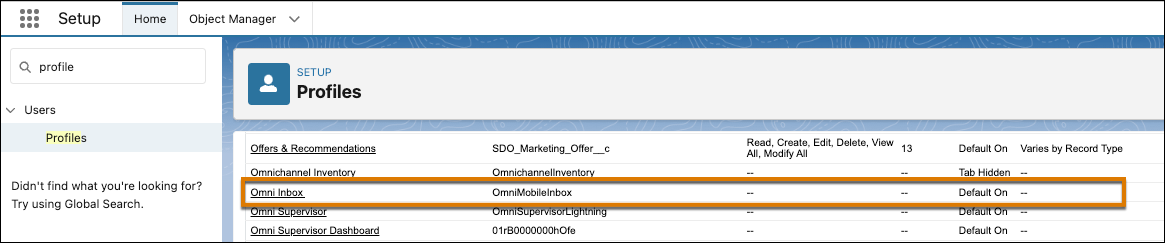
- If it’s not set to Default On, edit Omni Inbox and select this setting.
-
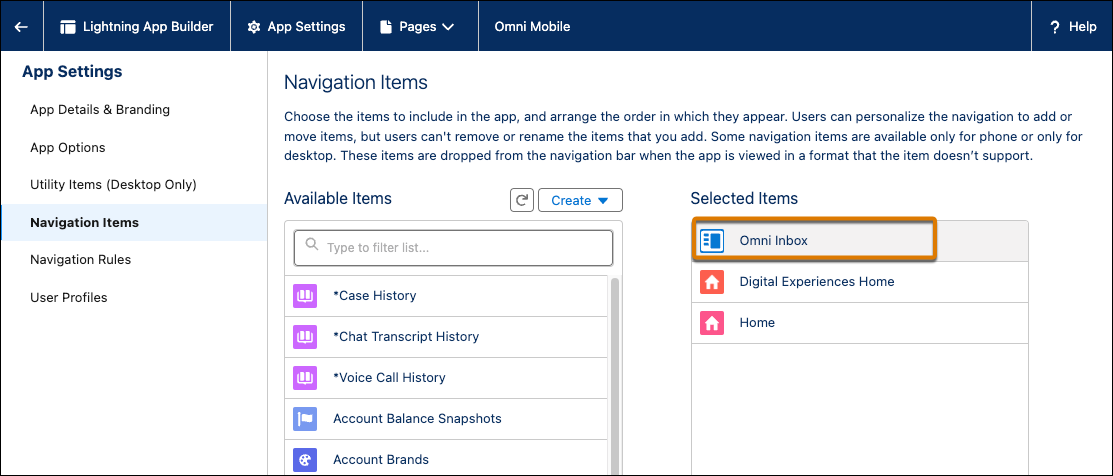
Add Omni Inbox as the top item in the app.
- From Setup, enter App Manager in the Quick Find box, then select App Manager.
- Click Edit for the app that service reps use to access Omni Inbox in the Salesforce Mobile app.
- Select Navigation Items from the left panel.
-
Select Omni Inbox from the Available Items list, move it to the
Selected Items list, and then move it to the top of that list.
This option appears for Mobile users only.