
The My Service Journey app is available to all users in Enterprise, Unlimited, and Developer editions. Optionally, limit its access to specific user profiles, either from the app settings or from a profile’s settings.
Required Editions
Limit Access from the App Settings
To hide My Service Journey for certain user profiles, go to the app’s profile settings.
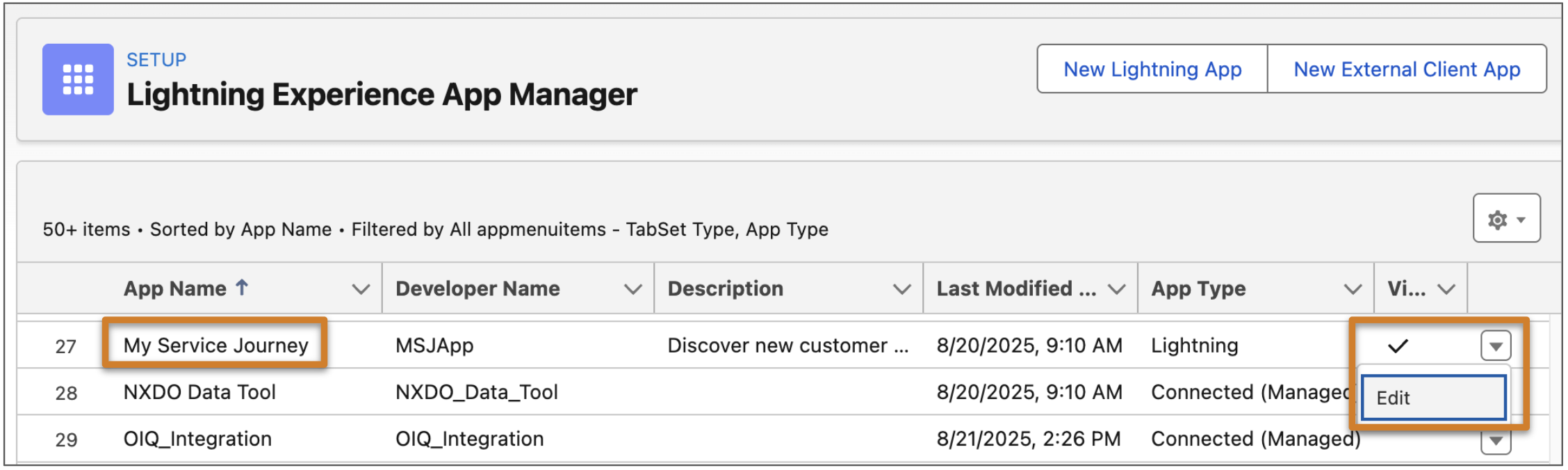
- From Setup, in the Quick Find box, enter App Manager, and then select App Manager.
-
Find the My Service Journey app in the app list, and click
Edit in its action menu.
-
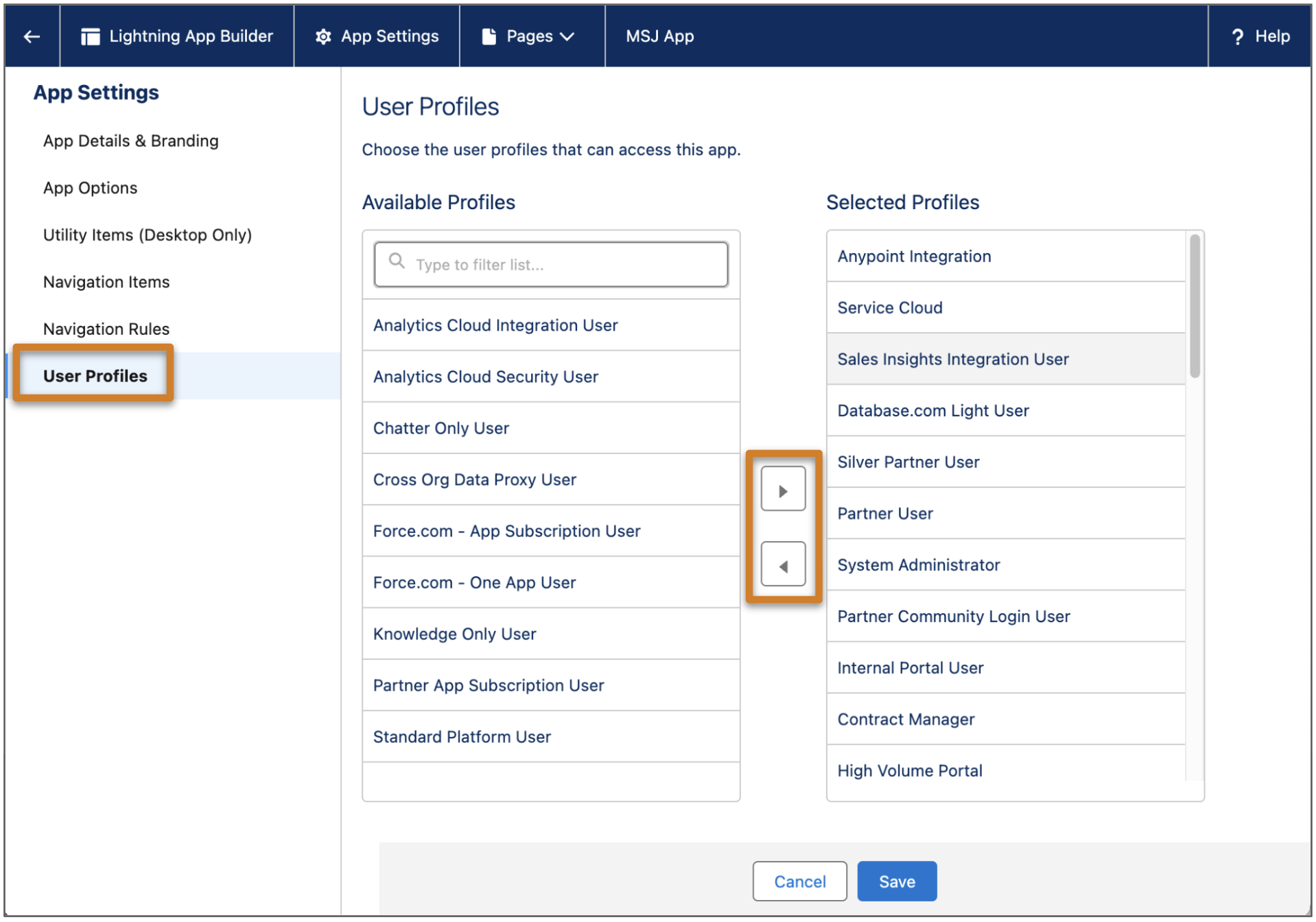
Click User Profiles in the left-hand menu, and use the arrows
to add or remove profiles from the list of selected profiles.
- Save your changes.
Limit Access from a Specific Profile’s Settings
Alternatively, go to a specific user profile’s settings to hide My Service Journey for all users with that profile.
- From Setup, in the Quick Find box, enter Profiles, and then select Profiles.
-
Click a profile name, and then click Edit.
- If the Enhanced Profile user interface is turned off, go to Tab Settings and select Default Off for My Service Journey.
- If the Enhanced Profile user interface is turned on, go to Assigned Apps and deselect Visible for My Service Journey.
- Save your changes.