
Credential-based user verification lets authenticated customers view their messaging conversation history when chatting in Enhanced Web Chat on a Salesforce site.
Required Editions
| View supported editions. | |
 This article applies to:
|
Enhanced In-App Chat and Enhanced Web Chat channels |
 This article doesn’t apply to:
|
Enhanced WhatsApp, Enhanced Facebook Messenger, Standard and Enhanced SMS, Enhanced Apple Messages for Business, Enhanced LINE, and Bring Your Own Channel |
If you have a Service agent deployed on a Salesforce site, make sure that your site users have the permissions required for your agent's actions. After you set up credential-based user verification, Service agents run actions as the logged-in site user, not the agent user.
Turn On User Verification
Turn on user verification for Enhanced Chat.
- From Setup, in the Quick Find box, enter Messaging, and then select Messaging Settings.
- In the dropdown for your messaging channel, select Edit.
- Select the Add User Verification checkbox. Ignore the Authorization Token Expiration Time for Verified Users box. The token expiration time for credential-based user verification is always 15 minutes until the token automatically renews.
- Save your changes.
Add Credential-Based User Verification to your Salesforce Site
Activate user verification in an Experience site with just a few clicks.
- Open the Experience Builder.
- On the page, click to highlight the Embedded Messaging component.
-
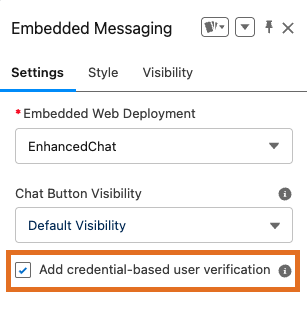
In the property editor, select Add credential-based user
verification.
- Publish your changes.