Let your customers reschedule and cancel appointments even if the mobile worker is on
the way to the appointment.
Required Editions
| Available in: both Salesforce Classic (not available in all orgs) and Lightning
Experience |
| The Field Service core features, managed package, and mobile app are available in
Enterprise, Unlimited, and Developer Editions.
|
| The Field Service Appointment Assistant managed package and permission set
license are required. |
| User Permissions Needed |
| To customize component settings: |
Create and Set Up Experience Sites AND View Setup and Configuration |
-
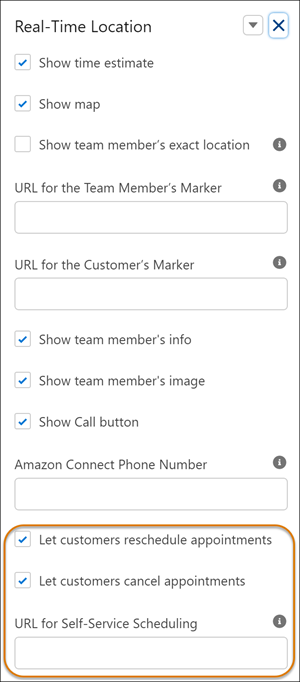
To open the settings panel, click anywhere in the Real-Time Location component.
-
Select Let customers reschedule appointments and Let
customers cancel appointments.
-
In URL for Self-Service Scheduling, enter the URL of the page where your self-service
scheduling component is located.
To find this URL:
-
From Setup, in the Quick Find box, enter Digital Experiences, and
then select All Sites.
-
In the row of the required Experience site, click Builder.
-
In Experience Builder, click Settings
 .
.
-
Copy the URL from the Publish Status. Make sure that the specific page is included in the
URL.
-
Enable the notification delivery channels.
-
From Setup, in the Quick Find box, enter Notification Builder, and
then select Notification Delivery Settings.
-
From Custom Notification Types, edit Appointment Assistant Custom Notifications.
-
Select Salesforce Field Service for Android and
Salesforce Field Service for iOS. If you can’t see these options,
install the connected apps.
-
Mobile workers are notified when appointments are rescheduled or canceled. If you want to
disable the notifications, follow these steps.
-
From Setup, in the Quick Find box, enter Process Automation, and
then select Flows.
-
Open the Self-Service Scheduling Notifications flow.
-
Click Deactivate.

 To find this URL: