
If a customer is more comfortable with spoken instruction, honor their preference. Record and send audio messages, also called voice messages or voice notes, up to 1 minute long in supported Enhanced Messaging channels.
Required Editions
| View supported editions. | |
 This article applies to:
|
Enhanced WhatsApp, Enhanced Facebook Messenger, Enhanced SMS, and Enhanced Apple Messages for Business channels |
 This article doesn’t apply to:
|
Enhanced In-App Chat, Enhanced Web Chat v1, Enhanced Web Chat v2, Enhanced LINE, Standard SMS, and Bring Your Own Channel |
| User Permissions Needed | |
|---|---|
| To send and receive messages in Enhanced Messaging channels: |
Messaging Agent Create Public Links |
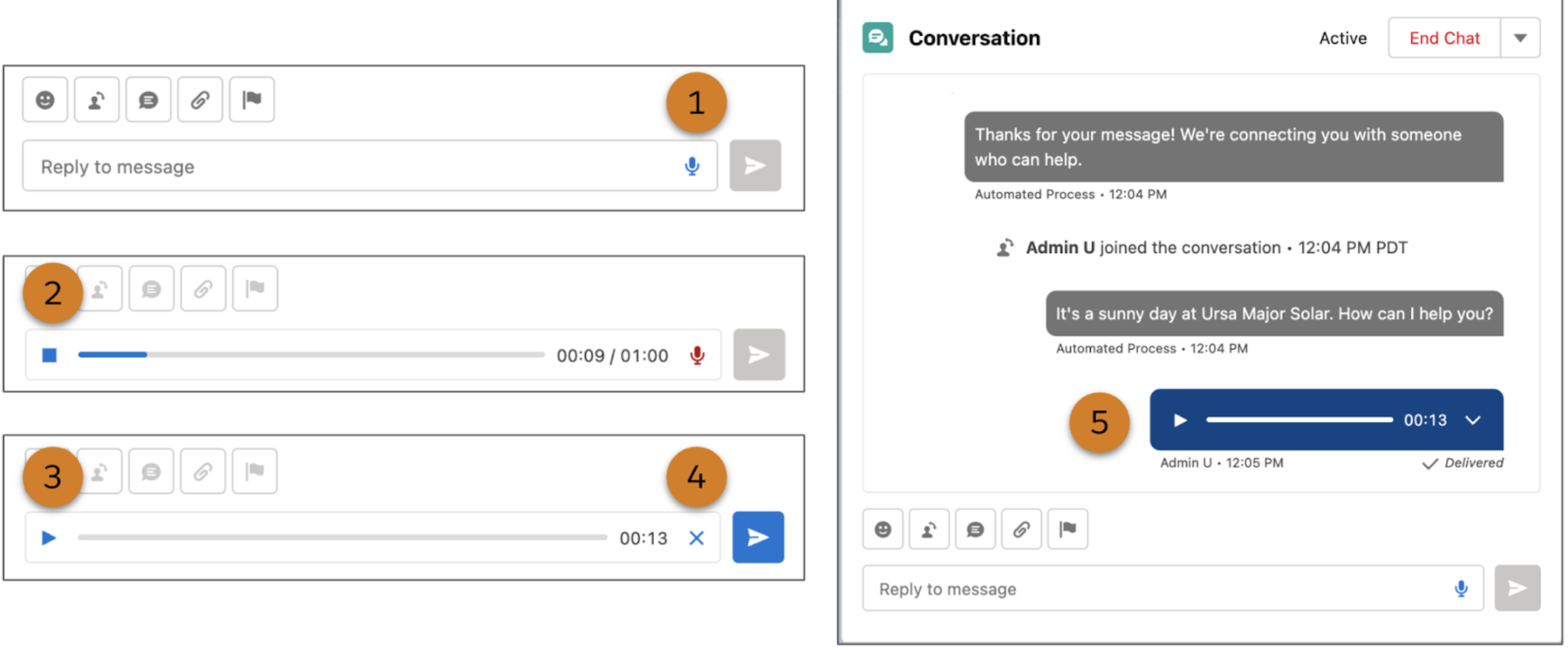
- In an active messaging session, click the microphone icon in the message field (1).
- If you’re prompted, give your web browser access to your microphone.
- Speak your message for up to 1 minute.
- Click the stop icon (2) when you’re done.
- Optionally, play back your message (3) or delete it (4).
- When you’re ready, send it to the customer (5).
After you send an audio message, the customer can access it for 30 days. Audio messages are included in the conversation transcript just like any other message.