
Learn more about the person you’re messaging with. Use a flow template to auto-link contacts, leads, employees, or person accounts to your messaging session.
Required Editions
| View supported editions. |
| User Permissions Needed | |
|---|---|
| To run flows |
Run Flows OR Manage Flow |
Set your flow to auto-launch or let support reps run it from the Actions & Recommendations component.
- If you don’t use Channel-Object Linking, skip to step 3. If you do use it, turn it off before adding Individual-Object Linking. From Setup, in the Quick Find box, enter Channel-Object Linking, and then select Channel-Object Linking.
- Turn off Channel-Object Linking.
- From Setup, in the Quick Find box, enter Flows, and then select Flows under Process Automation.
- Click New Flow.
- Click All + Templates.
- Click Individual-Object Linking Flow.
-
Select the Find Contact Associated with Messaging Session flow
template.
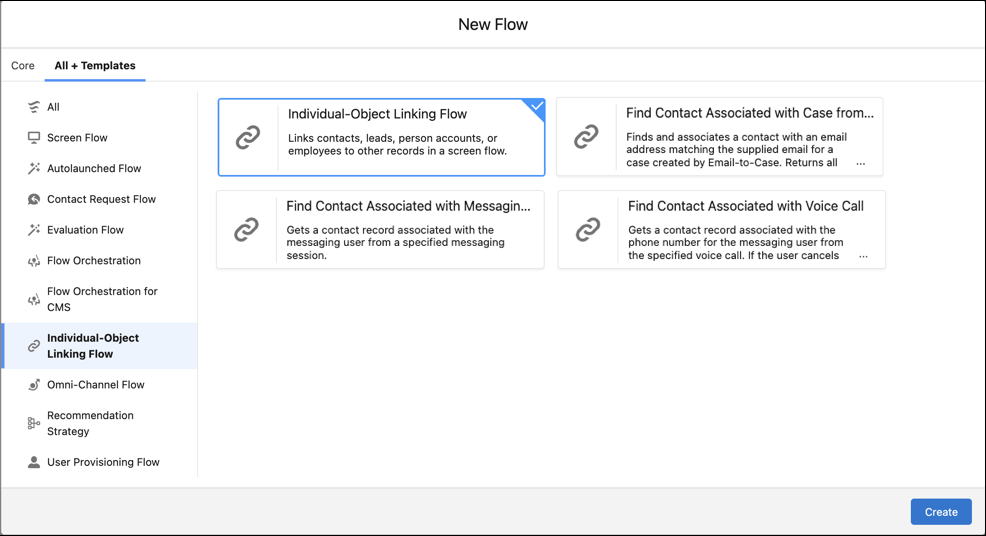
- Click Create.
- To search for a lead, employee, or person account instead of contacts, click the Find Matching Contacts Flow flow action, and then select Edit Action. Make a selection in the Search Object dropdown menu.
- To narrow your search to a specific field on the individual record, make your selection from the Search Fields dropdown menu.
- To search for a specific term or variable, replace what’s in the Search Term field.
- Click Done.
- Click Save.
- Test and update the flow, and then activate it.
When a support rep runs the flow, it displays contacts with the same email address as the case’s Web Email field. To link a contact to the case, the support rep selects a matching contact.