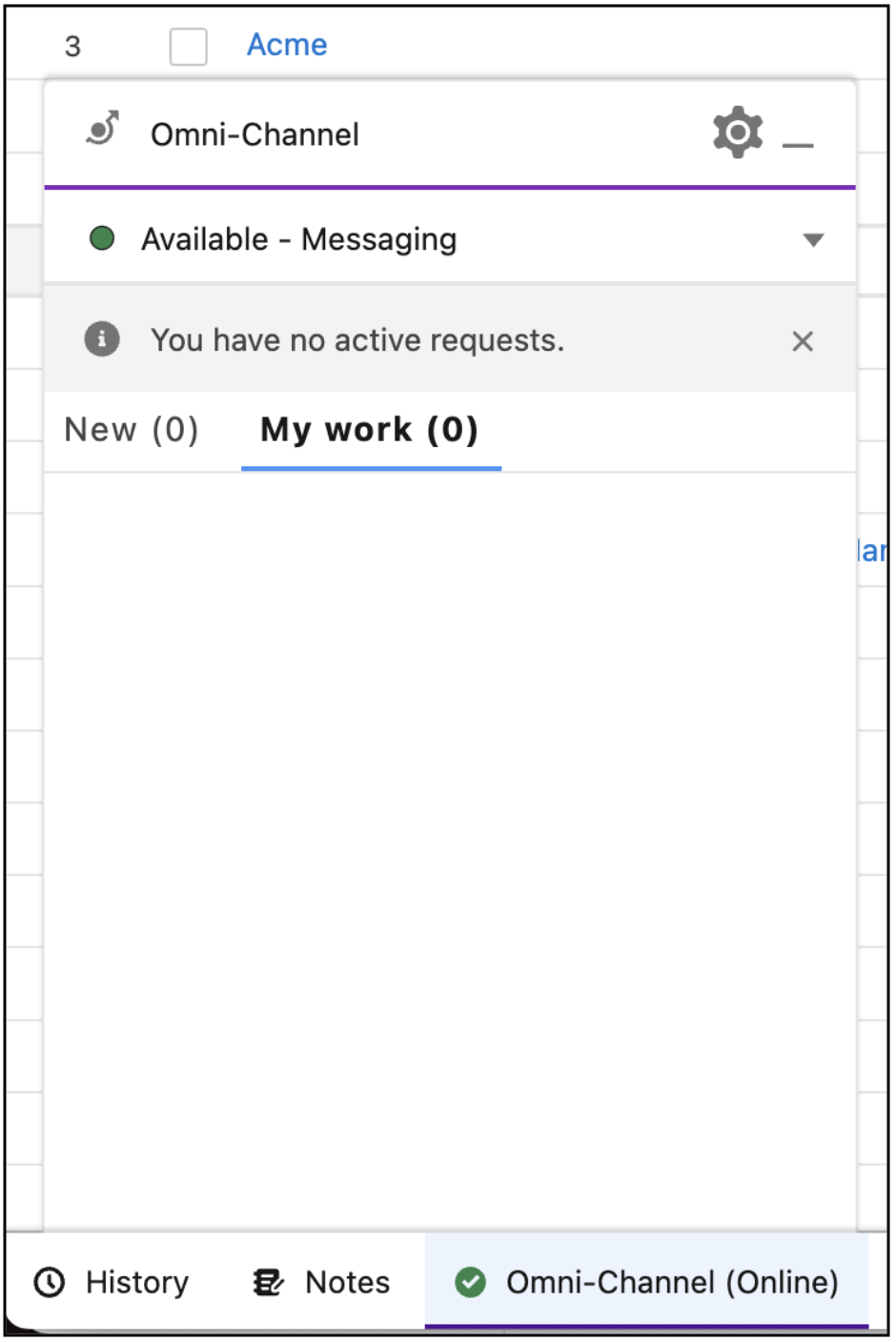
Access Messaging through the Service Console app that your admin set up. Log into Omni-Channel to start chatting with customers.
Required Editions
| View supported editions. | |
 This article applies to:
|
Enhanced In-App Chat, Enhanced Web Chat v1, Enhanced Web Chat v2, Enhanced WhatsApp, Enhanced Facebook Messenger, Standard and Enhanced SMS, Enhanced Apple Messages for Business, Enhanced LINE, and Bring Your Own Channel |
| User Permissions Needed | |
|---|---|
| To send and receive messages in Enhanced Chat: |
Enhanced Chat User permission set license AND Enhanced Chat Rep user permission |
| To send and receive messages in standard and enhanced messaging channels: | Messaging Agent |
-
Open the app that contains Messaging.
-
To open the App Launcher, on the left side of the navigation bar, click
 .
.
-
Click the app that contains Messaging. Usually, this is your Service Console app.
The name of the app might vary depending on how your admin set up Salesforce. When in doubt, your admin can tell you which app to use.
-
To open the App Launcher, on the left side of the navigation bar, click
-
Log into Omni-Channel. Messages are routed only to service reps who are logged
in.
- To open the Omni-Channel utility (pictured) or sidebar, click Omni-Channel in the footer of your screen.
- Click the dropdown menu and select your status. If you’re online, a green dot is shown next to the status. Now you’re ready to chat with customers.