
Assign feedback responses to a knowledge author or queue to take action on them. You can also track progress until the feedback is resolved.
Required Editions
| Available in Lightning Experience. View supported editions. |
| User Permissions Needed | |
|---|---|
| To view Enhanced Knowledge Settings in Setup: | Knowledge User license |
| To set up Salesforce Knowledge, create article types and article actions, and modify category groups assignments: |
Customize Application AND Manage Salesforce Knowledge |
| To enable Surveys: | System Administrator profile |
| User Permission | Object Access |
|---|---|
| To view and assign feedback | Knowledge Article Feedback: Read and Create access |
-
From the App Launcher, find and select Knowledge Article
Feedback.
The Knowledge Article Feedback page lists all the feedback responses for your articles.
- To assign feedback to a queue or a user for resolution, select the knowledge feedback record and click Assign Feedback.
-
On the Assign Knowledge Article Feedback modal, in the Assign to field,
select Queue to assign feedback to a queue or select
User to assign feedback to a knowledge author.
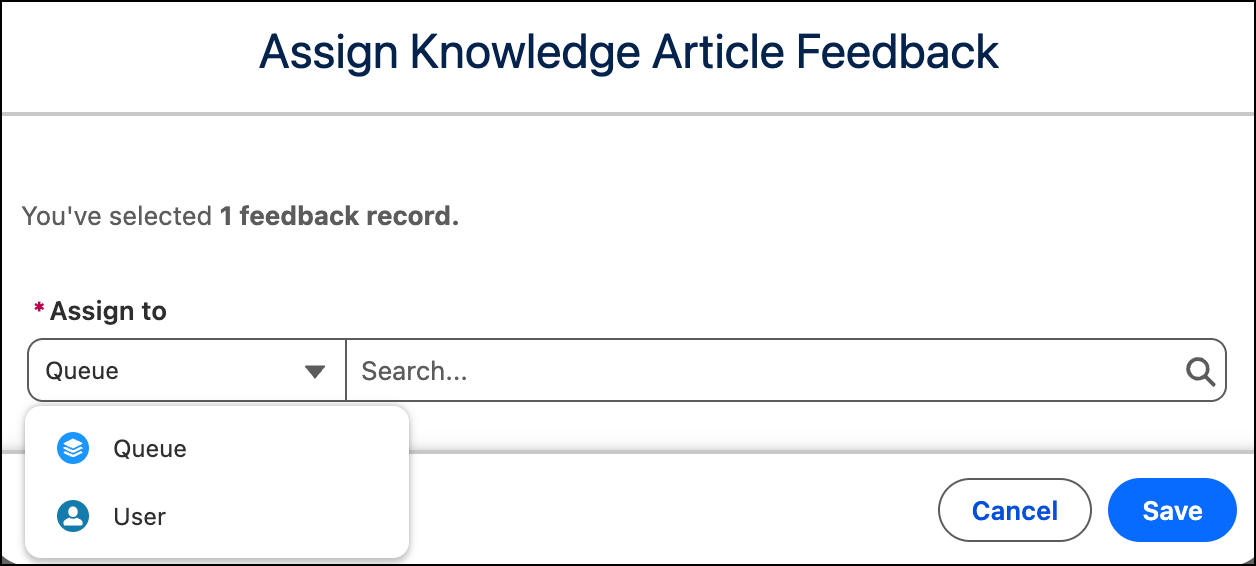
- In the Search field, search and select the name of the queue or user.
- Click Save.
- To track the progress of the feedback resolution, check the Review Action Taken, Review Due Date, and Review Comment fields in the Feedback Follow up section.
On the Article Feedback details page, the Assigned To field is read-only. You can’t change the feedback assignee from the Article Feedback details page. To change the assignee, go to the Knowledge Article Feedback page, select the feedback record, and click Assign Feedback.