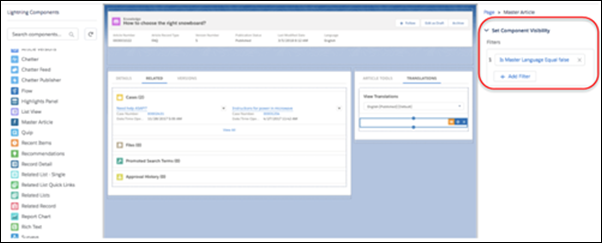
Look at a translated article and do a side-by-side comparison with the primary language
version of the article. Admins can add a primary article component to the page layout so authors
can view the primary language version beside the translated article.
Required Editions
| User Permissions Needed |
| To set up: |
Manage Salesforce Knowledge AND Manage Articles |
| To view articles: |
Allow View Knowledge |
To set up Primary Version and Translated Article viewing:
-
From Setup, select the Object Manager tab.
-
From the Object Manager, select the Knowledge
object. Then select the Lightning Record Page.
-
Click Edit, which takes you to the Lightning App
Builder.
-
Create a Translations tab in the right column and name it,
Translations.
-
Drag the Translation Primary Article component onto the new
Translations page.
-
Set component visibility filters, as needed. For example, if you set the filter to
Is Primary Language Equal False, then the primary article component
doesn’t show up. When you are on the primary language record (and you are not viewing the same
version of the article in both columns).
-
Save and activate the page.