---
schema_version: "1"
id: 4337d3c771555d4670d952584cfe25f70ef85406e839da23eaf05426b4e2fb38
title: Set Up Primary Article and Translation Side-By-Side View
collection: admin
version: current
locale: en-us
portal_url: https://docs.salesforce.com/admin/current/en-us/service/264-0-0/knowledge_primary_translation_comparison_view.md
canonical_url: https://help.salesforce.com/s/articleView?id=service.knowledge_primary_translation_comparison_view.htm&release=264.0.0&type=5
source_site: help.salesforce.com
content_type: documentation
content_hash: 3af67a703c9a36f5cb93b3f301b75f7d9540ed6d03bf6a539068b069b4e603e2
description: Look at a translated article and do a side-by-side comparison with the primary language version of the article. Admins can add a primary article component to the page layout so authors can view the primary language version beside the translated article.
products:
- Service Cloud
release: "264"
---
# Set Up Primary Article and Translation Side-By-Side View
Look at a translated article and do a side-by-side comparison with the primary language version of the article. Admins can add a primary article component to the page layout so authors can view the primary language version beside the translated article.
### Required Editions

Important Where possible, we changed noninclusive terms to align with our company value of Equality. We maintained certain terms to avoid any effect on customer implementations.
To set up Primary Version and Translated Article viewing:
1. From Setup, select the **Object Manager** tab.
2. From the Object Manager, select the **Knowledge** object. Then select the **Lightning Record Page**.
3. Click **Edit**, which takes you to the **Lightning App Builder**.
4. Create a Translations tab in the right column and name it, Translations.
5. Drag the **Translation Primary Article** component onto the new Translations page.
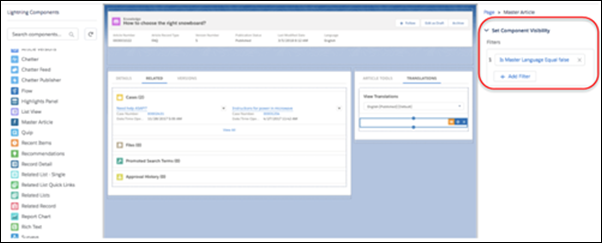
6. Set component visibility filters, as needed. For example, if you set the filter to Is Primary Language Equal False, then the primary article component doesn’t show up. When you are on the primary language record (and you are not viewing the same version of the article in both columns).
7. Save and activate the page.