
To organize your knowledge articles into a clear, hierarchical structure, turn on Knowledge Maps.
Required Editions
| Available in Lightning Experience. View supported editions. |
| User Permissions Needed | |
|---|---|
| To view Enhanced Knowledge Settings in Setup: | Knowledge User license |
| To set up Knowledge Maps |
Customize Application AND Read, Create, and Edit access for Knowledge Article Relationships. |
Before setting up Knowledge Maps, make sure you have published knowledge articles in your knowledge base.
See Also
Step 1: Enable Knowledge Maps and create a default article relationship map.
- From Setup, in the Quick Find box, enter Enhanced Knowledge Settings, and then select Enhanced Knowledge Settings.
-
Turn on Knowledge Maps.
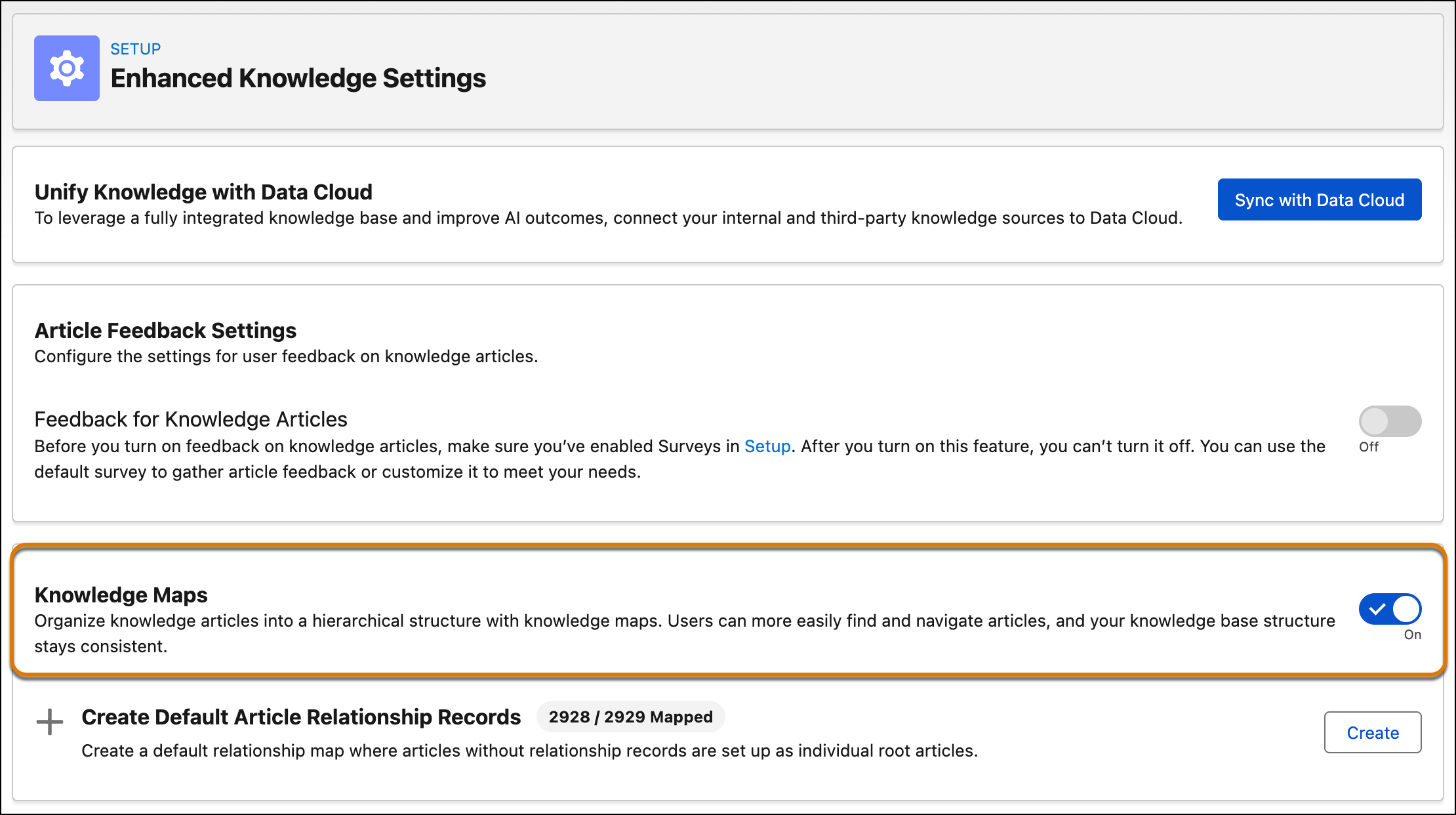
- In the Create Default Article Relationship Records section, click Create. This process creates a default relationship map where articles without relationship records are set up as individual root articles.
Step 2: Add Knowledge Maps component to the Lightning Knowledge Record page.
- From Setup, in the Quick Find box, enter Lightning App Builder, and then select Lightning App Builder.
- Edit the Lightning Record page.
-
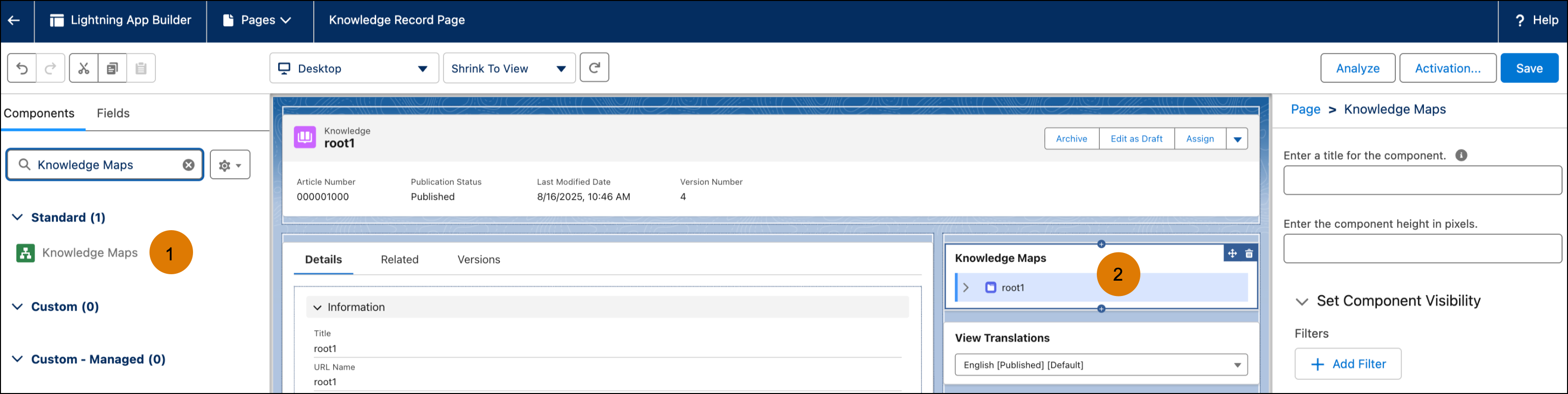
In the Lightning App Builder, go to the Components tab, search for the Knowledge Maps
component (1). Then, drag the component to where you want it to appear on the page (2).
- Save the page.
- Activate the Lightning Knowledge Record page, if applicable.