
Enable the Knowledge Feedback feature in Setup so users can provide feedback and suggestions on your knowledge articles.
Required Editions
| Available in Lightning Experience. View supported editions. |
| User Permissions Needed | |
|---|---|
| To view Enhanced Knowledge Settings in Setup: | Knowledge User license |
| To set up Salesforce Knowledge, create article types and article actions, and modify category groups assignments: |
Customize Application AND Manage Salesforce Knowledge |
| To enable Surveys: | System Administrator profile |
| To change picklists: | Customize Application |
This information applies to Aura sites. Before you set up Knowledge Feedback, complete these setup tasks.

- From Setup, in the Quick Find box, enter Enhanced Knowledge Settings, and then select Enhanced Knowledge Settings.
-
In the Article Feedback Settings section, turn on Feedback for Knowledge
Articles.
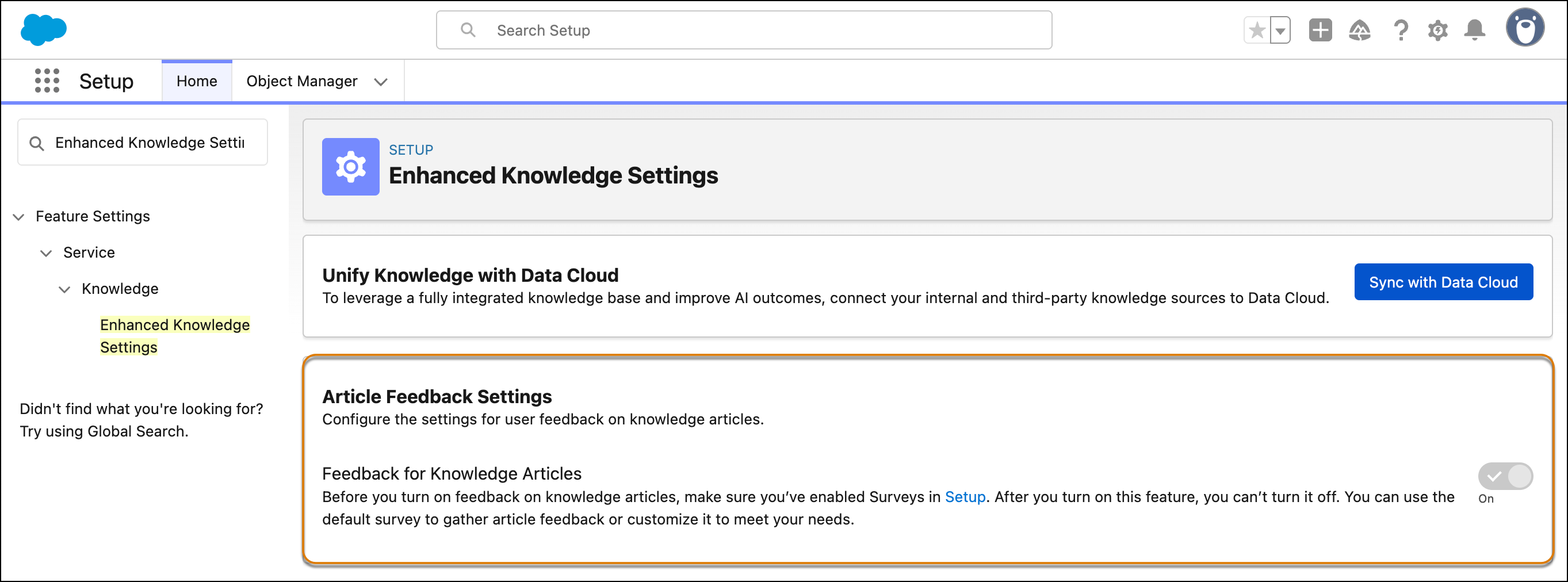 A default Knowledge Article Feedback survey form and a Knowledge Article Feedback object are created to capture knowledge feedback. You can keep the default survey form or customize it to suit your business needs. Knowledge Feedback doesn’t support matrix and attachment questions. Make sure you don’t include them in the Article Feedback survey form.
 -
Add article feedback components to the Lightning Knowledge Record page.
- From the App Launcher, find and select Knowledge and then open the Knowledge article for which you want to add article feedback components.
- Go to Setup and click Edit Page.
- In the Lightning App Builder, go to the Components tab, search for these components, and drag them to where you want them to appear on the page.
- Save the page.
- Activate the Lightning Knowledge Record page, if applicable.
Make sure that you’ve set Read and Create access to the Knowledge Article Feedback object for your users profile. With Read and Create access, your users can submit feedback on the Knowledge article page. After they submit feedback, a feedback record gets created in the Knowledge Article Feedback object.

Manage Picklists for Knowledge Article Feedback Object
You can add, remove, and edit values for picklist fields in the Knowledge Article Feedback object to align with your business needs.
- From Setup, in the Quick Find box, enter Object Manager, and then select Object Manager.
- Click Knowledge Article Feedback object.
- Click Fields & Relationships, and then click the name of the picklist field to update.
- In the field_name Picklist Values section, add new values, edit, or delete existing ones.
- Click Save.