
Create a new article from an existing one, and copy the fields and attached files you select.
Required Editions
| Available in Lightning Experience. View supported editions. |
| User Permissions Needed | |
|---|---|
| To clone a knowledge article: |
Knowledge User license AND Create Knowledge Articles |
- Open a Knowledge article, and then click Clone.
-
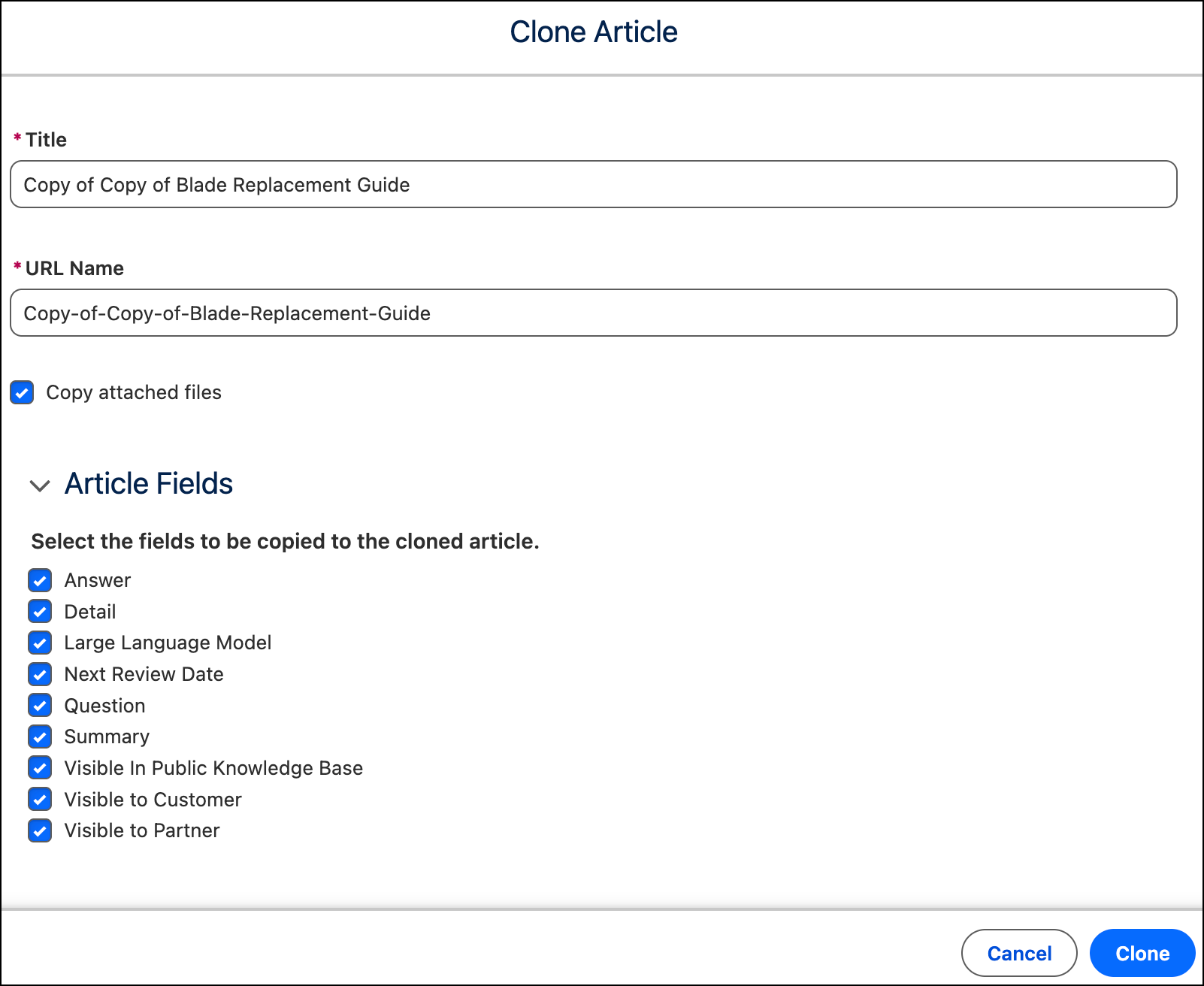
In the Clone Article dialog, review Title and URL Name.
- Title starts with "Copy of" followed by the original article title.
- URL Name uses that title with hyphens.
- Change the title and URL name so the new article fits its audience, product, or context.
- To include files from the original article, select Copy attached files.
- Under Article Fields, select the fields to copy.
- Click Clone.
After you clone the article, edit the new article, and then publish it or submit it for approval.