---
schema_version: "1"
id: 3d74479f95a9fea97d3989814919c91b05c623c8e8e684d52908926728bcb91f
title: Clone a Knowledge Article
collection: admin
version: current
locale: en-us
portal_url: https://docs.salesforce.com/admin/current/en-us/service/264-0-0/knowledge_article_clone.md
canonical_url: https://help.salesforce.com/s/articleView?id=service.knowledge_article_clone.htm&release=264.0.0&type=5
source_site: help.salesforce.com
content_type: documentation
content_hash: 89021600c7b6d50ee9043c12337898f3051f587a57c8491db37467734ea880bc
description: Create a new article from an existing one, and copy the fields and attached files you select.
products:
  - Service Cloud
release: "264"
---
# Clone a Knowledge Article

Create a new article from an existing one, and copy the fields and attached files you select.

### Required Editions

<table class="slds-table slds-table_bordered slds-max-medium-table_stacked slds-m-bottom_small edition"><colgroup><col></colgroup><tbody><tr class=""><td class="slds-cell-wrap" style="vertical-align:top;">Available in Lightning Experience. <a href="https://help.salesforce.com/s/articleView?id=service.service_editions_reference.htm&amp;language=en_US" target="_blank">View supported editions</a>.</td></tr></tbody></table>

<table class="slds-table slds-table_bordered slds-max-medium-table_stacked slds-m-bottom_small permission">
        <colgroup>
          <col style="width:50%">
          <col style="width:50%">
        </colgroup>
        <thead class="slds-text-title_caps ">
          <tr class="">
            <th scope="colgroup" class="slds-cell-wrap" colspan="2" style="text-align:center;vertical-align:top;" id="d22541e58">User Permissions Needed</th>
          </tr>
        </thead>
        <tbody>
          <tr class="">
            <td data-label="User Permissions Needed" class="slds-cell-wrap" style="vertical-align:top;" headers="d22541e58 ">To clone a knowledge article:</td>

            <td class="slds-cell-wrap" style="vertical-align:top;" headers="d22541e58 ">
              <p>Knowledge User license</p>
              <p>AND</p>
              <p style="margin-bottom:0;">Create Knowledge Articles</p>
            </td>

          </tr>
        </tbody>
      </table>

1. Open a Knowledge article, and then click **Clone**.
2. In the Clone Article dialog, review **Title** and **URL Name**.
    
    - Title starts with "Copy of" followed by the original article title.
    - URL Name uses that title with hyphens.
3. Change the title and URL name so the new article fits its audience, product, or context.
4. To include files from the original article, select **Copy attached files**.
5. Under **Article Fields**, select the fields to copy.
6. Click **Clone**.
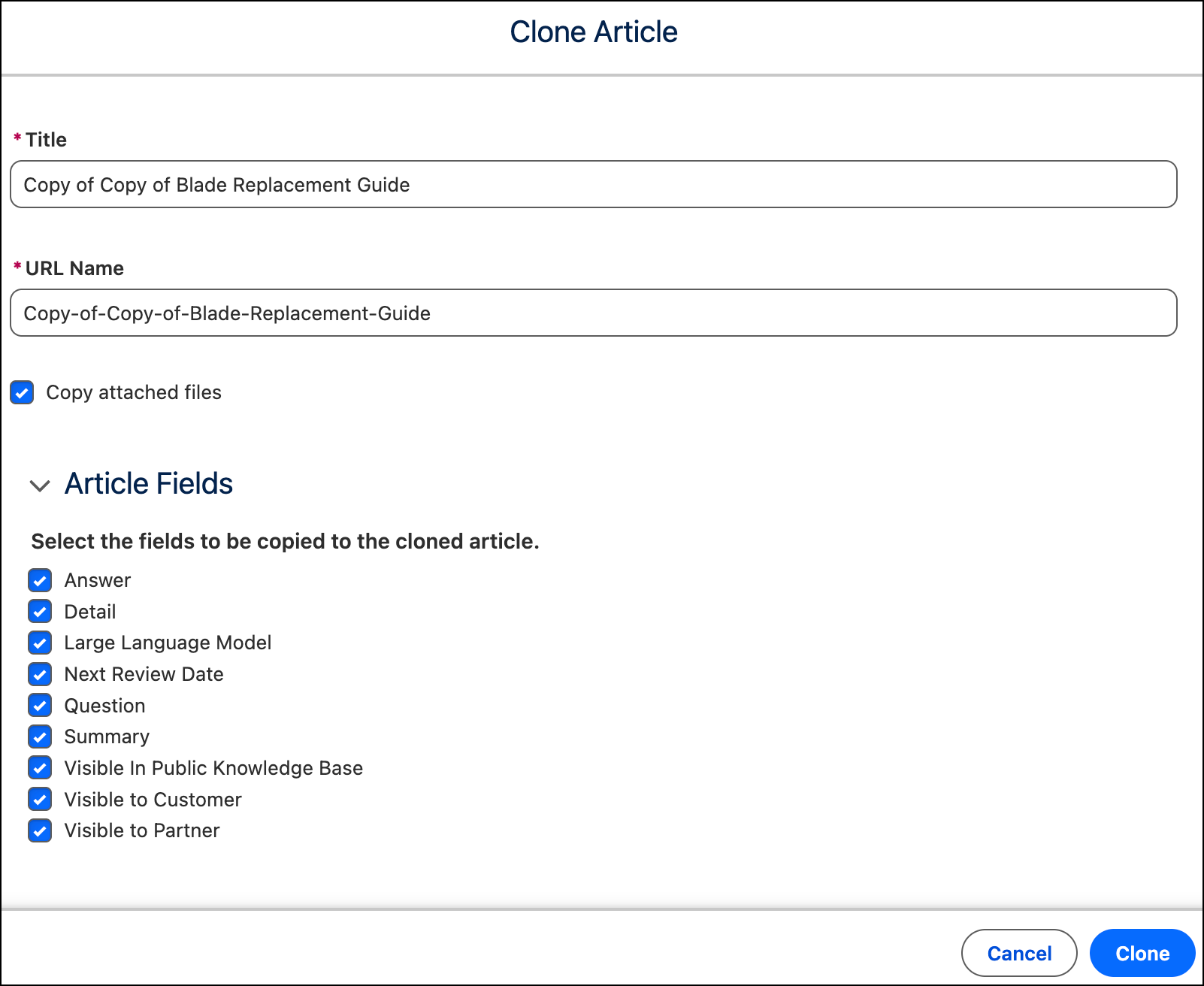
![The Clone Article dialog showing a prefilled Title and URL Name, Copy attached files selected, and all article fields selected.](https://sf-zdocs-cdn-prod.zoominsoftware.com/tdta-service-support-264-0-0-production-enus/dd14551c-a772-4db6-9a1d-d84df8df2980/support/images/knowledge/knowledge_clone_article.png)

After you clone the article, edit the new article, and then publish it or submit it for approval.