Provision CMDB and Servicegraph to create the required CMDB environment and prepare your
org for configuration. Provisioning creates a dedicated CMDB tenant and enables the required
licenses, and services. Complete provisioning before configuring CMDB in Salesforce Go. Manual
provisioning gives visibility into provisioning status and provides a clear recovery path if a
previous attempt failed.
Required Editions
| Available in: Lightning Experience |
| Available in: Enterprise, Performance, and Unlimited
Editions with Agentforce IT Service. |
| User Permissions Needed |
| To provision CMDB: |
View Setup and Configuration |
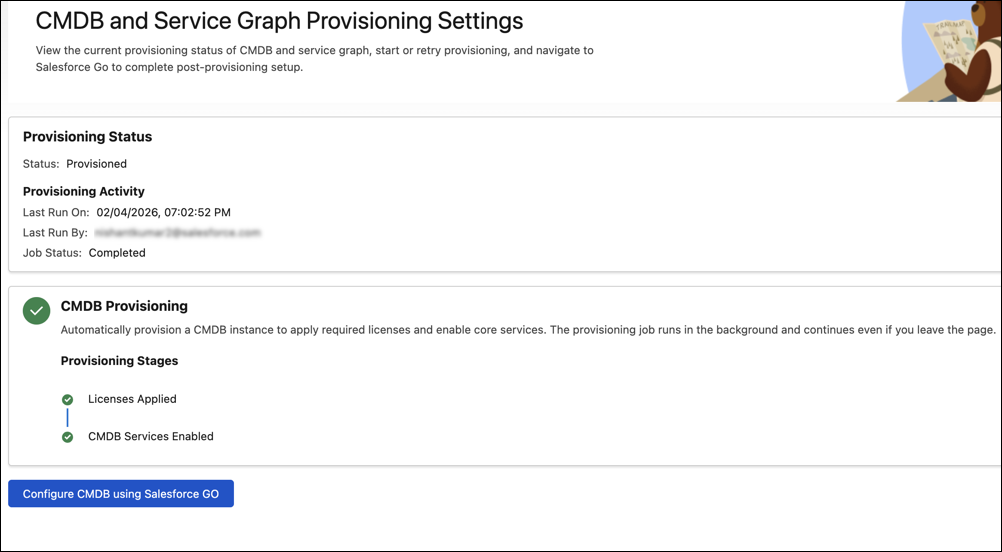
Provisioning creates the CMDB tenant required for setup. Until provisioning completes, CMDB
configuration and related features remain unavailable.
Provisioning runs in the background and you can leave the page while the job runs.
The page shows the current Provisioning Status and the stages of the job:
- Licenses Applied
- CMDB Services Enabled
If provisioning fails at any stage, the status shows Failed. You can rerun the provisioning
job from this page.
-
From Setup, enter CMDB in the Quick Find box.
-
Select CMDB and Service Graph in Feature Settings.
-
Review the Provisioning Status section.
-
If the status is Not Provisioned or Failed, click Provision
CMDB.
-
Wait until the status changes to Provisioned.
Provisioning can take a few minutes. You can leave the page while the job runs.
When the status shows Provisioned, the details are populated in the Provisioning
Activity section.
You can then click Configure CMDB using Salesforce Go to complete
the CMDB setup. In Salesforce Go, you can turn on the CMDB feature, discovery options, and
configure data population rules. Provisioning prepares the environment. Salesforce Go configures
how your CMDB works. For more information, see Set Up CMDB Using Salesforce Go.