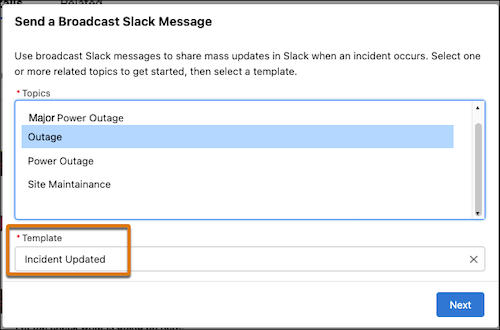
To send broadcast Slack messages that are customized to your business needs, create custom broadcast Slack message templates. By default, the template is set to Incident Updates in Slack (Default).
Required Editions
| View supported editions. |
Before you create a broadcast Slack message template, complete the Service for Slack app setup and enable broadcast Slack messages.
- From Setup, in the Quick Find box, enter Customer Service Incident Management, and then click Customer Service Incident Management.
- Under Set Up Broadcast Slack Message, find Create Custom Templates (Optional), and select Create Templates.
- Under Custom Notification Types, select New.
- Select Slack as the notification type.
- Enter a custom notification name and API. The name shows to users when they create a broadcast Slack message as the template name.
- Set the object to Incident.
- Optionally, enter a description, then click Next.
- Set the distribution app to Service Cloud for Slack, then select Next.
-
Enter a title and body message. This text is what’s sent to users in the Slack channel when
a broadcast Slack message is created. To make your broadcast Slack message template dynamically
update based on the record’s field, use merge fields. See Merge Fields in Slack Notifications
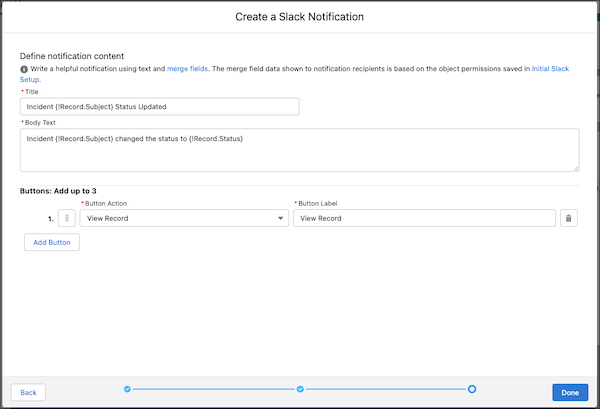
- Optionally, add action buttons.
- Click Done.
When a user creates a broadcast Slack message from an incident, they can now select the custom template.