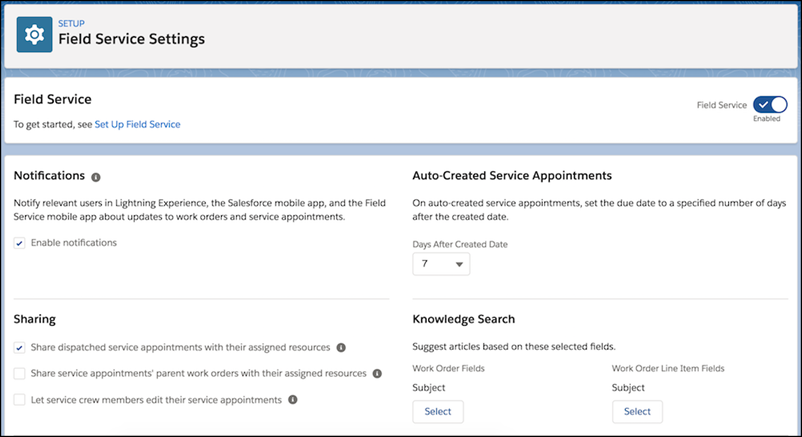
Enable Field Service to start using Field Service features.
Required Editions
| Available in: both Salesforce Classic (not available in all orgs) and Lightning
Experience |
| The Agentforce Field Service and Operations core features, managed package, and
mobile app are available in Enterprise, Unlimited, and Developer
Editions. |
| User Permissions Needed |
| To enable Field Service: |
Customize Application |
-
From Setup, enter Field Service Settings in the Quick Find box, then
select Field Service Settings.
-
Enable Field Service, and click Save to display more settings.
If you don’t have a Field Service add-on license, an option to enable work orders is on by
default. If Field Service was enabled, but the license was removed or has expired, that option
is off by default.
-
Optionally, turn on in-app notifications for Salesforce app and Lightning Experience users
when any of the following actions occurs on a work order or work order line item that they own
or follow:
- A text or file post is added
- A tracked field is updated
- The record owner changes
- The resource assignments change on a related service appointment
If the option to track all related objects is selected in your feed tracking settings for
work orders, users are also notified when child records of work orders—such as service
appointments—are created or deleted.
-
Optionally, update the sharing settings. See Limit Access to Field Service Records.
-
When you set up work types, which are templates for work orders, you can opt to
automatically add a service appointment to new work orders or work order line items associated
with a work type. Configure the number of days between the created date and due date on
auto-created service appointments.
-
If you want to use your knowledge base in field service, select the fields that the search
engine scans to suggest articles on work orders or work order line items.
-
Save your changes.