Customize the text that appears in the channel menu on your website or Experience Cloud
site. You can use the existing default labels or create custom labels for your menu header and
channel names. Additional steps are required for translated labels.
Required Editions
| User Permissions
Needed |
| To set up a channel menu: |
Customize Application AND Modify Metadata |
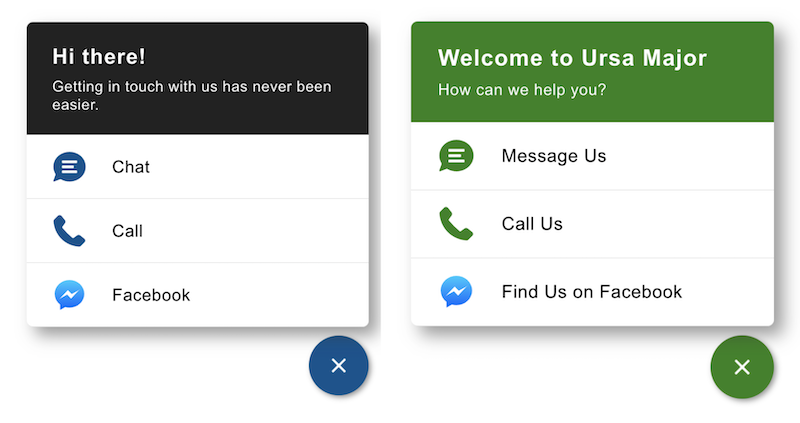
Here’s a side-by-side comparison of a channel menu before and after light branding. The
button and header background colors were changed in Branding. The Header text and Menu Item
text was changed in Labels.
-
From Setup, enter Channel Menu in the Quick Find box and select
Channel Menu.
-
Click the name of the channel menu you want to edit.
-
In the Labels section, click Edit.
-
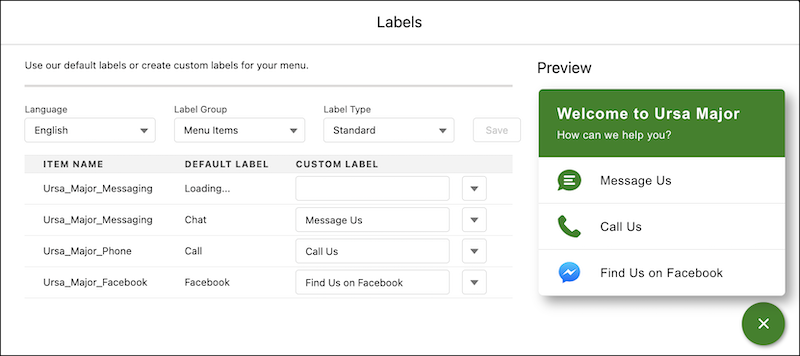
To change your default names, select All in the Label Group and
Standard in Label Type.
-
Enter your custom label text for each default label.
-
Save your work before moving to a new Label Group or Label Type.
-
Your updated labels appear in the Preview window.
-
Click Finish.
If you don’t see the language you need in the Language field for your labels, add and
activate languages for translation on the Translation Language Settings page in Setup.
The translation function isn't available in single-language Salesforce orgs. In addition,
the admin must authorize a logged-in user to translate labels in a specific language.