
Select and customize the customer channels that will appear in the channel menu on your Salesforce site or Experience Cloud site.
Required Editions
| View supported editions. |
| User Permissions Needed | |
|---|---|
| To set up a channel menu: | Customize Application AND Modify Metadata |
Before adding menu items, create a channel menu deployment on the Channel Menu page in Setup.
- From Setup, enter Channel Menu in the Quick Find box and select Channel Menu.
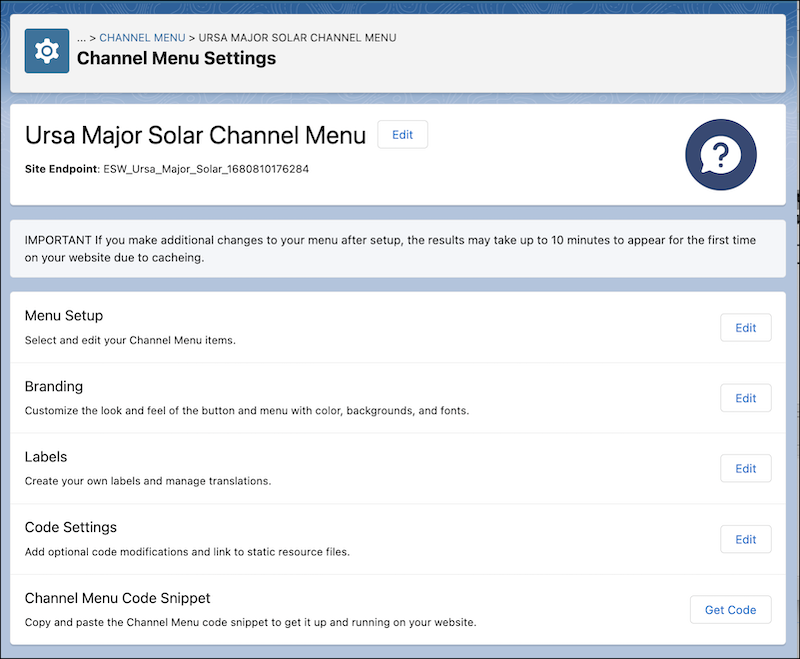
- Click the name of the channel menu you want to edit.
-
In the Menu Setup section, click Edit.
-
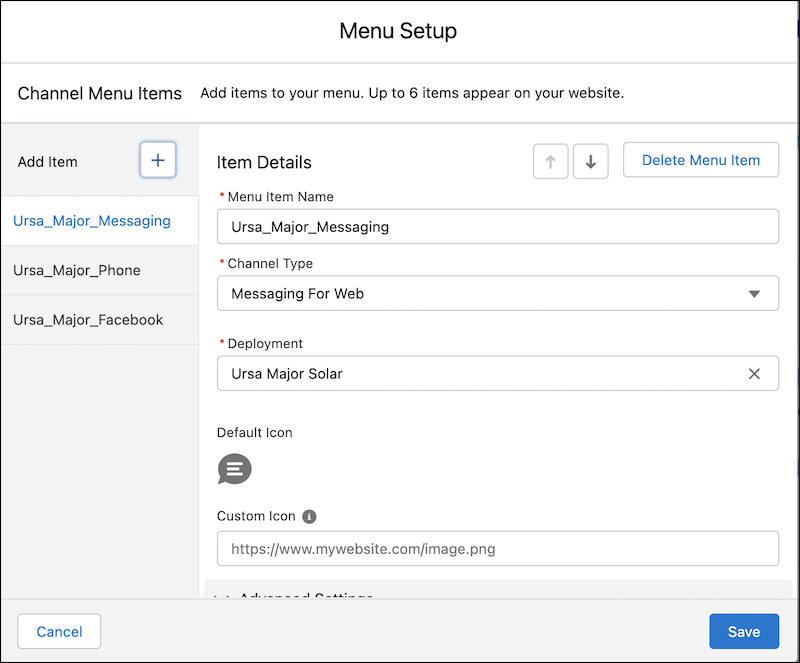
Click the Add Item button to add up to six channels for your website. As you add each
item, enter details:
- Add a menu item name, which isn’t visible to customers.
- Select a channel type: Call, SMS, Apple Messages for Business, Enhanced Web Chat, Facebook, WhatsApp, or Web URL.
- Provide the phone number, URL, or active messaging channel to link the menu item to. If you have international customers, use the + symbol with a country code for your number when adding a phone channel.
- Optionally, add a custom icon.
- Under Advanced Settings, if you're using the Channel Menu Reordering API, deselect Show this menu item. Otherwise, leave it selected.
- Optionally, hide the menu item for specific user operating systems. For example, hide Enhanced Web Chat for the mobile platform to encourage the use of mobile-friendly channels such as WhatsApp or SMS.
- Change the order of the menu items with the up and down arrow buttons.
- Click Save when all your channels have been added to the menu.
You can edit your menu items at any time.