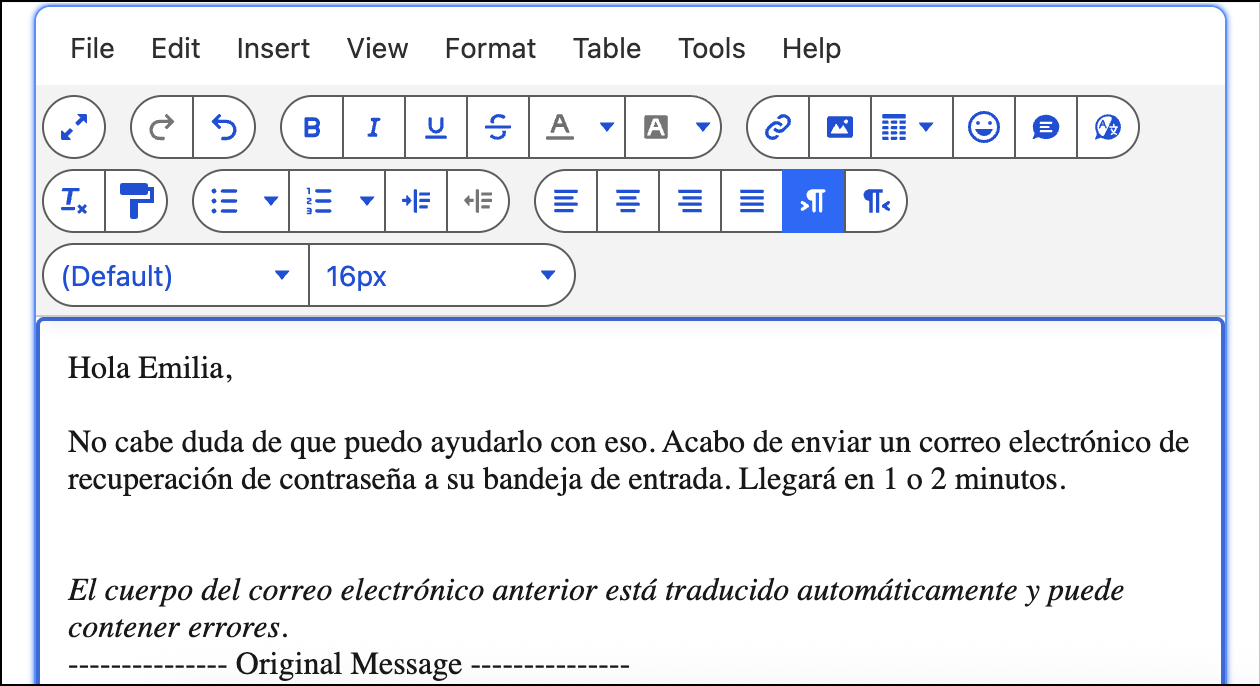
Translate end user emails and send translated replies in the case feed or email composer.
Required Editions
| View supported editions. |
| User Permissions Needed | |
|---|---|
| To translate inbound emails in the case feed and email replies in the email composer: | Real-Time Translations for Service Email permission set AND Translate Service Emails permission |
Translate Emails in the Case Feed
To read an email in your preferred language, translate it in the case feed.
- On the Cases tab, click a case number to open an email exchange in the case feed.
-
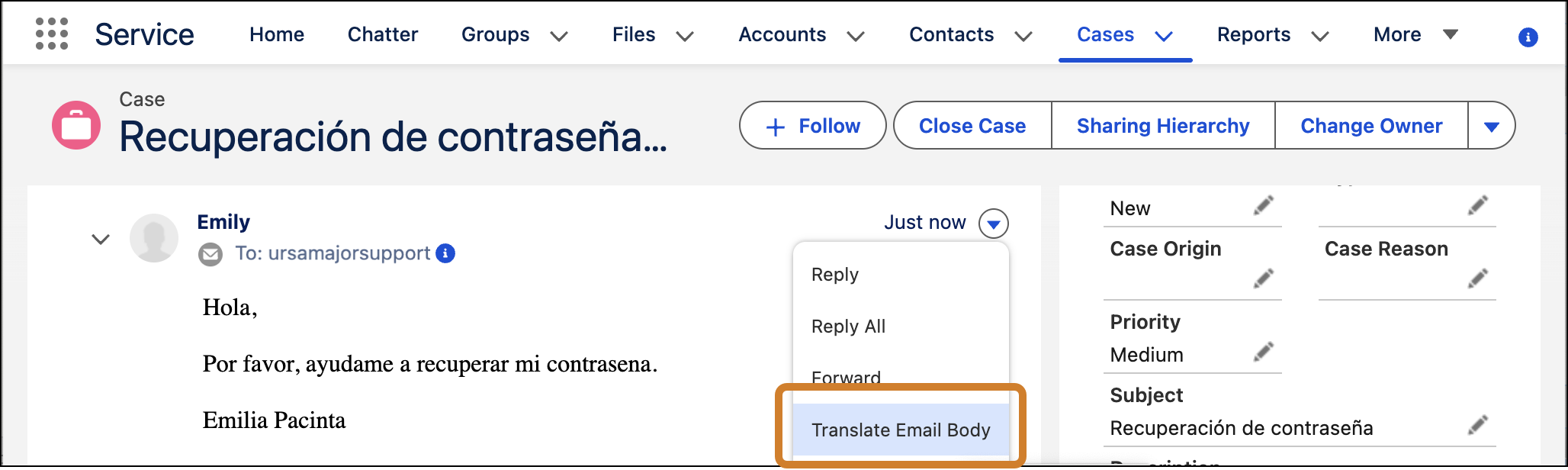
Click the arrow to the right of an email, and select Translate Email Body.
-
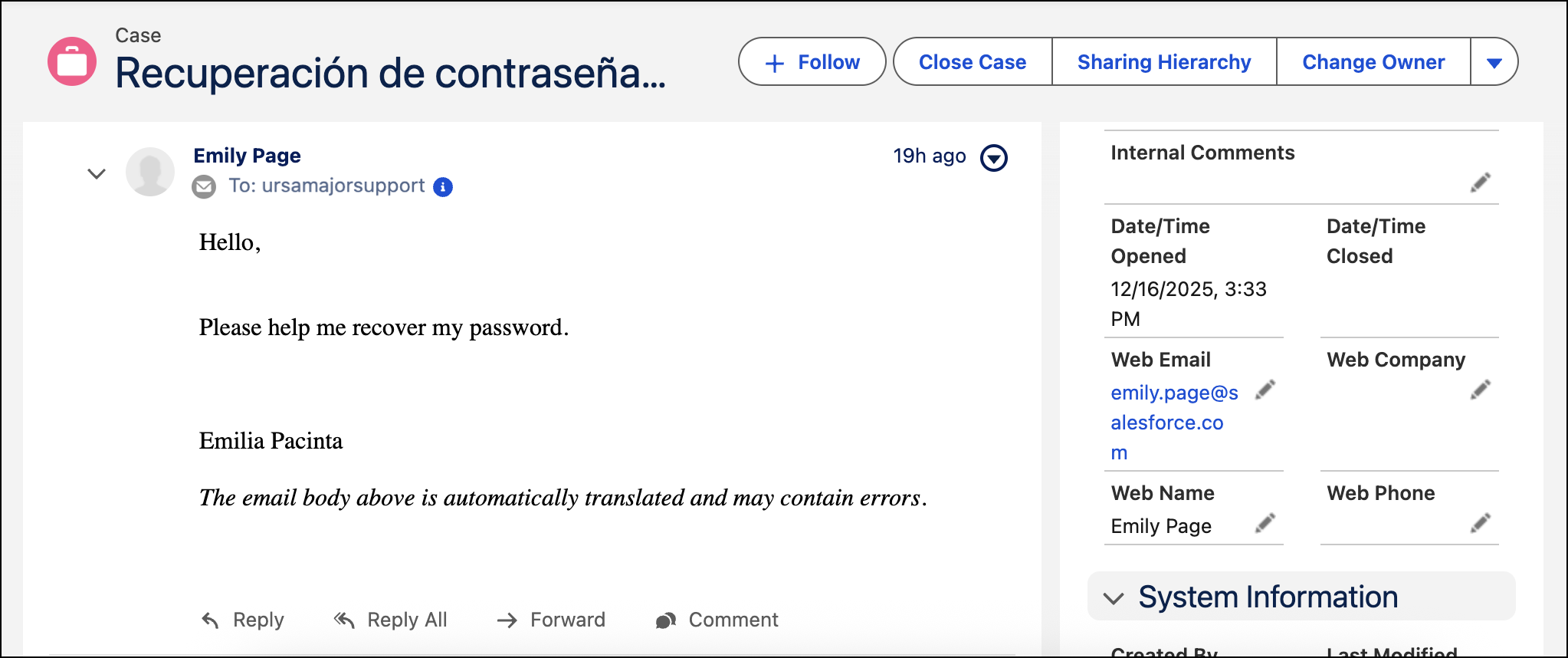
Review the translated version of the email.
Translate Emails in the Email Composer
To reply to an email in your preferred language, translate your response in the Email Composer and then send it.
-
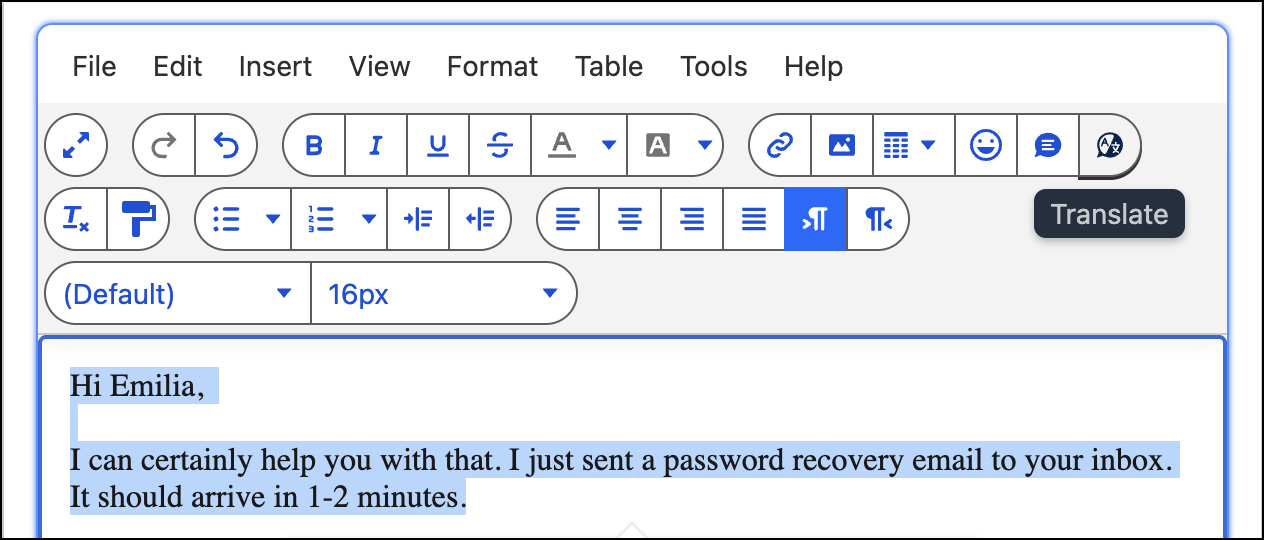
Highlight the text that you want to translate. This should be text above the previously
quoted email.
-
Click the Translate button in the email toolbar.
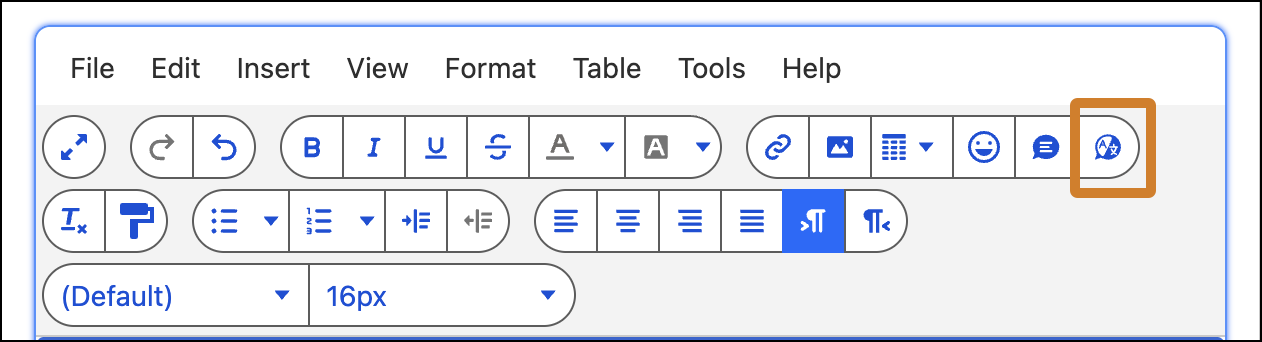
-
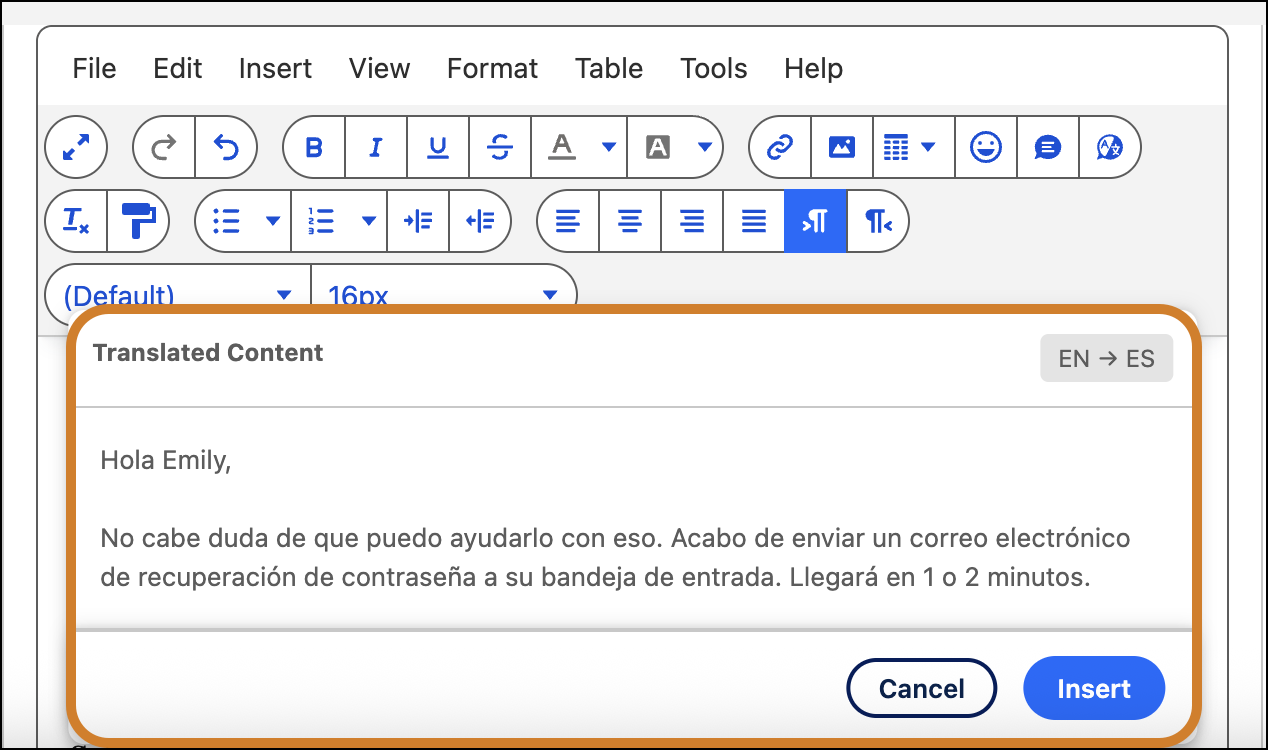
Review the translated version of the highlighted text in the modal, and click
Insert.
-
Make final edits to your response, and send it.