
To quickly start using Email-to-Case, we recommend turning it on in Salesforce Go. When you turn on Email-to-Case in Salesforce Go, these settings become active.
Required Editions
| Salesforce Go is available in Lightning Experience |
| Available in: Pro Suite, Professional,Enterprise, Unlimited, and Developer editions with Agentforce Service (formerly Service Cloud) |
Where To Find Salesforce Go
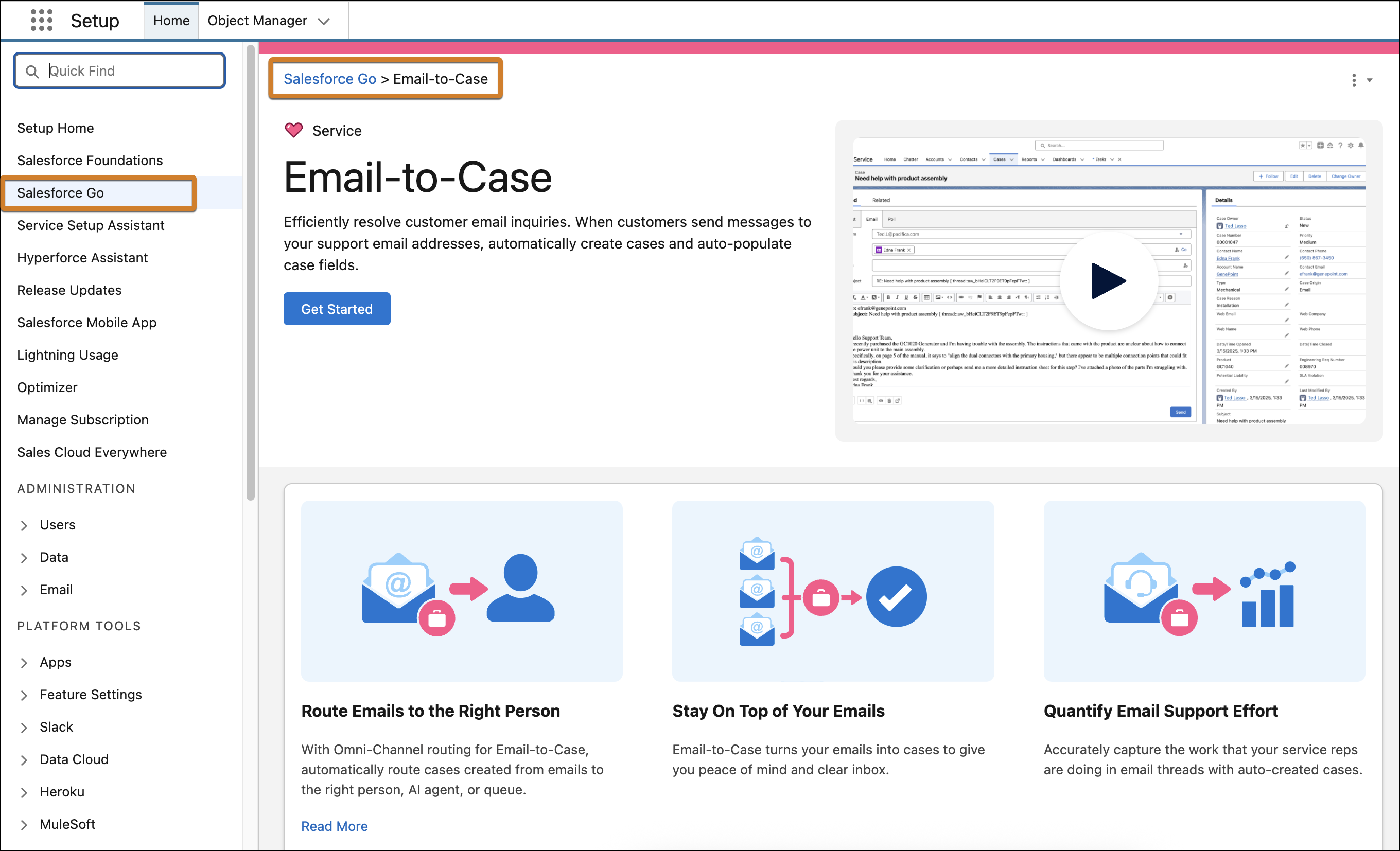
In Setup, click Salesforce Go at the top of the Setup menu. Then, search for Email-to-Case.
Default Settings
Email-to-Case interacts with other features, so it's important to understand its effects when enabled.
| Setting | What It Does | Considerations |
|---|---|---|
| Turn on Email-to-Case settings |
Enables Email-to-Case and the following settings.
|
After you turn on Email-to-Case, you can’t turn it off, but you can update its settings. Enable HTML email is required. We recommend you leave on all email threading settings for optimal security. We recommend you leave on the set case source to email setting to ensure that the Case Source field on newly created cases is set to Email. |