
Define the high-level goals, timelines, and resources for a proactive outreach initiative to organize your service efforts. Service campaigns are created through Proactive Service Scenarios or by using an invocable action within a Flow.
Required Editions
| Available in: Salesforce Classic and Lightning Experience |
| Available in: LWR and Aura |
| User Permissions Needed | |
|---|---|
| To create a service campaign: | Service Campaign permission set |
Make sure that you've completed the Install and Enable Proactive Service Intelligence.
Service campaigns group related detection rules and customer interactions for specific goals like firmware updates or high latency troubleshooting. Admins generate these campaigns by configuring a proactive service scenario to create campaigns based on events or by using the Create Service Campaign invocable action within a Flow.
When you configure a scenario, select specific attributes from the Event DMO and Segment DMO to
ensure correct record association. The system stores the chosen Event DMO attribute in the
ExternalFieldValue on the ServiceCampaign record, which agent actions use to identify the
record. The Segment DMO attribute name and value are stored in the ServiceCampaignMemberItem
record.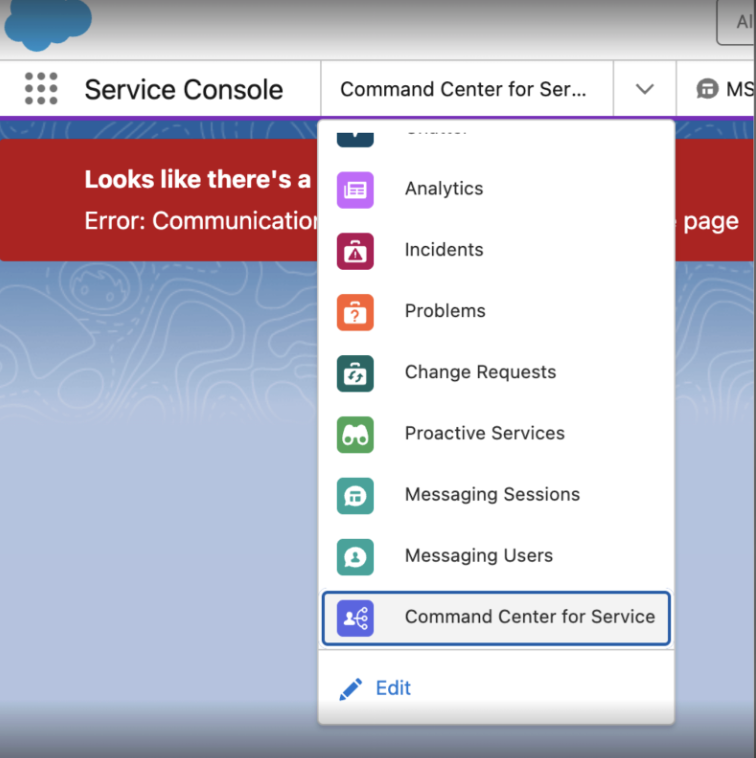
- From the App Launcher, find and select Service Console.
- Select the navigation menu and then select Proactive Service Scenarios.
- Select an existing scenario or create a new one.
- Navigate to the Campaigns section within the scenario page.
- Enter a descriptive name in the Campaign Name field.
- Choose the Status for the campaign, such as Planned or Active.
- Define the Start Date and End Date for the outreach initiative.
- Enter the Description to provide context for agents and stakeholders.
- Save your work.