---
schema_version: "1"
id: 7e2581002101af7f5b2520799a490637bdc4042fe619e26e64a451990c08451b
title: Create Service Campaigns
collection: admin
version: current
locale: en-us
portal_url: https://docs.salesforce.com/admin/current/en-us/service/264-0-0/create_service_campaigns.md
canonical_url: https://help.salesforce.com/s/articleView?id=service.create_service_campaigns.htm&release=264.0.0&type=5
source_site: help.salesforce.com
content_type: documentation
content_hash: 82f6a9770b98dd218434d077205c466183b1f795babdca3c5a95f2ab4fd6e6e8
description: Define the high-level goals, timelines, and resources for a proactive outreach initiative to organize your service efforts. Service campaigns are created through Proactive Service Scenarios or by using an invocable action within a Flow.
products:
- Service Cloud
- Service Intelligence
release: "264"
---
# Create Service Campaigns
Define the high-level goals, timelines, and resources for a proactive outreach initiative to organize your service efforts. Service campaigns are created through Proactive Service Scenarios or by using an invocable action within a Flow.
### Required Editions
Available in: Salesforce Classic and Lightning Experience
Make sure that you've completed the [Install and Enable Proactive Service Intelligence](https://help.salesforce.com/s/articleView?id=service.install_and_enable_proactive_service_intelligence.htm&release=264.0.0&type=5 "Activate the core Proactive Service application to enable the centralized setup interface and the analytical dashboards used to monitor campaign performance.").
Service campaigns group related detection rules and customer interactions for specific goals like firmware updates or high latency troubleshooting. Admins generate these campaigns by configuring a proactive service scenario to create campaigns based on events or by using the Create Service Campaign invocable action within a Flow.
When you configure a scenario, select specific attributes from the Event DMO and Segment DMO to ensure correct record association. The system stores the chosen Event DMO attribute in the ExternalFieldValue on the ServiceCampaign record, which agent actions use to identify the record. The Segment DMO attribute name and value are stored in the ServiceCampaignMemberItem record.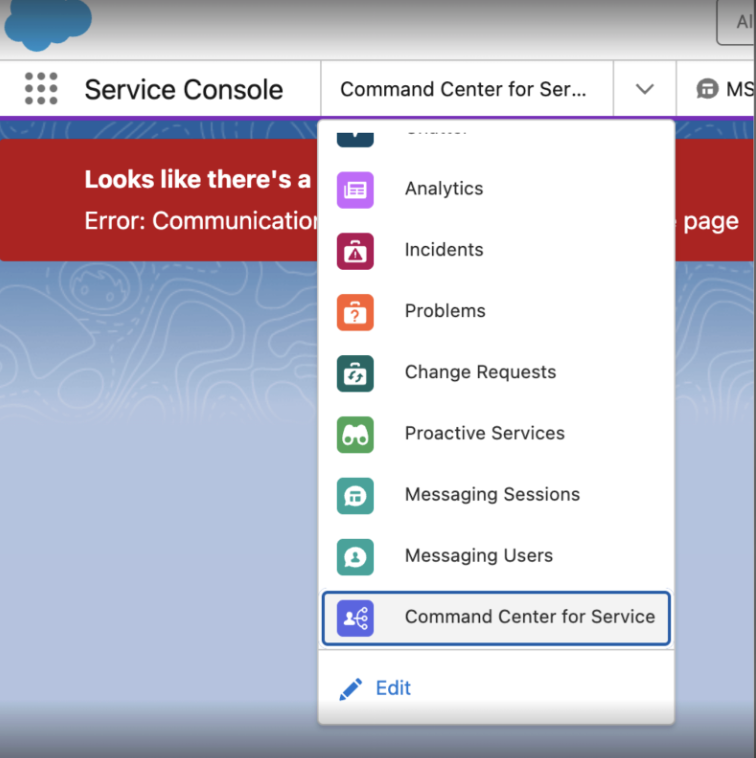
1. From the App Launcher, find and select **Service Console**.
2. Select the navigation menu and then select **Proactive Service Scenarios**.
3. Select an existing scenario or create a new one.
4. Navigate to the Campaigns section within the scenario page.
5. Enter a descriptive name in the Campaign Name field.
6. Choose the Status for the campaign, such as Planned or Active.
7. Define the Start Date and End Date for the outreach initiative.
8. Enter the Description to provide context for agents and stakeholders.
9. Save your work.