To analyze conversation transcripts, leverage Data 360 reporting.
- Verify that you completed the prerequisites listed in Analyze Conversation Transcripts in Data 360, and that you created data streams for your conversation data.
- From the App Launcher, find and select Data Cloud.
- Click the Reports tab. If you don’t see the Reports tab, from the App Launcher, find and select Reports to create a Reports tab in Data Cloud. You need Data 360 reporting permissions to view the Reports tab.
- Click New Report.
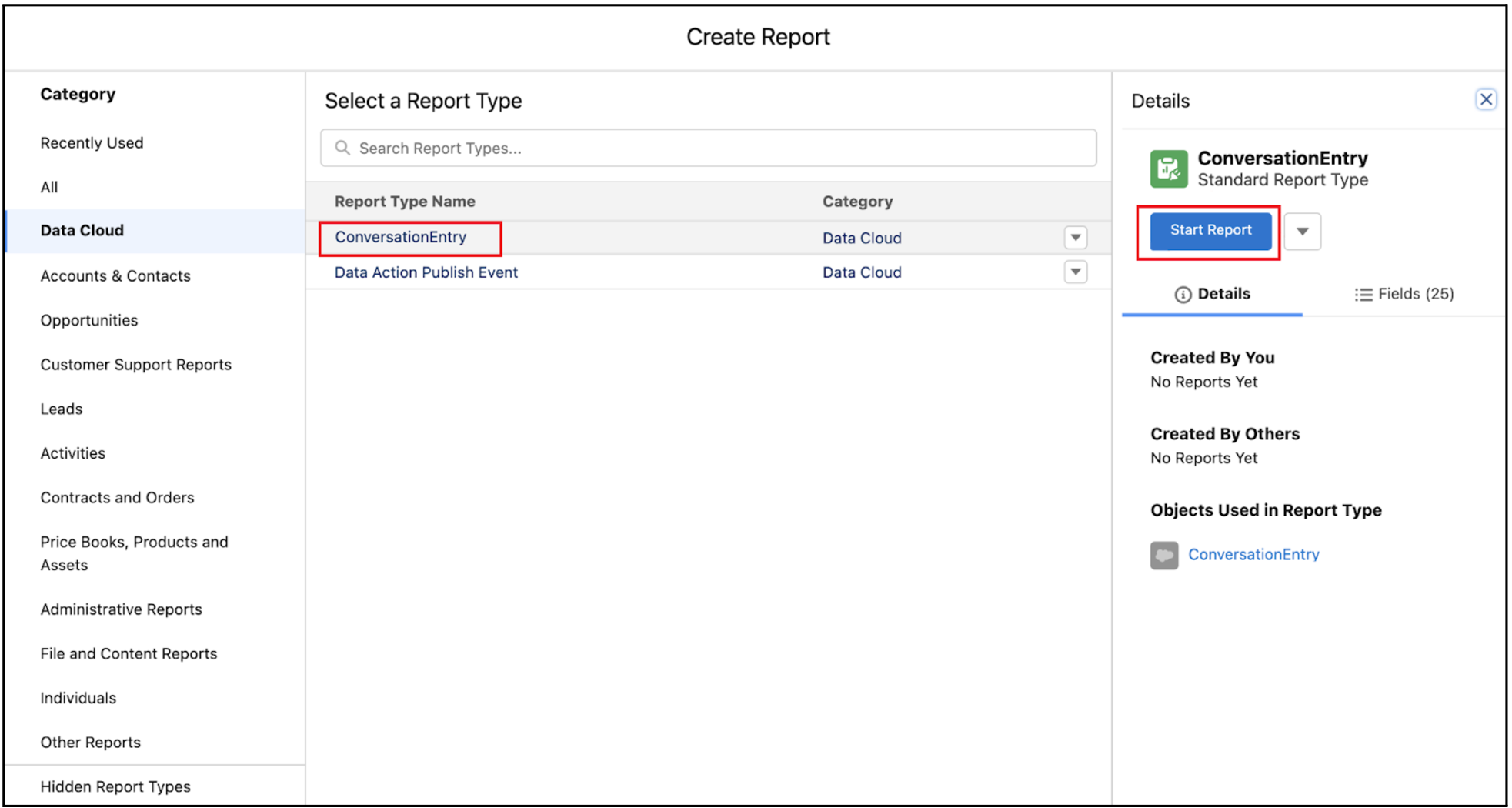
- Under Category, click Data Cloud and then select ConversationEntry as the report type.
- Click Start Report.
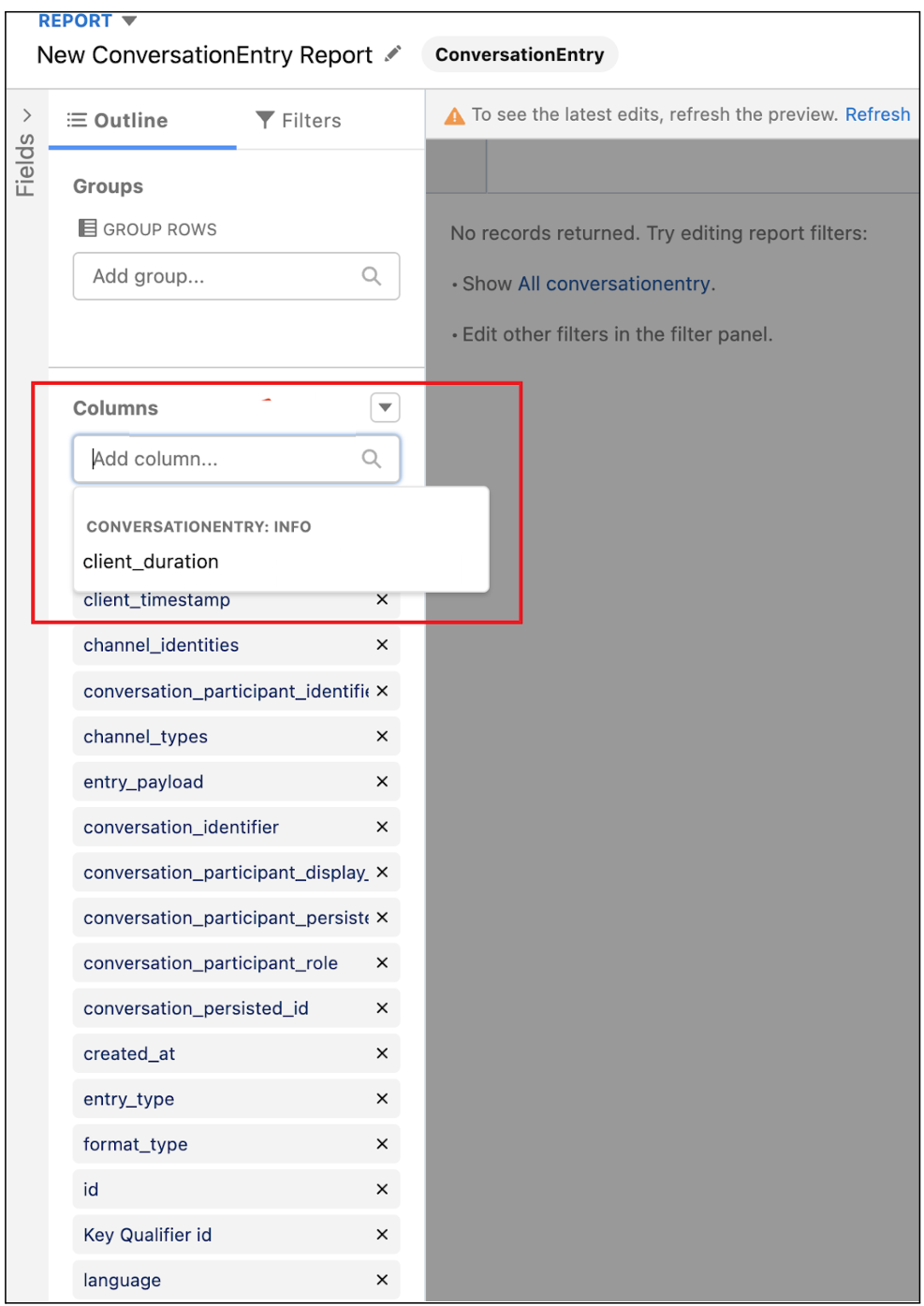
- Click Add column to add columns that you want in the report.
- Click Run. The results are displayed in a tabular format. You can save the report with the desired name and also export it in .xls, .csv, .xlsx formats with multiple character encoding formats.