
To show Einstein’s predictions to service reps, add the Einstein Field Recommendations component to the Lightning Service Console.
Required Editions
| View supported editions. |
| User Permissions Needed | |
|---|---|
| To build and manage Einstein Case Classification and Einstein Case Wrap-Up: |
View Setup AND Customize Application AND Manage Profiles and Permission Sets AND Edit on cases OR Modify All Data |
-
In the Lightning App Builder, open the case record page, chat transcript record page,
or a custom page where you want to show predictions from Einstein Case Classification or
Einstein Case Wrap-Up.
 Note We recommend adding Case Wrap-Up to the Chat Transcript record page and Case Classification to the Case record page.
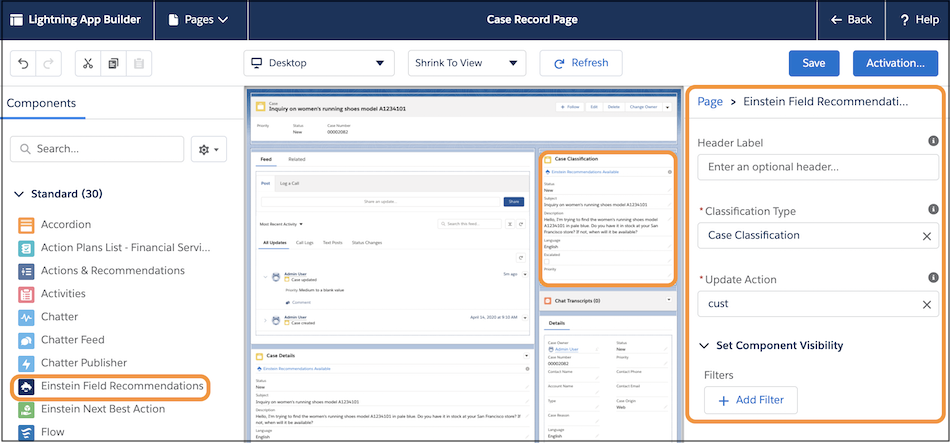
 - Drag the Einstein Field Recommendations component onto the page.
- Select Case Classification or Case Wrap-Up as the type.
-
Select an update action to replace the default Update Case action. The update action’s
layout determines which fields appear in the component. To see recommendations for those
fields, we recommend you add all your prediction fields to the layout of the custom Case
update Quick Action. For prediction fields that are dependent on another field, we
recommend that you include the parent field as well.
-
Optionally:
- Add a custom header label to replace the default header.
- Add a filter to control when the component is visible.
- Save your changes.
If your service reps use Einstein Case Classification in Salesforce Classic, to show predictions in the Service Console:
- Add a sidebar and select Einstein Case Classification Recommendations as the Type.
- To avoid horizontal scrolling, make the width of the sidebar at least as wide as most of the picklist or lookup field values.