
After you configure the predictive model, its status changes to Ready to Build. Check your Fields to Predict and build your model.
Required Editions
| View supported editions. |
| User Permissions Needed | |
|---|---|
| To build and manage Einstein Case Classification and Einstein Case Wrap-Up: |
View Setup AND Customize Application AND Manage Profiles and Permission Sets AND Edit on cases OR Modify All Data |
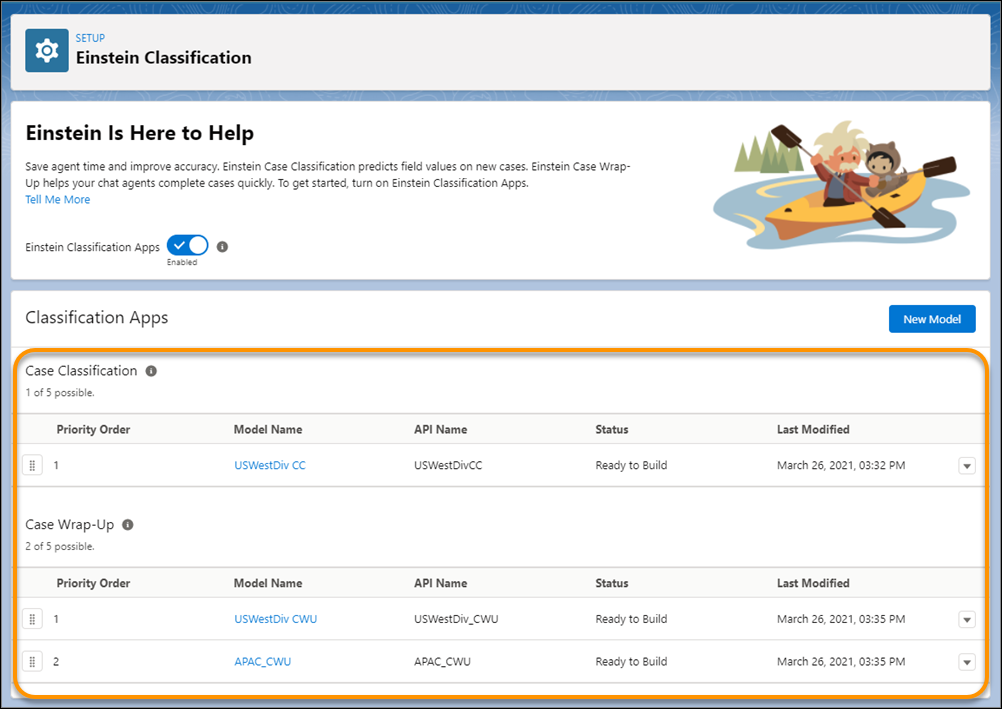
As Einstein completes learning for each field, the model’s owner is notified about build progress. To check if the build is completed, visit the Einstein Classification Setup page.
-
To build a model, on the Setup page, select the model name.
- Click the model’s Setup tab.
-
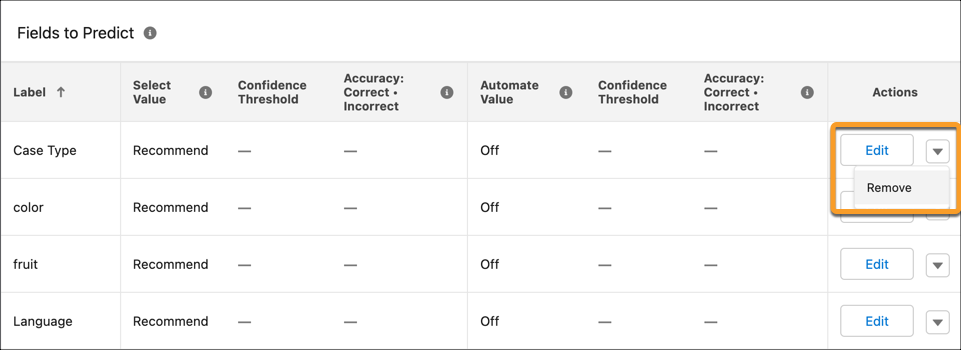
The Fields to Predict section lists the fields whose values Einstein predicts. To remove a
field from the model, click Remove in the field’s action menu. To add
fields, click Edit under Configure Data.
-
Build the model.
Einstein starts analyzing your closed cases and building the model for the fields you selected. Depending on your case volume and the number of fields that you selected, building the model can take a few hours. The process runs in the cloud, and won’t impact performance for your agents. We notify the model’s owner as Einstein completes learning for each predicted field.

Note You can’t pause a model build, but you can update the model’s settings after it’s built.
To add more fields later, edit the model, add the fields, and then rebuild.
After the model finishes building, you can configure each field’s prediction settings. Then, activate the model to start showing recommendations in the Service Console. After the initial build date, Einstein retrains your model every 30 days.
Note You can’t copy a built model into multiple orgs. Each model is unique because it’s trained
on your orgs data set.