To show service reps summaries, add the Wrap Up component to the chat transcript
page.
Required Editions
| User Permissions
Needed |
| To create and save Lightning pages in the Lightning App Builder: |
Customize Application |
-
From Setup, go to Object Manager.
-
Select the Case object, and then select Buttons, Links,
and Actions.
-
Either select an existing update record quick action or create one.
-
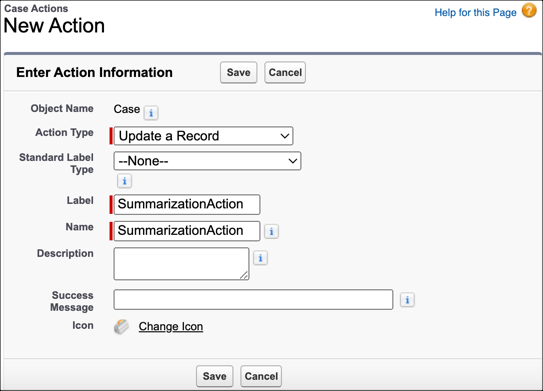
To create a quick action, select New Action. For action type
select Update a Record. Enter a label and click
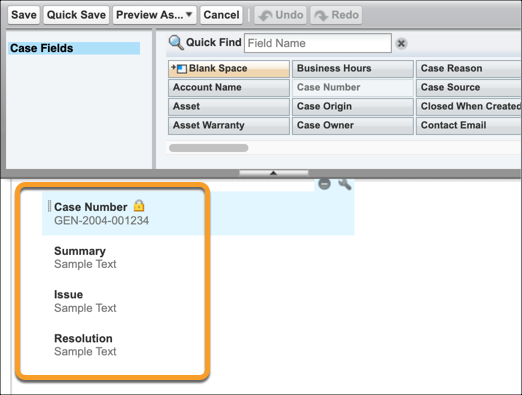
Save. Under Case Fields, drag the mapped summary fields into the
layout.
-
To use an existing update a record quick action, add the fields you selected for summary
mapping. To add the summary fields from your existing Quick Action click Edit
Layout. Under Case Fields, drag the mapped summary fields into the layout.
-
Click Save.
-
From Setup, go to Lightning App Builder.
-
For the Chat Transcript Record Page, click Edit.
-
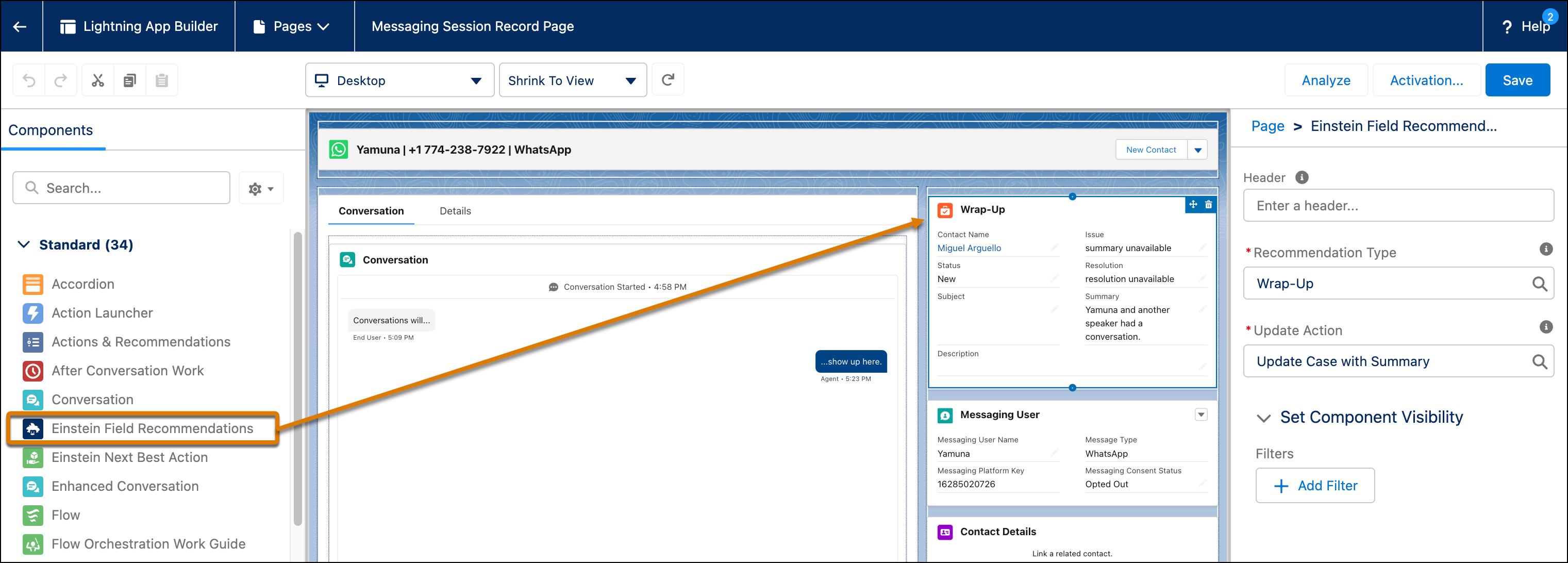
From the standard components menu, drag the Einstein Field Recommendations component onto
the Chat Transcript Record Page.
-
Select Wrap Up for the recommendation type, and select your update
record quick action for the Update Action.
-
Click Save and Activate.

 Note Use Case Wrap-Up and Work Summaries from the same component by customizing the update action layout. The update action’s layout determines which fields appear in the component.